

Activity types
For admins
An activity type says how a piece of time was spent, for example Development or Meetings. Every entry has one. Reports group time by it, and the timesheets you send to clients print it on every line. Each organisation has its own list, and only org admins can change it. Managers and members choose from the list when they log time, but never see the controls on this page.
The default list
Section titled “The default list”Every organisation starts with eight types, in this order:
| Label | Key |
|---|---|
| Development (the default) | dev |
| QA | qa |
| Design | design |
| Project management | pm |
| DevOps | devops |
| Research | research |
| Meetings | meeting |
| Rework | rework |
The label is what people see in pickers, My week, Reports, the CSV export and timesheets. The key is the short word typed after # in a /spend comment, for example /spend 2h #qa.
Open Activity types
Section titled “Open Activity types”Choose Settings in the Administer group of the sidebar. The Activity types section comes after Timesheet rounding. It lists the active types in order, with each type’s colour, label, #key and how many entries use it. The default type has a Default badge.
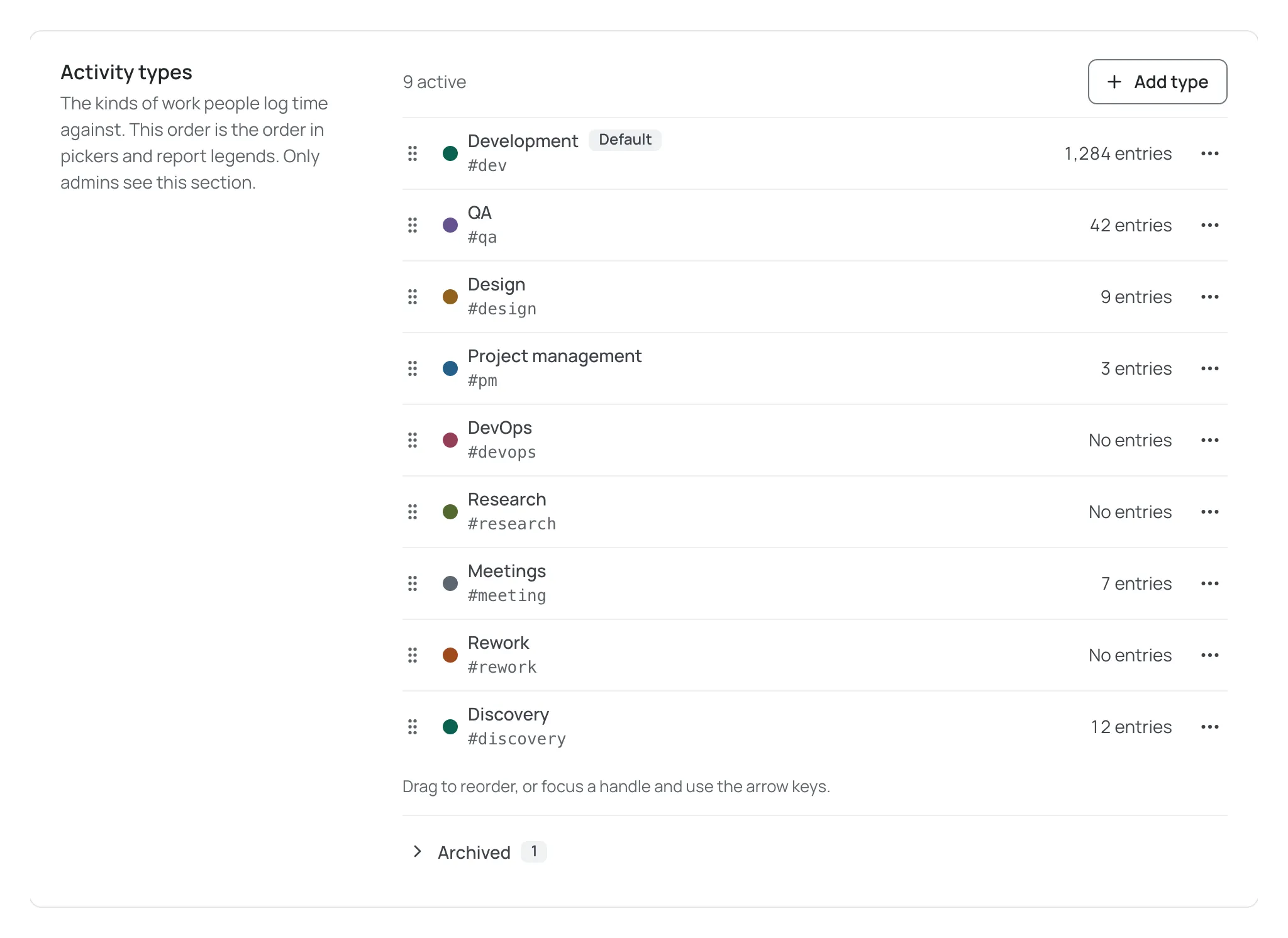
Changes in this section save as you make them. They are not part of Save changes at the top of the page.
Add a type
Section titled “Add a type”- Choose Add type.
- Enter a Label of up to 40 characters.
- Check the Key. It is filled in from the label as you type, and you can change it. A key can contain lowercase letters, numbers and hyphens, up to 32 characters.
- Pick a Colour. There are 12 palette colours and a Custom colour, which lets you choose any hue. A custom colour keeps the palette’s brightness, so the dot stays readable. If another type already uses the colour you pick, the form warns you, because types with the same colour are hard to tell apart in report bars. You can still save.
- Choose Add type. The new type goes to the end of the list.
The form shows a preview of how a /spend comment with the new key will be logged.
Labels and keys must be unique within your organisation. This includes archived types and ignores capital letters, so you cannot add Design if an archived type is called design. Restore the archived type or choose a different name. There is no limit on how many types you can have.
Edit a type
Section titled “Edit a type”Open the row’s menu and choose Edit label and colour to change the label, the key or the colour. Editing a type never changes the entries that use it. They keep pointing at the same type and show its new label.
Renaming a type
Section titled “Renaming a type”- Reports, My week and the CSV export show the new label straight away.
- Draft timesheets show the new label.
- Submitted, approved, rejected and voided timesheets keep the label they had when they were submitted. A document a client has seen does not change. If you rename a type that is on a submitted timesheet, the form says so before you save.
Changing a key
Section titled “Changing a key”When you change a key, the form shows what will happen before you save:
- From the moment you save,
/spend 2h #newkeylogs to that type. #oldkeystops matching. A new/spendcomment that uses it is logged as your organisation’s default type. See Log time with a /spend comment.- Existing entries keep their type, including entries that were logged with
#oldkey. - If someone later edits an old comment without changing its tag, the entry keeps its type. If they change it to a tag that matches an active type, the entry moves to that type.
- The old key becomes free. If you give it to another type, an old comment whose tag is edited to that key matches the new type.
Reorder the list
Section titled “Reorder the list”The order of the list is the order people see in pickers, report legends, report bars and filters. To move a type, drag its handle. On a keyboard, focus the handle and use the arrow keys. You can also choose Move up or Move down in the row’s menu.
Set the default type
Section titled “Set the default type”The default type is used when nobody picks a type, and when a /spend tag doesn’t match any active type. New entries in the Log time sheet start on it, unless the person logging has chosen their own default on their Profile; the organisation’s default is the fallback. To change it, open a row’s menu and choose Set as default.
Archive or delete a type
Section titled “Archive or delete a type”There are two ways to retire a type:
- Archive is for a type that has been used. It hides the type from new work and keeps its history.
- Delete removes a type permanently, but only if no entry has ever used it.
Archive
Section titled “Archive”Choose Archive in the row’s menu. If entries use the type, ChronoTab asks you to confirm first. After archiving, a message offers Undo.
An archived type:
- disappears from the Log time pickers, the extension and
/spend. A/spendcomment with its key is logged as the default type instead. - stays on every entry that already uses it. Those entries keep their type, still count in Reports and the CSV export, and still appear on timesheets under the same label.
- can still be chosen in the Any activity filter on Reports, where archived types are listed separately.
- is kept on an entry that is edited without changing its type. Once someone changes the entry to another type, the archived type isn’t offered again.
You cannot archive:
- The default type. ChronoTab asks you to choose a new default first, and offers Make default, then archive.
- The only active type. People need at least one type to log time. Add or restore another type first.
Archived types are listed under Archived at the bottom of the section. Choose Restore to make a type active again. It goes to the end of the active list.
Delete
Section titled “Delete”Delete… is available only when no entry has ever used the type, including entries that have since been edited or deleted. ChronoTab keeps the earlier version of an edited entry, and that version still counts. If the type has been used, the Delete… option is unavailable and says why, for example 12 entries use it. Archive it instead. or Edited entries still reference it. Archive it instead.
Deleting asks you to confirm. The type is removed for everyone and can’t be restored, and its label and key become free to use again. An archived type that was never used can also be deleted, from the Archived list.
Next steps
Section titled “Next steps”- Log time with a /spend comment explains how people use your keys from GitHub.
- Reports shows how time is grouped by activity type.
- Roles and permissions lists who can change what.
Need help? Email support@chronotab.com.