

How timesheets work
For managers and admins
A timesheet is the document you send a client to approve: the time your organisation logged for a client, across every repository tagged to it, over one period. This page explains its lifecycle — from a draft, through submission, to approval, rejection or void — and what locks at each step. It is for managers and admins; members do not see the Timesheets page.
The states of a timesheet
Section titled “The states of a timesheet”A timesheet moves through these states:
| State | What it means |
|---|---|
| Draft | Generated but not sent anywhere. Nothing is locked. |
| Submitted | Sent to the customer, waiting for a decision. Its entries are locked. |
| Approved | The customer accepted it. Final — it can only be voided now. |
| Rejected | The customer sent it back. Fix it, then submit again. |
| Void | Cancelled. Its entries are released and can go on a new timesheet. |
The normal path is draft → submitted → approved. A submission can also be rejected, and a submitted, approved or rejected sheet can be voided.
A draft is free to change
Section titled “A draft is free to change”Nothing about a draft is final. You can:
- Look at it, spot a missing or wrong entry, fix the entry, and Regenerate the draft so it picks up the change.
- Regenerate as many times as you like while it is a draft.
- Discard a draft to delete it, which frees its reference for a new draft.
While a timesheet is a draft its entries are not locked, so a fix on the underlying time entry flows straight into the next regeneration. See Generate a timesheet.
What locks on submission
Section titled “What locks on submission”Submitting sends the timesheet to the customer (by default, it emails them a review link as part of the same step) and does two things:
- It locks its entries. Every entry included in the submitted timesheet can no longer be edited or deleted, by its author or by anyone else. See What happens to entries after approval.
- It freezes the document. ChronoTab stores a snapshot of the exact lines that were submitted, so the document the customer approves does not change afterwards — even if an issue title, a description or a member’s name changes later. The customer’s signed-off numbers stay the numbers they saw.
Because the document is frozen, a submitted or approved timesheet is never edited in place. That is by design: a quiet edit would change a number the customer had already seen.
Approve or reject a submission
Section titled “Approve or reject a submission”Once a timesheet is submitted, you or the customer decide:
- Approve records who approved it and when. An approved timesheet is final.
- Reject sends it back to a state you can resubmit, with a note explaining why. Fix what the note describes — often by correcting an entry and regenerating — then submit again.
Both are covered in detail in Submit, approve, reject or void a timesheet.
Void a timesheet
Section titled “Void a timesheet”Voiding cancels a timesheet and releases the entries it had locked, so they become editable and can be put on a new timesheet. It also keeps a record of the void and your reason for it.
Void is also how you correct something that already reached the customer. There is no way to edit a submitted or approved timesheet in place — that is by design, so the document the customer approved never changes. The correction in ChronoTab is to Void the timesheet, fix the underlying time entries, and generate a replacement.
Find a timesheet
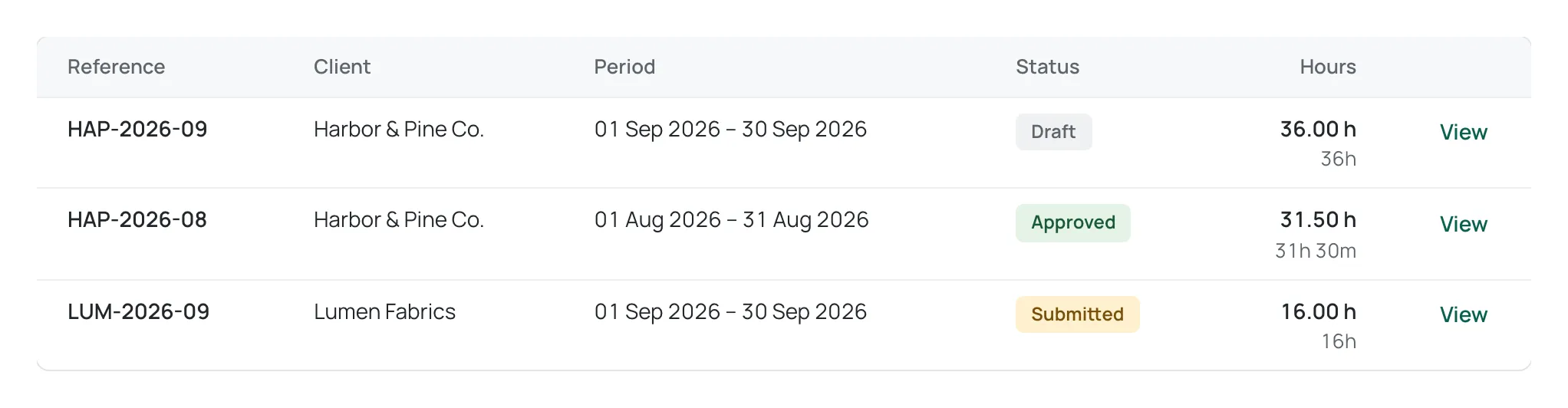
Section titled “Find a timesheet”The Timesheets page lists every timesheet with its Reference, Client, Period, Status and Hours. The status is colour-coded: Draft grey, Submitted amber, Approved green, Rejected red, and Void struck through. Hours show in decimal with the same time in hours and minutes underneath, for example 2.50 h above 2h 30m. Narrow the list with the status filter (All, Draft, Submitted, Approved, Rejected, Void) and the period filter (All periods, This month, Last month, Last 30 days or Last 90 days). Choose View on a row to open it.
Read a timesheet’s history
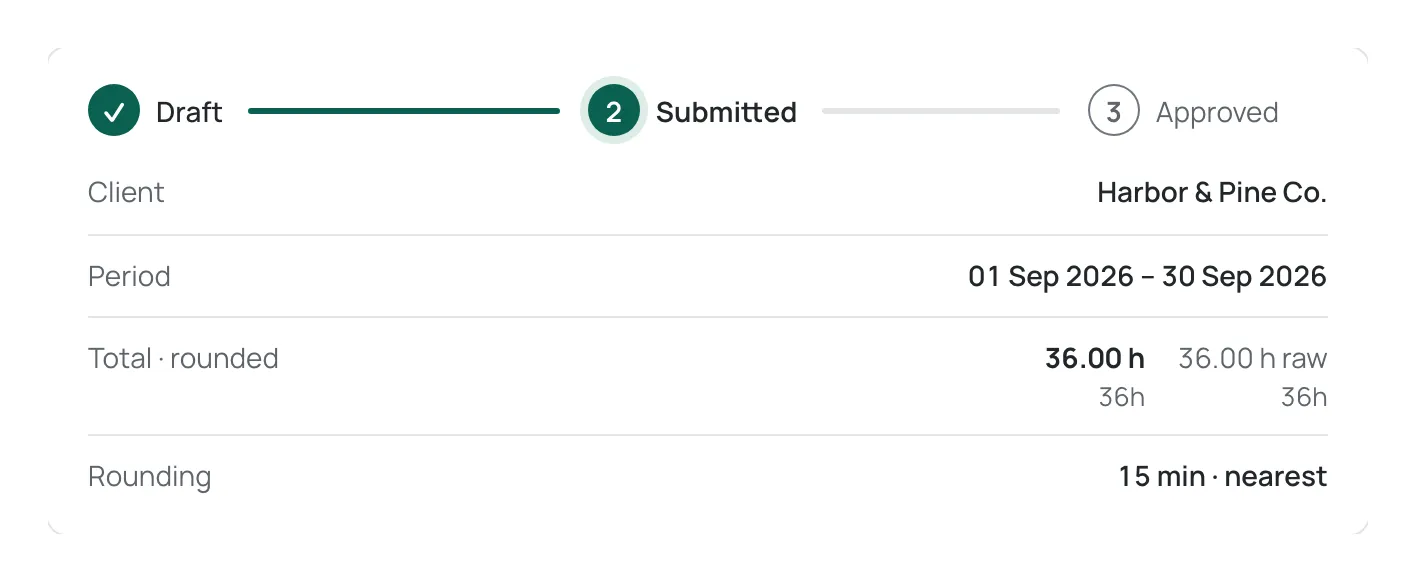
Section titled “Read a timesheet’s history”Open a timesheet from the Timesheets list to see its detail page; the Timesheets breadcrumb at the top takes you back. A three-step indicator shows Draft, Submitted and a final step that names the outcome: Approved, or Rejected or Void when the timesheet ended up there. A rejected timesheet also shows a banner, This timesheet was rejected, naming who rejected it and when (for example Rejected by a name · a date and time), the reason they gave, and a reminder to address the rejection before submitting again.
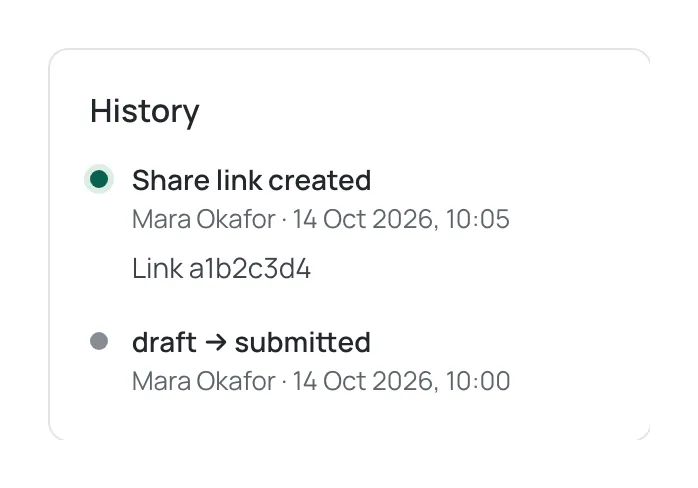
The History panel on the right of the detail page lists every event, newest first: each transition (the state it moved from and to, who did it, when, and — for a rejection — the reason), and each share link that was created or revoked, with who did it. An action taken by a customer through a share link is marked (share link). See Share a timesheet with your client.
Timesheets for a client across several repositories
Section titled “Timesheets for a client across several repositories”A timesheet is generated for a client, not for a single repository. When you generate one, it automatically covers every repository tagged to that client, so a client whose work spans several repositories receives one document and gives one decision. The detail page lists the repositories included, each with its own subtotal, and every line on the document names the repository its issue came from. Tagging a repository to a client is an admin task — see Clients.
A repository with no client tagged to it has no timesheet capability: it is not offered in the generation flow, and its time can only be reviewed in Reports. Tag it to a client first.
Need help? Email support@chronotab.com.