

Your profile
For members, managers and admins
The Profile page is where you change your own details: the name your teammates see, and your personal defaults for logging time. It is for every role, and you can only edit your own profile.
Open your profile
Section titled “Open your profile”Select your name at the bottom of the sidebar, or press G then P. The top of the page shows your identity:
| Field | Can you change it? |
|---|---|
| Name | Yes. This is the display name other members see. |
| No. It comes from your Google or GitHub sign-in and is managed by your admin. | |
| GitHub login | No. It is an identity field, managed by your admin. |
Your role in the organisation you are working in appears as a badge beside your name.
There is no Save button on this page. Your name saves when you leave the field or press Enter, and Escape puts back the saved name. Next to each section heading, Saving… and then Saved tell you what happened. If a save fails, the control goes back to what it was and an error with Try again appears in that section. The new name shows in the sidebar straight away.
The page has a menu on the left that follows you as you scroll. You holds Account. Organisation names the organisation you are working in and lists Time entry defaults, Reminders, AI assistant and API keys under it. Select an item to jump to that section.
Your defaults in each organisation
Section titled “Your defaults in each organisation”Everything under the Organisation settings banner is about one organisation: the one you are working in. The banner names it and your role there. There is no organisation dropdown on the page: to change these settings for another organisation, switch organisation in the sidebar. Your defaults are kept per organisation, so what you set for one organisation never changes another.
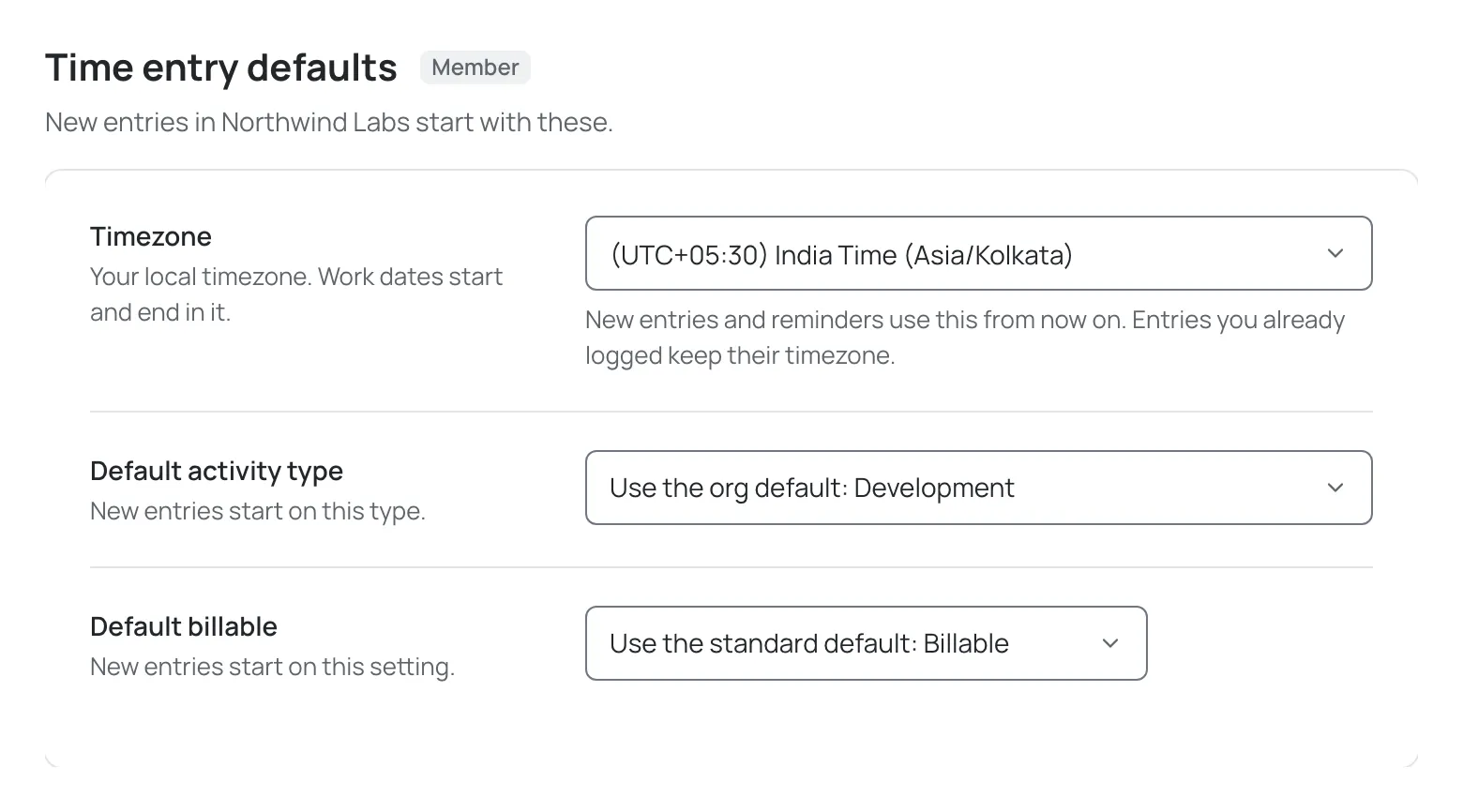
The Time entry defaults section has three settings, each saved as soon as you choose a value:
| Setting | What it does |
|---|---|
| Timezone | Decides which date an entry belongs to, and when your day and week start and end, in that organisation. New entries and reminders use it from now on; entries you already logged keep their timezone. |
| Default activity type | The activity a new time entry starts on. The first option, Use the org default: name, follows whatever your admin has set. |
| Default billable | Whether a new time entry starts as billable. The options are Use the standard default: Billable, Billable and Non-billable. |
Use the org default and Use the standard default: Billable mean you have not chosen a value of your own. If the activity type you chose is later archived by an admin, new entries start on the organisation’s default instead.
Where your defaults apply
Section titled “Where your defaults apply”New time entries start on your defaults in both the Log time sheet on the web and the browser extension. You can still change any value on an individual entry. Editing an entry you already logged keeps that entry’s own values; your defaults only affect new entries. Time logged with a /spend comment on GitHub does not use your personal defaults: it starts on the organisation’s defaults. Your admin sets the organisation’s own default activity type in Activity types; it is the fallback when you have not chosen one.
Reminders
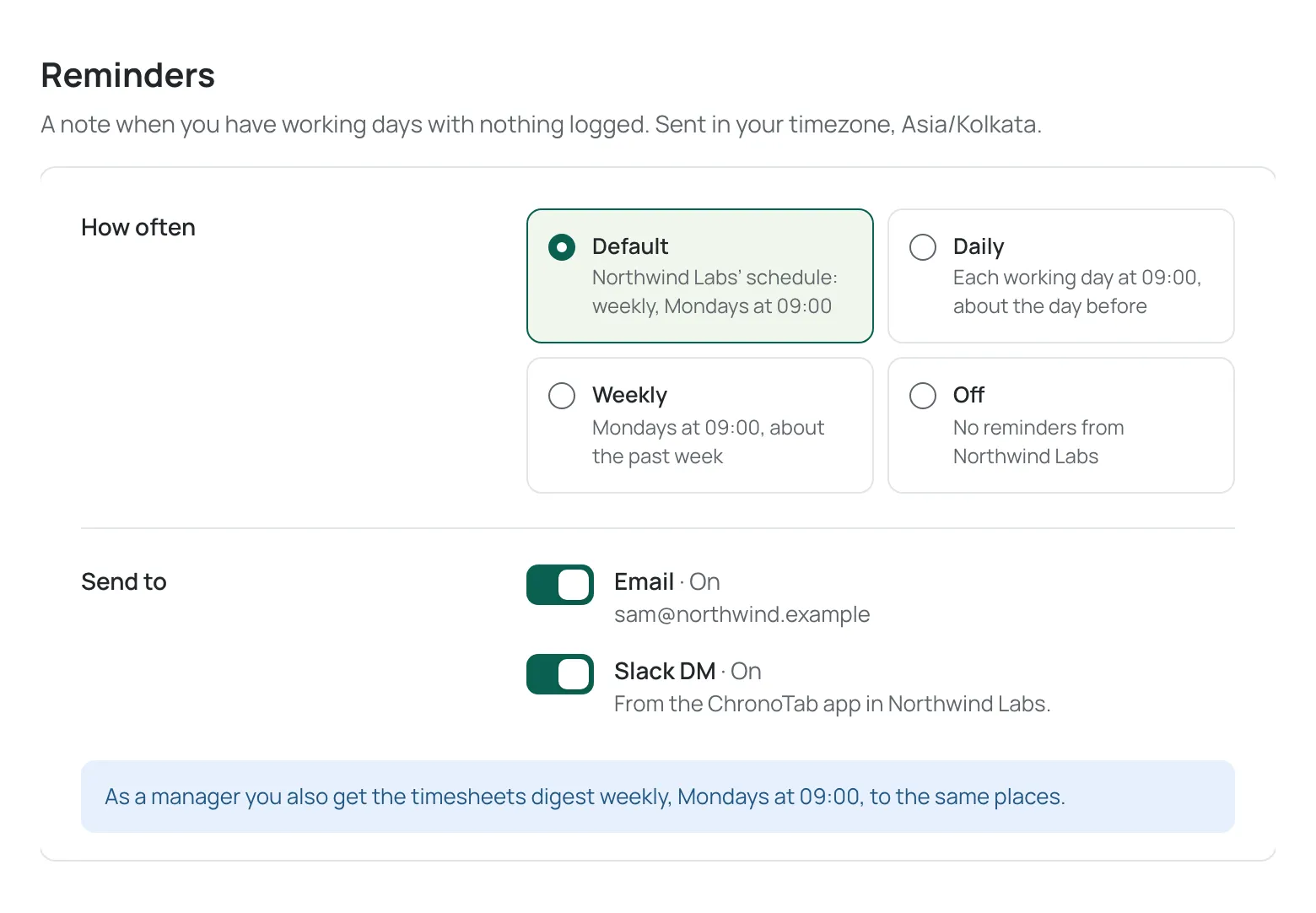
Section titled “Reminders”The Reminders section comes after your defaults. When your organisation has turned reminders on, it reads “A note when you have working days with nothing logged. Sent in your timezone,” followed by your timezone in that organisation. The Reminder settings link in every reminder email and Slack DM brings you straight here.
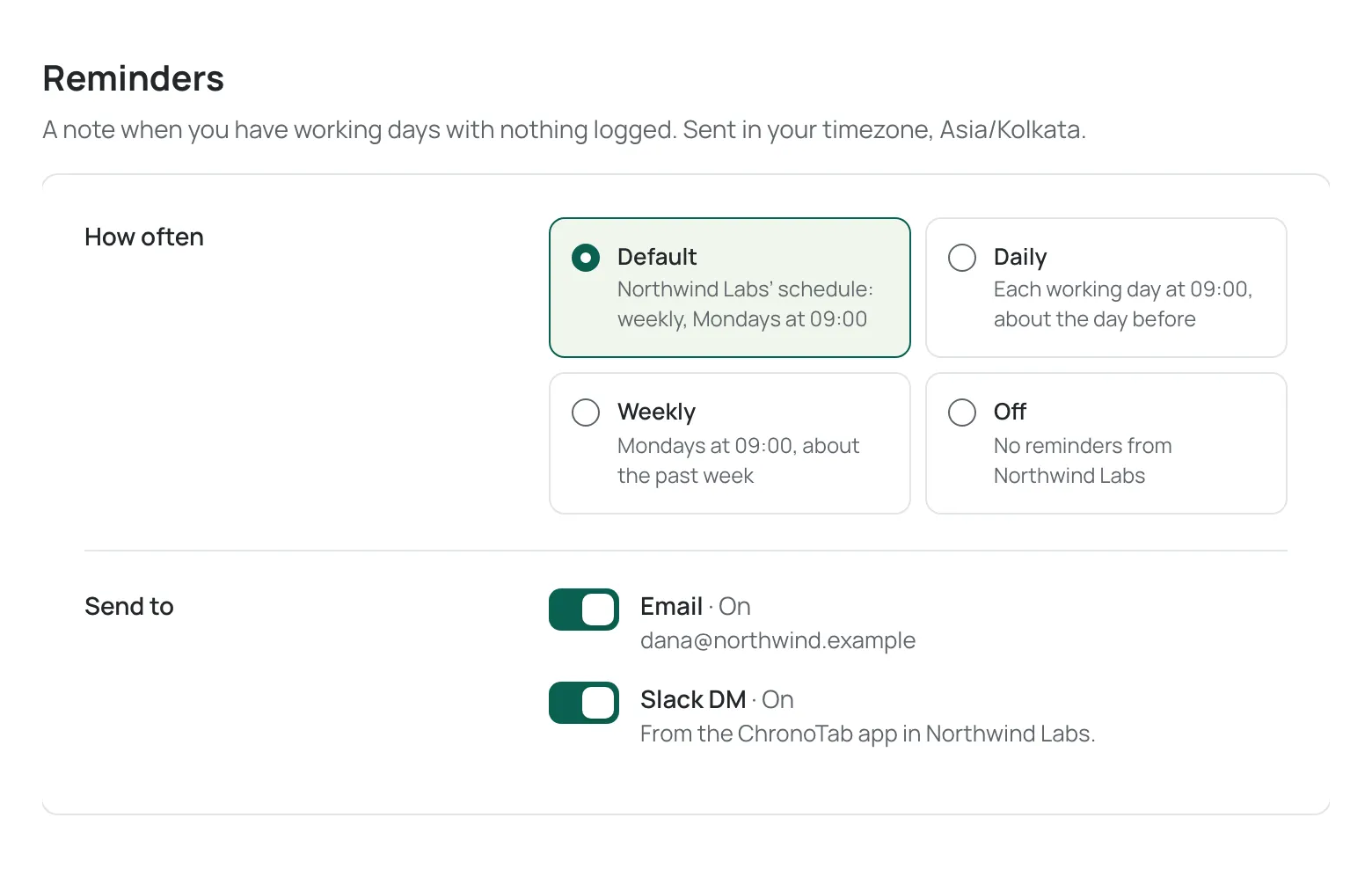
Under How often, choose one:
| Option | What you get |
|---|---|
| Default | Your organisation’s schedule, for example weekly, Mondays at 09:00. |
| Daily | A reminder each working day at your organisation’s send time, about the day before. |
| Weekly | A reminder on your organisation’s day and at its send time, about the past week. |
| Off | No reminders from that organisation. |
Your organisation sets the send time and the day. You choose how often, not when. Times are in your own timezone.
Under Send to, turn Email and Slack DM on or off. Email goes to the address on your account. Slack DM comes from the ChronoTab app in your organisation’s Slack workspace, and is shown only if your organisation has connected Slack.
Each choice saves as soon as you make it.
You only get a reminder when there’s something in it: if every working day has time logged, nothing is sent. Weekends don’t count. Nobody else is told that you got a reminder.
When reminders are required by your organisation
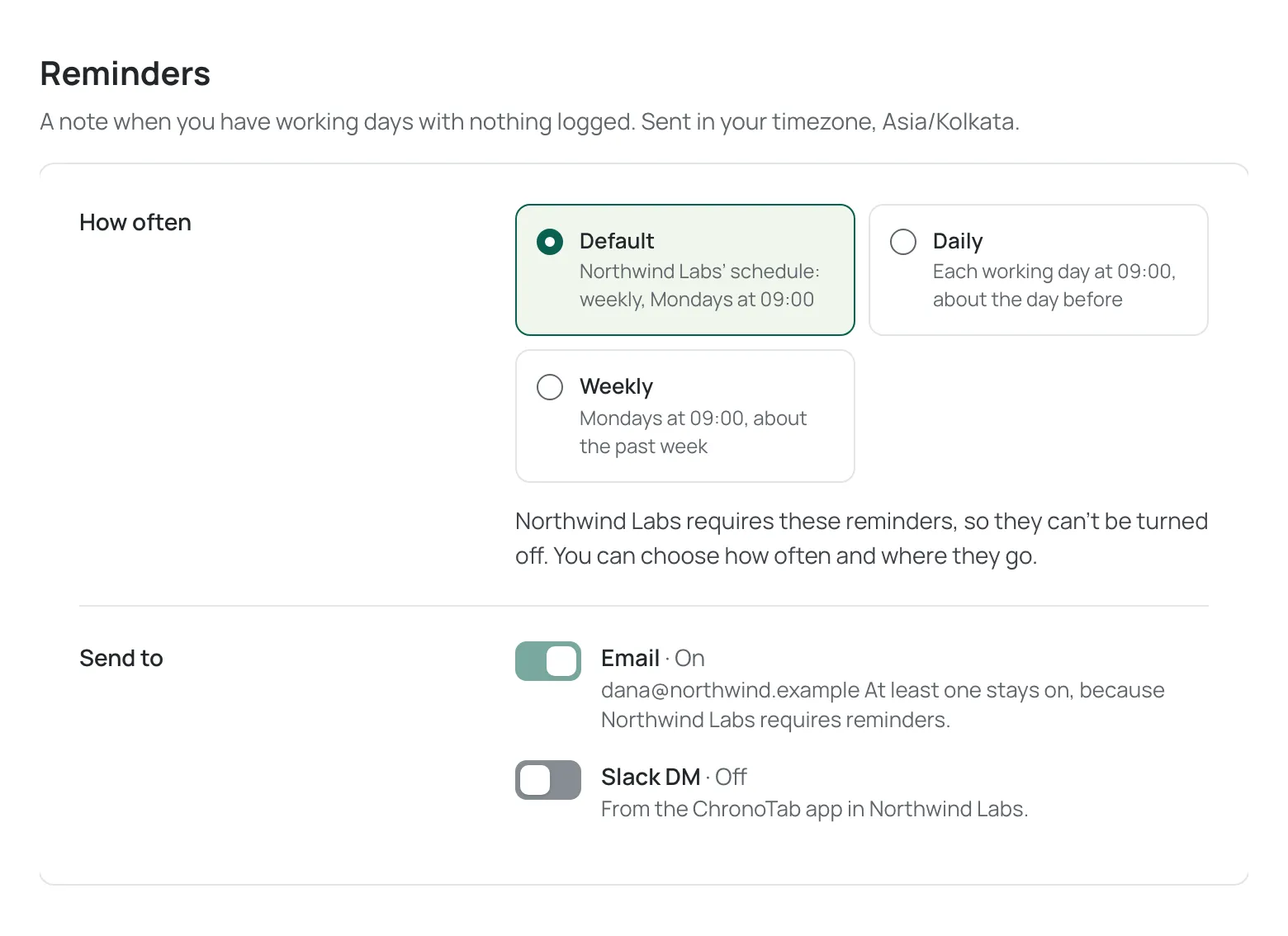
Section titled “When reminders are required by your organisation”Your admin can require reminders. The section then reads “Your organisation requires these reminders, so they can’t be turned off. You can choose how often and where they go.”
- Off isn’t offered. You can still choose Default, Daily or Weekly.
- At least one of Email and Slack DM stays on. If only one is on, it can’t be turned off, and its description says “At least one stays on, because your organisation requires reminders.”
If your Slack DM switch is unavailable
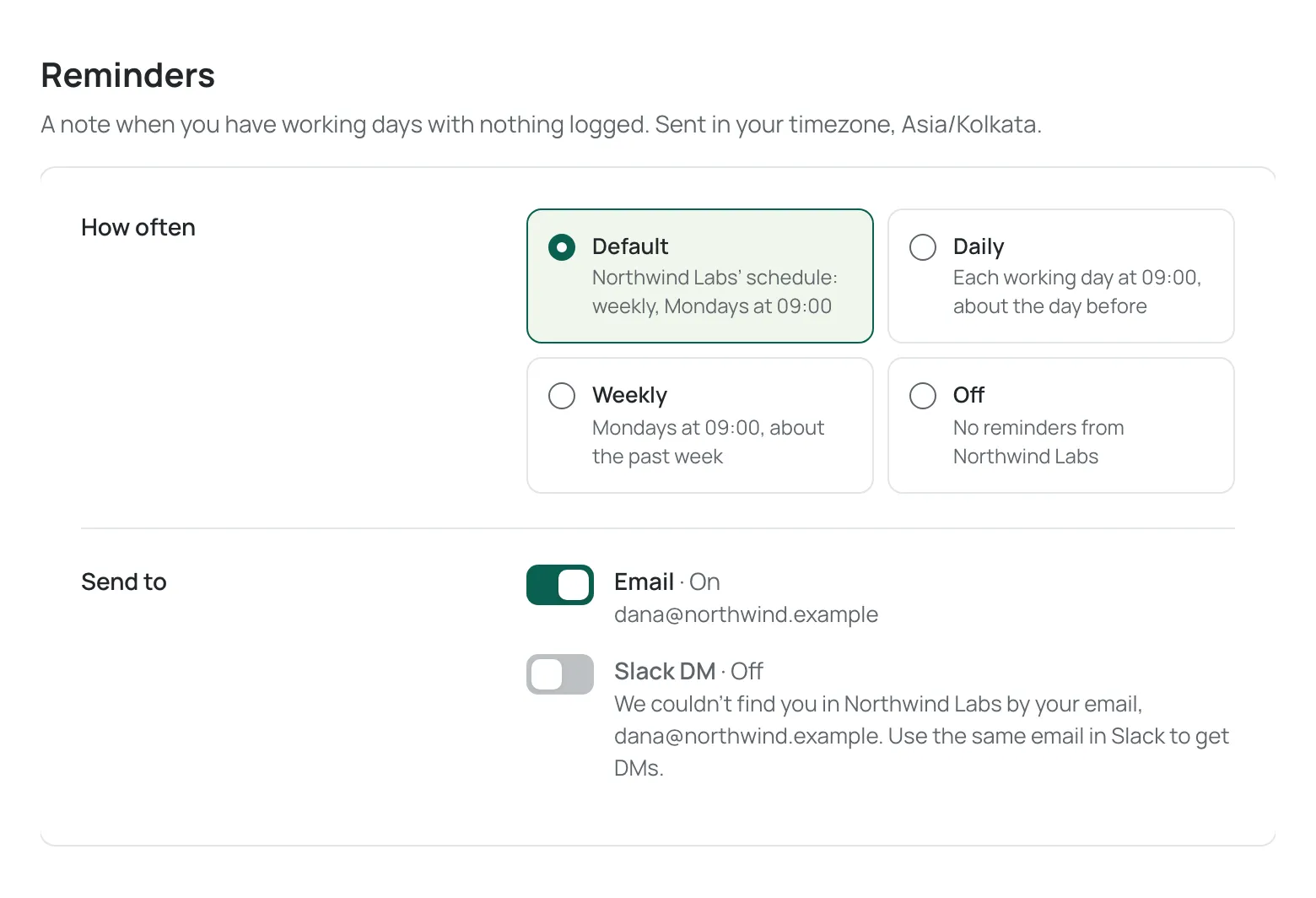
Section titled “If your Slack DM switch is unavailable”If your organisation has connected Slack but ChronoTab couldn’t find you in the workspace, the Slack DM switch is off and unavailable, with “We couldn’t find you in workspace by your email, your email. Use the same email in Slack to get DMs.” Add the same email to your Slack account. ChronoTab checks again every day, and when it finds you the switch turns on.
If reminders are off for your organisation
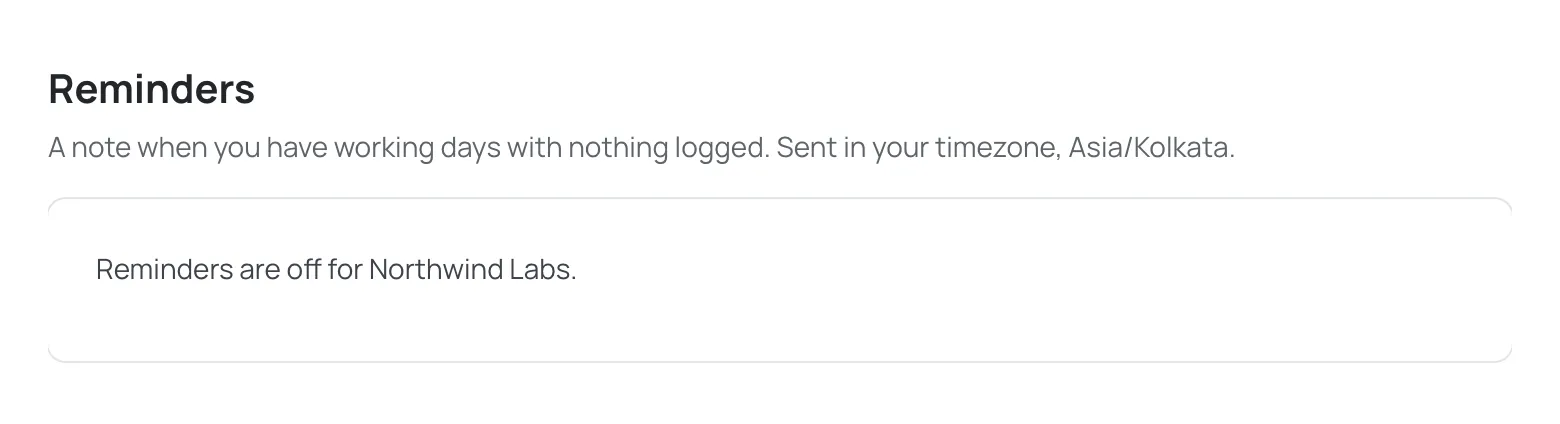
Section titled “If reminders are off for your organisation”The section shows only “Reminders are off for your organisation.” Your saved choice is kept, and applies again if your admin turns reminders back on.
Managers and admins
Section titled “Managers and admins”Managers and admins also get the weekly timesheets digest: drafts whose period ended 3 or more days ago, and timesheets a client sent back. It goes to the same places as your reminders, weekly on your organisation’s day and time. Choosing Off stops the digest too.
Timezone and what counts as today
Section titled “Timezone and what counts as today”A work date is a calendar date on your clock, not a moment in time. Your timezone is what decides which date an entry belongs to, so logging time late in the evening does not push it into the next day. If you have not set a timezone for an organisation, that organisation’s default timezone is used.
Changing your timezone does not move entries you have already logged: a work date is stored as the calendar date you chose. It changes which date future entries default to, and what counts as “today” for the future-date check.
Next steps
Section titled “Next steps”- Use ChronoTab from your AI assistant — create a key for Claude Code, Cursor or VS Code from the AI assistant section.
- Your API keys — the key the browser extension uses.
- Sign out — leaving the dashboard and the extension.
Need help? Email support@chronotab.com.