

Delete your organisation
For admins
An org admin can delete the whole organisation from Settings. Deleting is a two-step process: the organisation is locked straight away, and its data is permanently deleted after 30 days unless an admin cancels first. This page explains each step, what you can export beforehand, and exactly what is removed and what is kept.
Who can delete an organisation
Section titled “Who can delete an organisation”- Only an Org admin sees the Danger zone section, with Delete this organization, in Settings. Managers and members never see it, and the server refuses the request if it reaches it anyway.
- Deleting needs a GitHub sign-in from the last 10 minutes. If you signed in a while ago, or signed in with Google, ChronoTab asks you to Sign in with GitHub to continue and then brings you back to Settings with the delete confirmation already open.
- NFN Labs support can also schedule a deletion for you on request. The result is identical: the same lock, the same 30 days, the same cancel option. See Get help.
Before you delete
Section titled “Before you delete”Scheduling a deletion locks the organisation immediately, so export first. The Export before you delete group, at the top of the Danger zone above the delete button, lists what is available:
- Reports — download CSVs from the Export menu on the Reports page; filter to a repository to export its Time entries.
- Timesheets — download each timesheet as CSV from the Export menu on its detail page, reached from the Timesheets page. The view icon on a live share link opens the document itself.
- Download my entries — your own time entries, available to every member, including while the organisation is locked.
There is no single “export everything” button for a whole organisation, so work through your reports and timesheets. Once an organisation is locked, members can still export their own entries from the lock screen until the deletion date.
Delete the organisation
Section titled “Delete the organisation”-
Open Settings and scroll to the Danger zone, with Delete this organization. It is the last section on the page.
-
Choose Delete organization….
-
If ChronoTab asks you to Confirm it’s you, choose Sign in with GitHub to continue and sign in. You come back to Settings with the confirmation dialog open.
-
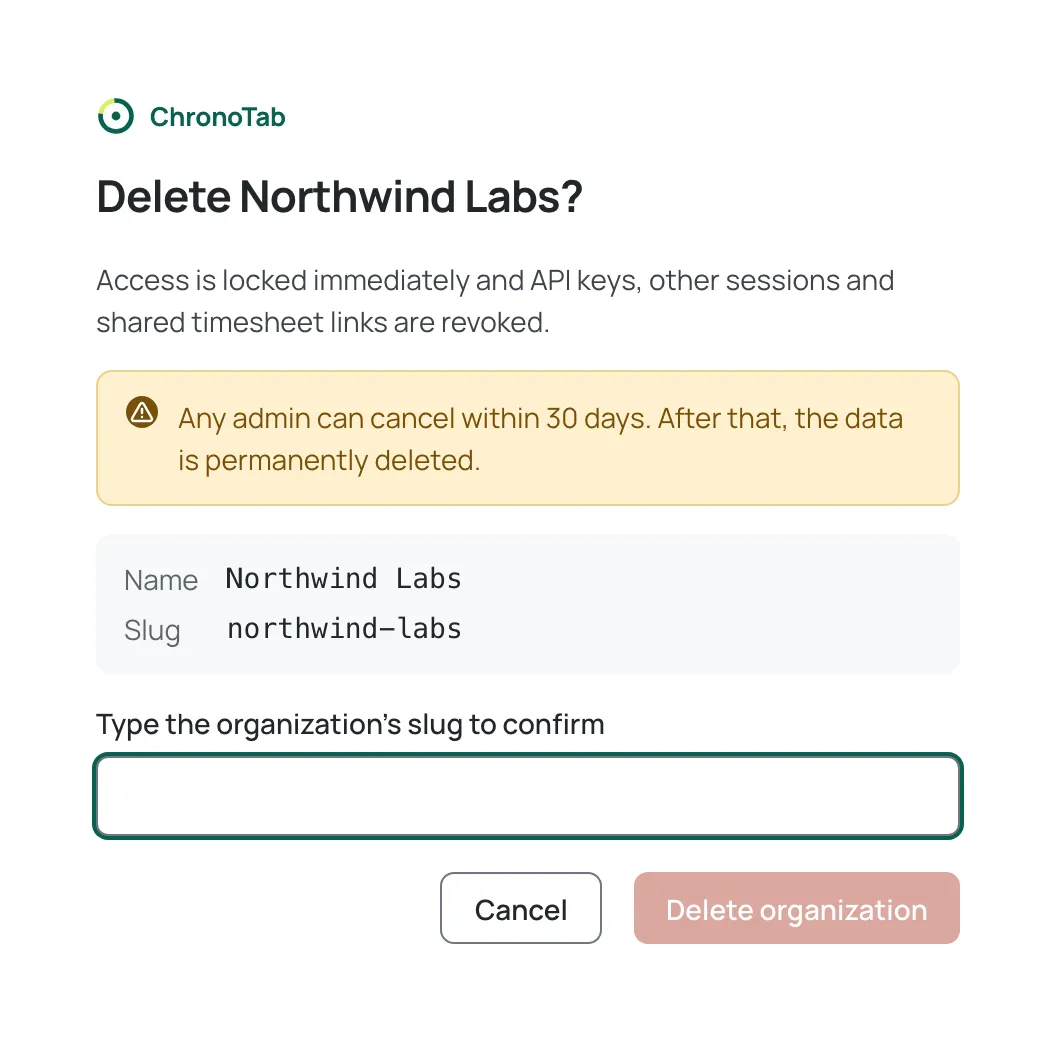
In the confirmation dialog, which names the organisation and its slug, type the organisation’s slug (its address in ChronoTab) exactly as written. The Delete organization button stays disabled until it matches. Unlike most confirmations in ChronoTab, this one is a full dialog in the middle of the screen.
-
Choose Delete organization.
You stay signed in and see the lock screen with the deletion date. Everyone else in the organisation sees the same screen the next time they open ChronoTab.
What happens immediately
Section titled “What happens immediately”When you confirm, ChronoTab does all of this at once:
- The organisation is locked. Every member sees a lock screen naming the deletion date; nothing can be logged, edited or generated.
- Every organisation API key is revoked. The browser extension and any scripts using those keys stop working.
- Every other signed-in session for the organisation’s members is ended; people sign in again to see the lock screen. The session you used to delete stays, so you land on the lock screen rather than being signed out.
- Every shared timesheet link is revoked, so clients can no longer open them.
- GitHub syncing stops for the organisation.
- Members’ access is not removed, so any admin can still sign in to cancel.
- A paid plan is cancelled. The subscription is set to end at the close of the period you have paid for, so nothing is charged after that. Cancelling the deletion within the 30 days also undoes that cancellation, so the plan carries on. See Upgrade, switch or cancel your plan.
ChronoTab does not send an email. The lock screen is the notice, so tell your team yourself.
The 30-day grace period
Section titled “The 30-day grace period”For 30 days the organisation stays locked and no data is deleted. Any admin may do the following during that time:
- Cancel the deletion with Cancel deletion on the lock screen, then confirm with Cancel deletion in the confirmation that opens beside it (or choose Keep scheduled to leave it in place). The organisation unlocks straight away.
- Check the date — the lock screen names the exact day the data will be deleted.
Cancelling does not bring back what was revoked: API keys, shared timesheet links and other people’s sessions stay revoked. Issue new keys and links from Organisation API keys and your timesheets, and ask people to sign in again.
You cannot reinstall the ChronoTab GitHub App on the organisation’s GitHub account while a deletion is scheduled.
What happens after 30 days
Section titled “What happens after 30 days”On the deletion date the deletion runs automatically; nobody needs to do anything. ChronoTab then:
- Deletes the organisation’s time entries, timesheets, clients, repository settings, API keys, and everything else the organisation owned.
- Removes the ChronoTab GitHub App from the organisation’s GitHub account. If ChronoTab cannot, it tells an owner to remove it in GitHub’s settings. ChronoTab never changes your GitHub repositories — it is read-only there.
- Keeps a minimal placeholder for the organisation and for each membership, with the name replaced by “Deleted organisation” and no personal data. These exist only so that the audit log, which is protected from edits, stays consistent. They are removed automatically once the audit records are old enough: one year after they were written (180 days for records written before 26 October 2026).
- Destroys the organisation’s archive key, so the encrypted copies of its audit log in the audit archive can no longer be read. The locked copies expire on their normal schedule.
- Anonymises people who belonged only to this organisation: their email, GitHub username and name are replaced with placeholders. People who also belong to another ChronoTab organisation are unaffected — their account and their other organisation stay exactly as they were.
- Leaves backups to expire on their normal schedule. Backups are kept for at most 30 days, including the destroyed archive key, and are never used to bring a deleted organisation back.
You can create a new organisation for the same GitHub account afterwards; it starts empty. See Create another organisation.
If something goes wrong
Section titled “If something goes wrong”If a deletion stalls, ChronoTab retries it automatically and NFN Labs is alerted. The lock stays in place and your data stays protected while that happens. If the lock screen shows a date that has passed and the organisation is still there, contact support@chronotab.com.
Next steps
Section titled “Next steps”- Start again or run a second organisation: Create another organisation.
- Understand the other organisation-wide settings: Organisation settings.
- How ChronoTab keeps and removes data: Privacy and data.
Need help? Email support@chronotab.com.