

Upgrade, switch or cancel your plan
For admins
This page is for org admins who change the plan of their organisation. It covers upgrading, switching between monthly and annual, switching to a lower plan, moving to Free and cancelling. The plans and their limits are on Plans and billing.
Paid plans apply from a date we will announce at least 30 days in advance. Until then every organisation is on Free and no limits are applied, so nothing on this page changes what your team can do yet.
Open the Billing page
Section titled “Open the Billing page”Open Settings. The first section, Plan, shows your team’s plan with its repositories, seats and history against the plan’s limits. Choose Manage plan to open the Billing page. Only org admins see that link or can open the page: a member or manager who visits the address is sent to My week.
The Plans section lists Free, Starter, Growth and Scale in columns, with what each one includes. Choose Annual or Monthly above the table to set the Billing cycle you want to see. Prices come from the payment provider and are shown with tax to be added; the pricing page has the full list.
Upgrade from Free
Section titled “Upgrade from Free”- On the Billing page, choose Upgrade under the plan you want.
- A checkout window opens inside ChronoTab. Enter your payment details there. The checkout is handled by Paddle, our reseller, which takes the payment, works out any tax and issues the invoice.
- Leave the page open, or come back to it. When the payment goes through, ChronoTab updates the page on its own. If it takes longer than a minute, choose Check again, or wait; your plan updates once the payment provider confirms it.
If the checkout window cannot open, ChronoTab opens the same checkout on a page of its own instead.
Your plan changes once the payment is confirmed. The new limits apply to everyone in the organisation at once.
Upgrade from one paid plan to another
Section titled “Upgrade from one paid plan to another”An organisation that already pays for a plan changes it without a second checkout. Choose Upgrade or Switch under the plan you want, and the page shows a confirmation first:
- What your card will be charged now. ChronoTab works this out with the provider before you confirm. The figure covers the rest of the current billing period, so you pay only for the time left. The Upgrade button stays disabled until the figure is in. If it cannot be worked out, the confirmation says Couldn’t work out the charge. Try again. and you can retry.
- What each renewal will cost from the next billing date, at the new plan’s price for your cycle.
An upgrade takes effect straight away. The new limits apply at once, and any repositories that were paused by your plan come back, up to the new limit (see When a repository is paused).
Switch between monthly and annual
Section titled “Switch between monthly and annual”The Billing cycle toggle above the plans starts on your subscription’s own cycle. What a switch does depends on the direction, because ChronoTab never gives credit or a refund for unused time.
- Monthly to annual takes effect now. On your current plan, choose Switch to annual. The confirmation shows what your card is charged now: the annual price with the unused part of the current month deducted. You always pay a positive amount, and nothing is credited to you. The annual period starts today, and the confirmation names the next renewal date and the yearly price.
- Annual to monthly is not available while your annual period runs. Paying a year in advance and then moving to monthly would leave unused time that ChronoTab does not credit or refund. The supported way is to cancel your plan (it stays active until the end of the period you paid for) and choose Monthly when you subscribe again after it ends. The Billing page says this when you flip the toggle to Monthly on an annual plan.
- A higher plan on a shorter cycle is not offered while the period runs. For example, moving from Starter Annual to Growth Monthly. If you try it anyway (for instance from an older page), it is refused with This switch takes effect at the end of your billing period, and nothing is charged or changed. Upgrade on your own cycle now, or wait until the period ends and choose the cycle you want.
A lower plan on a different cycle is also refused: a lower plan keeps your current cycle (see below).
Switch to a lower plan
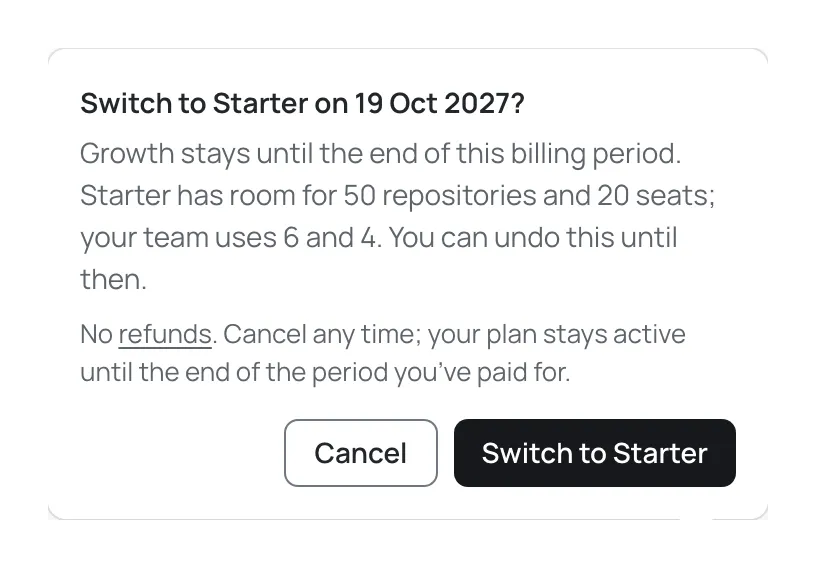
Section titled “Switch to a lower plan”Choose Switch under a lower plan, on your current billing cycle. A downgrade does not take effect straight away. The confirmation says Switch to Starter on and a date, and that your current plan stays until the end of the billing period you have paid for.
The lower plan starts at the end of your billing period, within about two hours of it: ChronoTab applies a scheduled switch with a check that runs every hour, so it can start up to two hours before the period ends. You are not charged for the lower plan until the period renews. That renewal bills the lower plan’s price plus a small second line in proportion to the time left in the period when the switch is applied. On a monthly plan that is a fraction of a percent of the price (about 0.3% when the switch is applied two hours before the renewal). Nothing is credited to you.
- Until that date you keep your current plan, its limits and everything in it.
- If your team uses more repositories or seats than it would have on the lower plan on that date, the confirmation says so. A grant still in force on the date the change takes effect counts too, for repositories and seats alike: the confirmation quotes the limits your team would have then, and names repositories or members only when your team would be over them. From the date, you have 14 days to choose which of them stay active. After that, repositories you did not keep are paused and members beyond the seat limit are disabled by plan. Nothing is deleted, and an upgrade brings them back. See When a repository is paused and Seats over the limit.
- You can undo the change at any time before the date.
Move to Free
Section titled “Move to Free”Move to Free is a switch to the Free plan. Like cancelling, it takes effect at the end of your billing period, not earlier. Free has room for 5 repositories and 5 seats, with the last 60 days of history. The confirmation names the date your team moves. If your team would then be over Free’s limits, it also says you have 14 days after that date to choose which repositories stay active, which members keep a seat, or both. After that, repositories you did not keep are paused and members beyond Free’s 5 seats are disabled by plan. A grant still in force on that date counts: when it keeps more repositories or seats for your team, the confirmation does not ask you to choose them. Nothing is deleted.
Cancel your plan
Section titled “Cancel your plan”Choose Cancel plan. The confirmation asks you to confirm, and offers Keep with your plan name to close it without a change.
- Cancelling never deletes anything. Your plan stays active until the end of the billing period you have paid for. The page then reads Cancelled. with the plan name and that date.
- At the end of your billing period your team moves to Free, with the 14-day window described above if your team would be over Free’s limits. After it, repositories you did not keep are paused and members beyond Free’s 5 seats are disabled by plan, unless a grant still in force on that date keeps more repositories or seats for your team. Nothing is deleted.
- You can undo a cancellation until the date.
Undo a change
Section titled “Undo a change”While a change is scheduled, the Billing page shows Undo change. Choose it to cancel the scheduled switch, move to Free or cancellation. Your plan then continues, and the page confirms Change undone. with the renewal date.
ChronoTab waits for your click before it undoes anything.
No refunds
Section titled “No refunds”Every confirmation that charges you or schedules a change carries this line: No refunds. Cancel any time; your plan stays active until the end of the period you’ve paid for. The full terms are on the refund policy.
Who can do this
Section titled “Who can do this”Only org admins can open the Billing page, upgrade, switch, move to Free, cancel or undo. Managers and members cannot. Invoices, card details and payment questions are covered on Payments, invoices and refunds.
Need help? Email support@chronotab.com.