

Sign in for the first time
For members, managers and admins
This page walks a new member through their first sign-in to ChronoTab and shows what to expect once they are in. It applies to every role.
Your organisation is set up before you can sign in, and your sign-in method is the Google or GitHub account your organisation uses. If you have not been added yet, read How you get access first.
Sign in with GitHub or Google
Section titled “Sign in with GitHub or Google”- Open ChronoTab at https://app.chronotab.com/.
- On the Sign in to ChronoTab screen, choose Continue with GitHub or Continue with Google. The screen reminds you to Use your organization’s Google or GitHub account.
- Complete the usual GitHub or Google sign-in in the window that opens, and approve access if you are asked to.
Continue with GitHub is the main button, listed first, with Continue with Google below it. If this browser has signed in before, the method used last shows a Last used badge on its button.
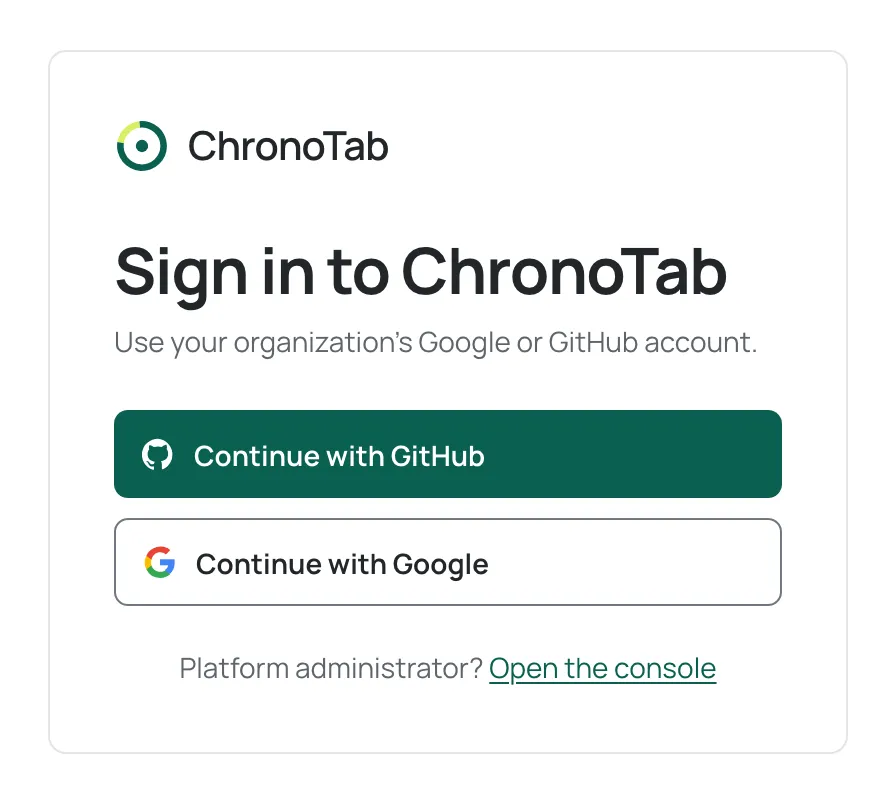
You are then returned to ChronoTab and land on the My week page.
What you can see after signing in
Section titled “What you can see after signing in”Your role appears as a badge (Member, Manager or Admin) at the bottom of the sidebar, and the navigation you can see depends on that role. Your organisation’s name sits at the top of the sidebar, and the pages are grouped under it:
- Member sees Track, with My week.
- Manager additionally sees Analyse, with Reports and Timesheets.
- Org admin additionally sees Team in Analyse, and the Administer group, with Members, Clients, Settings and Audit log.
Press ? at any time to see the keyboard shortcuts you can use; see Keyboard shortcuts.
Roles and permissions lists every difference.
If your sign-in is refused
Section titled “If your sign-in is refused”- No account found for that sign-in. Your Google or GitHub account is not linked to a ChronoTab organisation yet. Ask an admin to add you from the Members page, or try the other sign-in method if you use more than one.
- Your account is disabled. Contact an admin for your organisation.
If you belong to more than one team
Section titled “If you belong to more than one team”If your account belongs to more than one organisation, ChronoTab shows a Choose your team screen before the dashboard. Pick the organisation you want to open. As the screen says, You can switch teams later from the organization menu in the sidebar. See Switch between teams.
Need help? Email support@chronotab.com.