

Organisation settings
For admins
The Settings page holds the organisation-wide settings that apply to every member, and to the timesheet documents you send to clients. It is for org admins.
Open Settings
Section titled “Open Settings”Choose Settings in the Administer group of the sidebar. The page is a column of sections, each with its title and a short description beside its controls: Plan (the first section, for admins), Organization, Branding, Timesheet rounding, Reminders, Activity types, GitHub, Slack, Browser extension, Another organization and, last, the Danger zone. A row of jump links at the top of the page (Plan, Organization, Branding, Rounding and so on, for the sections you can see) scrolls straight to a section and stays in view as you scroll, highlighting the section you are reading. The ones covered here are Organization, Branding, Timesheet rounding, Another organization and the Danger zone.
Organisation
Section titled “Organisation”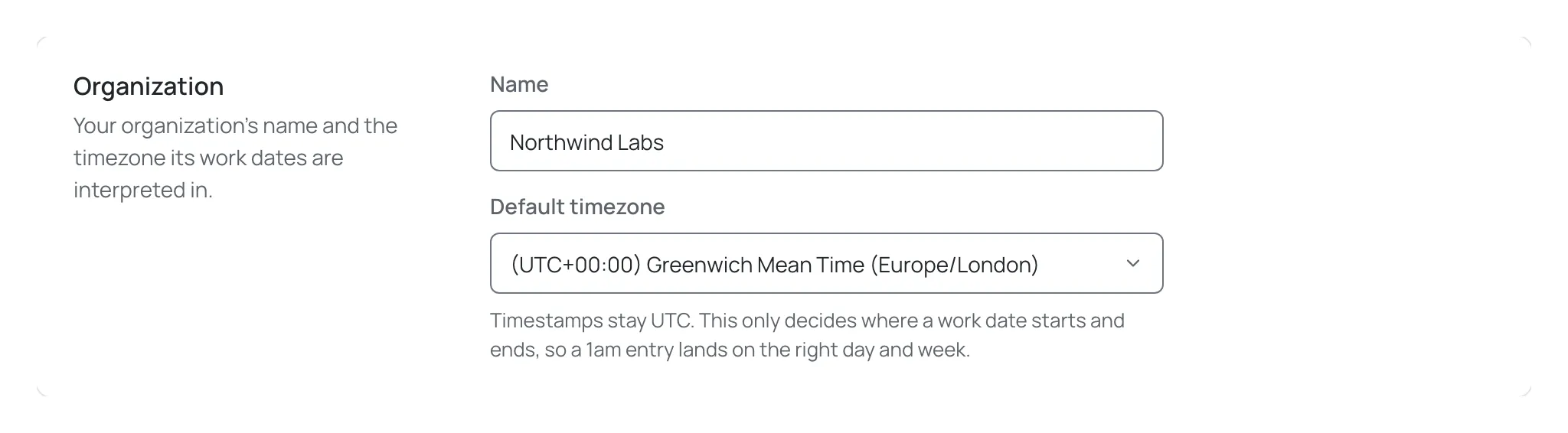
- Name — your organisation’s name, shown across ChronoTab.
- Default timezone — the timezone used for a member who has no timezone of their own. It decides where a work date starts and ends, so that a 1am entry lands on the right day and week. Timestamps are still stored in UTC; this only changes the calendar date they fall on.
Branding
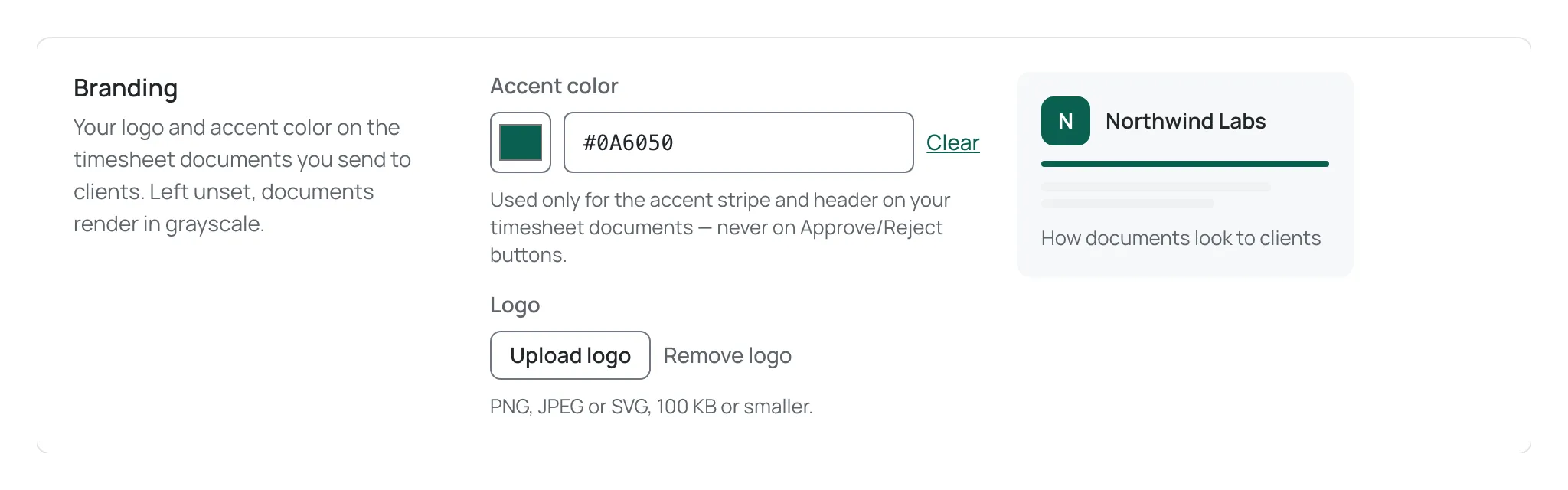
Section titled “Branding”Branding applies to the timesheet documents you send to clients. If you leave it unset, documents render in grayscale.
On the Free plan these controls are locked, and timesheets carry ChronoTab’s branding instead. See Branding on the Free plan.
-
Accent color — used for the accent stripe and header on your timesheet documents. It is never used on the Approve or Reject buttons a client uses. Choose Clear to remove it.
-
Logo — a PNG, JPEG or SVG file up to 100 KB. Choose Remove logo to take it down. If the file is the wrong type or too large, ChronoTab tells you before saving.
-
A live preview shows how the masthead will look. Without a logo, the organisation’s first letter is used as a monogram.
Timesheet rounding
Section titled “Timesheet rounding”Rounding decides how each line is written when a timesheet is generated.
- Increment — one of 1 min, 6 min, 15 min or 30 min. 1 min keeps each line exact to the minute; 6 min is one tenth of an hour, the usual increment for clients billed in decimal hours.
- Direction — Nearest or Up.
A live example shows the effect. With the default settings it reads: A 3h 52m entry appears on a timesheet as 3.75h.
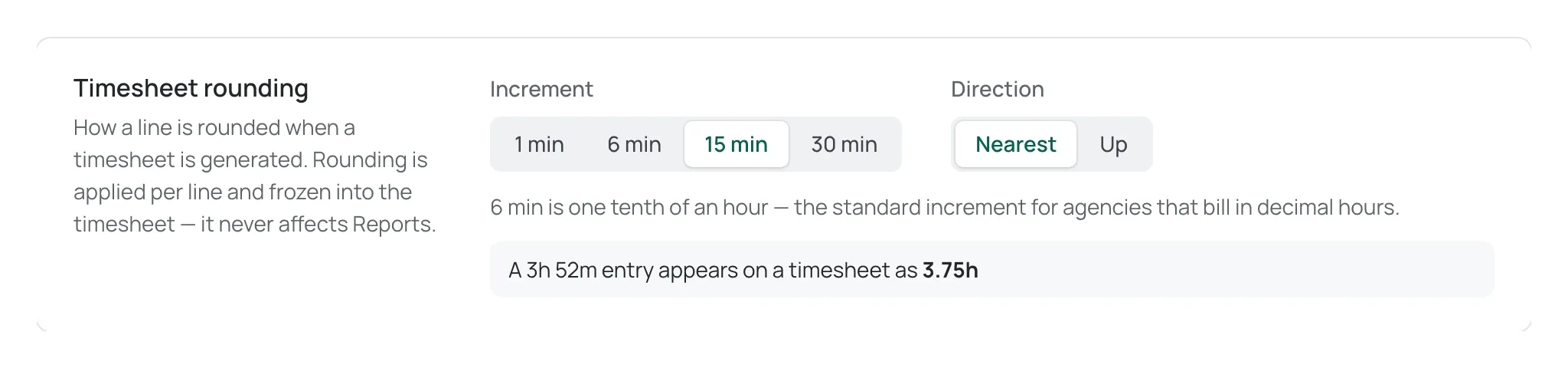
Rounding is applied to each line when the timesheet is generated and is frozen into that timesheet. The total on a timesheet is the sum of the rounded lines. Rounding never changes the time in reports or in the underlying entries.
- Weekly digest emails — turn this off to stop the two weekly emails about members and repositories that couldn’t be added because your plan was full. The switch saves as soon as you flip it. Payment, plan and deadline emails are always sent. The digest lists only people and repositories still waiting to be added, and is sent only while your plan is still full.
Save your changes
Section titled “Save your changes”Choose Save changes at the top of the page to apply the name, timezone, branding, rounding and reminder changes together. A confirmation reads “Settings saved”. The button is available only when something has changed.
The other sections on the Settings page save on their own actions rather than through Save changes:
- Weekly digest emails — see Email above.
- Activity types — the kinds of work people log time against; see Activity types.
- GitHub — the connected GitHub account, the Manage repositories page and Add new repositories automatically; see Repositories.
- Slack — Add to Slack, Reconnect and Remove; see Slack.
- Browser extension — Connect extension and Disconnect; see Install the extension.
Connection and sync banners
Section titled “Connection and sync banners”Admins see a dismissible banner at the top of the app when something needs attention. It shows one issue at a time:
- GitHub access is suspended. A GitHub owner suspended the ChronoTab app. New issues and repositories stop syncing until it is unsuspended in your GitHub organization’s settings.
- GitHub is disconnected. The app was uninstalled. Reinstall it on GitHub, then contact support@chronotab.com so we can reconnect your organisation.
- A repository stopped syncing, ChronoTab can’t reach GitHub or Member sync is paused. The banner names the problem and offers Open settings. See Repositories for the repository cases.
Admin recovery
Section titled “Admin recovery”If your organisation’s only admin has left your GitHub organisation, a GitHub owner who is still a member of the organisation sees an “Admin access needs attention” banner offering Take over as admin. Taking over makes them an admin; the previous admin’s access ends when they do. Only a GitHub owner is offered this, and only when the organisation would otherwise have no admin in the GitHub organisation.
API keys
Section titled “API keys”Settings has no list of API keys. Admins find and manage the keys of everyone in the organisation from the API keys panel of each person on the Members page, and every person manages their own keys on Profile. See Organisation API keys.
Another organisation
Section titled “Another organisation”The Another organization section has the Create another organization button, which sets up a second ChronoTab organisation for a different GitHub account or team. You sign in with GitHub again to confirm it is you. This is the only place in the app with this entry. See Create another organisation.

Danger zone
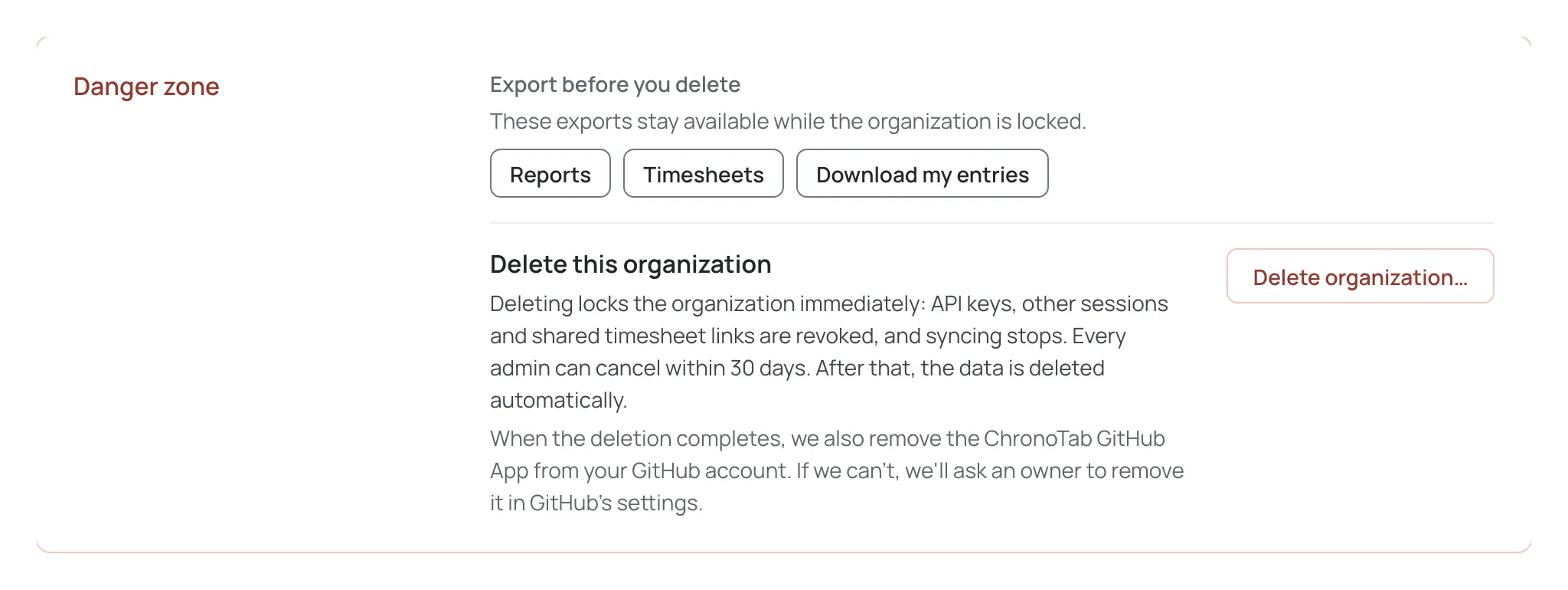
Section titled “Danger zone”The last section, the Danger zone, starts with Export before you delete, the exports you can take first (Reports, Timesheets and Download my entries). Below it is Delete this organization, with a Delete organization… button, which deletes the whole organisation after a 30-day grace period. Only an org admin sees it, and it needs a GitHub sign-in from the last 10 minutes. The full process, including exactly what is deleted and what is kept, is on Delete your organisation.
When an organisation is scheduled for deletion
Section titled “When an organisation is scheduled for deletion”When a deletion is scheduled — by an admin from Settings, or by NFN Labs support on request — the organisation is locked: every member and admin sees a lock screen naming the deletion date, API keys and shared timesheet links stop working, and syncing stops. Any admin can cancel during the 30-day grace period, using Cancel deletion on the lock screen. Cancelling unlocks the organisation immediately, but revoked API keys, share links and other people’s sessions are not restored — issue new keys and links, and ask people to sign in again. See Delete your organisation.
Next steps
Section titled “Next steps”- Adjust a member’s own timezone or weekly hours in Members and roles.
- Remove an organisation you no longer need: Delete your organisation.
- Learn how durations and dates are recorded in Duration and date rules.
Need help? Email support@chronotab.com.