

Log time from the dashboard
For members, managers and admins
This page covers the Log time sheet in the ChronoTab web app: how to open it, every field it asks for, and the formats it accepts. It is for every role logging their own time.
Opening the Log time sheet
Section titled “Opening the Log time sheet”The sheet opens over the page you are on, so you do not lose your place. There are three ways to open it, and they behave the same way:
- Press Alt+T (⌥+T on a Mac) from anywhere in the dashboard.
- Select Log time at the top of the My week page.
- On My week, select a day cell. This opens the sheet with that day already filled in as the Work date.
Press Esc or select Cancel to close it without saving. If a list or calendar inside the sheet is open, Esc closes that first.
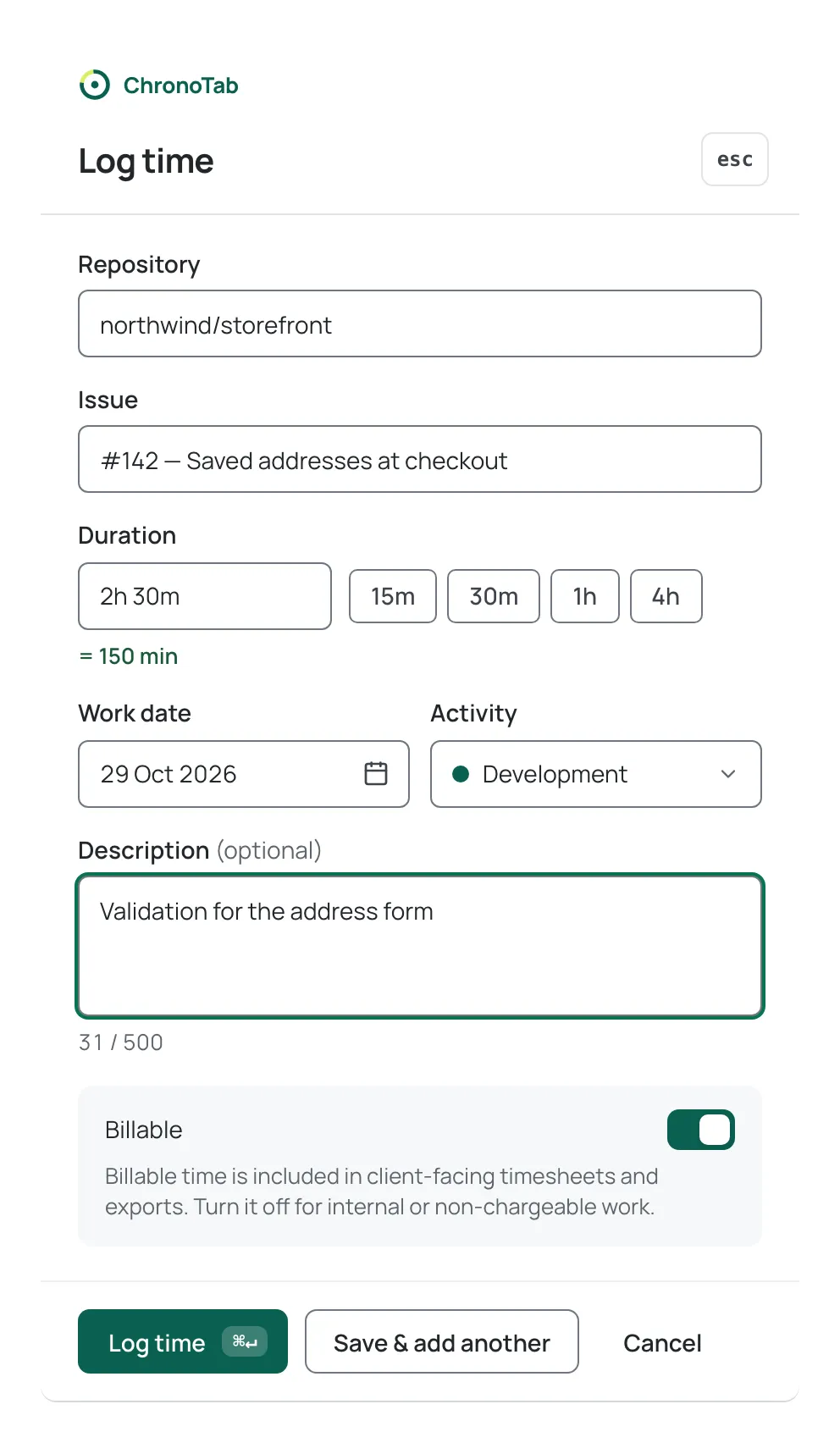
Filling in the form
Section titled “Filling in the form”- Repository — start typing a repository name and select it from the suggestions. ChronoTab searches the repositories your organisation tracks; you cannot type a repository in by hand. Repositories your team’s plan has paused are not offered, and a note under the field says how many are not shown. See Plan limits when you log time. If the same repository was used recently on this browser, it may be offered as Last used on this browser.
- Issue — type an issue number or part of a title and select the issue. A bare number shows that exact issue if it exists, otherwise the message No such issue in this repository. You must pick an issue from the suggestions before you can save.
- Duration — type the time as described below, or pick a quick chip. The line under the field reads Accepts 2h 30m, 2.5 or 90m until the value parses, then shows the total, such as = 150 min.
- Work date — the date the work was done. It defaults to today. Type a date or open the calendar beside the field (see Typing a work date). You cannot log time for a future date; the sheet shows Future dates are not accepted.
- Activity — how the time was spent, chosen from your organisation’s list of activity types (for example Development, QA or Meetings). It starts on your own default activity type if you have set one on your Profile, otherwise on your organisation’s default type; type a letter to jump to a matching option. An org admin manages the list; see Activity types.
- Description (optional) — a short note about what you did, up to 500 characters. A counter under the box, such as 42 / 500, shows how much you have used.
- Billable — leave this on for chargeable work. It starts on your default billable setting from your Profile, which is billable unless you chose otherwise. The helper text reads Billable time is included in client-facing timesheets and exports. Turn it off for internal or non-chargeable work.
Duration formats
Section titled “Duration formats”The Duration field accepts several common ways of writing the same amount of time. All of these mean 150 minutes:
2h 30m— hours and minutes2.5— decimal hours2:30— hours and minutes separated by a colon150m— minutes only
There are quick chips for 15m, 30m, 1h and 4h. A duration of more than 24 hours is rejected; a duration over 12 hours is accepted but flagged as unusual so you can double-check it. For the full rules, see Duration and date rules.
Typing a work date
Section titled “Typing a work date”The Work date field reads and shows dates as DD Mon YYYY, for example 08 Oct 2026, but you can type them in several shorter ways:
todayoryesterday8 OctorOct 8— that day in the current year8 Oct 2026or2026-10-0810-08or10/08— day first, so this is 10 August, not 8 October8— that day in the current month
If ChronoTab cannot read what you typed, the field says Use the format 11 Oct 2026. and the entry is not saved until you fix it. You can also select Choose date to pick a day from a calendar.
Saving
Section titled “Saving”- Select Log time to save and close, or press ⌘↵ (Ctrl+↵ on Windows and Linux). The button shows the shortcut.
- Select Save & add another to save but keep the sheet open with the repository, issue and date still filled in, so you can add several entries in a row. The duration, description and activity are cleared for the next entry.
If something is missing or wrong when you save, ChronoTab marks the field, explains what to fix, and moves the cursor to it.
Either way, the entry appears in Time entries on My week straight away.
Next steps
Section titled “Next steps”- Log time from GitHub — the same entry, from the issue page.
- Log time with a /spend comment — for when a comment is easier than the form.
- Edit or delete an entry — change something you have saved.
Need help? Email support@chronotab.com.