

Share a timesheet with your client
For managers and admins
A share link lets a client open one timesheet, read it, and approve or reject it, without a ChronoTab account. The usual way to give your client that link is to submit the timesheet with Submit and email, which sends it in one step. You can also copy a link and send it yourself. This page is for managers and admins.
Submit and email the link in one step
Section titled “Submit and email the link in one step”- Open a draft timesheet from the Timesheets list and choose Submit.
- The Submit this timesheet? box shows the Client the timesheet is for. You don’t type who it is submitted to: it is always the timesheet’s client, shown at the top of the timesheet once it is submitted, for example Submitted to Fernwood Studio · 30 Oct.
- Leave Email a review link on and check who it goes to under Send the review link to. The client’s billing and primary contact emails are listed first, and you can add any other address with Add (or Enter or a comma).
- Choose Submit and email.
ChronoTab submits the timesheet, which locks its entries, creates a link and emails it to everyone you listed. The client gets a message from ChronoTab with a Review timesheet button, the period, the reference and the date the link stops working. Replies go to you, or to support@chronotab.com if your own address can’t receive mail. The link isn’t shown on screen, because the email carries it. The timesheet’s detail page lists each send under Emails sent, for example Emailed to 2 recipients · 30 Oct.
Email a review link starts on only when the client has a saved billing or primary contact email. Otherwise it starts off and the recipient box is empty: switch it on and add an address to send.
Limits
Section titled “Limits”- Up to 10 recipients per send, counting client contacts and added addresses alike.
- Each organisation can send 20 timesheet emails in any 10 minutes and 100 in a day. Each recipient counts as one email.
- If a limit is reached, ChronoTab tells you before it submits, and nothing changes. You can still submit without email and copy a link.
Submit without emailing
Section titled “Submit without emailing”Switch Email a review link off, or remove every address, and the confirm button reads Submit. The timesheet is submitted and nothing is sent. Send it later from the share panel, as described below.
If the email can’t be sent
Section titled “If the email can’t be sent”If the timesheet submits but the email can’t be sent, it stays submitted and the page shows Submitted. The email could not be sent. with a Retry send button. Choose it to pick the recipients again and send. Retrying doesn’t submit the timesheet a second time.
Send or copy a link after submitting
Section titled “Send or copy a link after submitting”Once a timesheet is submitted or approved, the Share with the customer panel on the right of the detail page offers two actions:
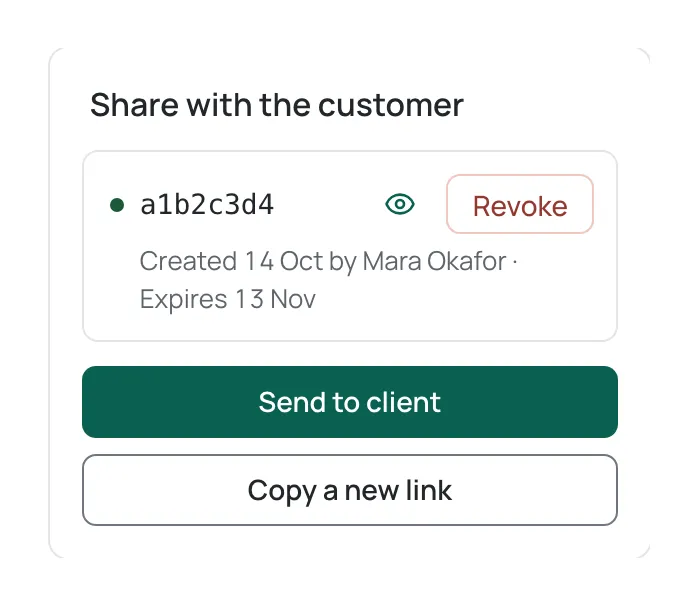
- Send to client opens a box with the same recipient list as submitting. Choose Send email to create a new link and email it to everyone listed.
- Copy a new link creates a link without emailing it. A New link ready card shows it once, with Copy link and Copy message (a ready-to-paste note containing the link), then choose Done. Send it by whatever means you normally use.
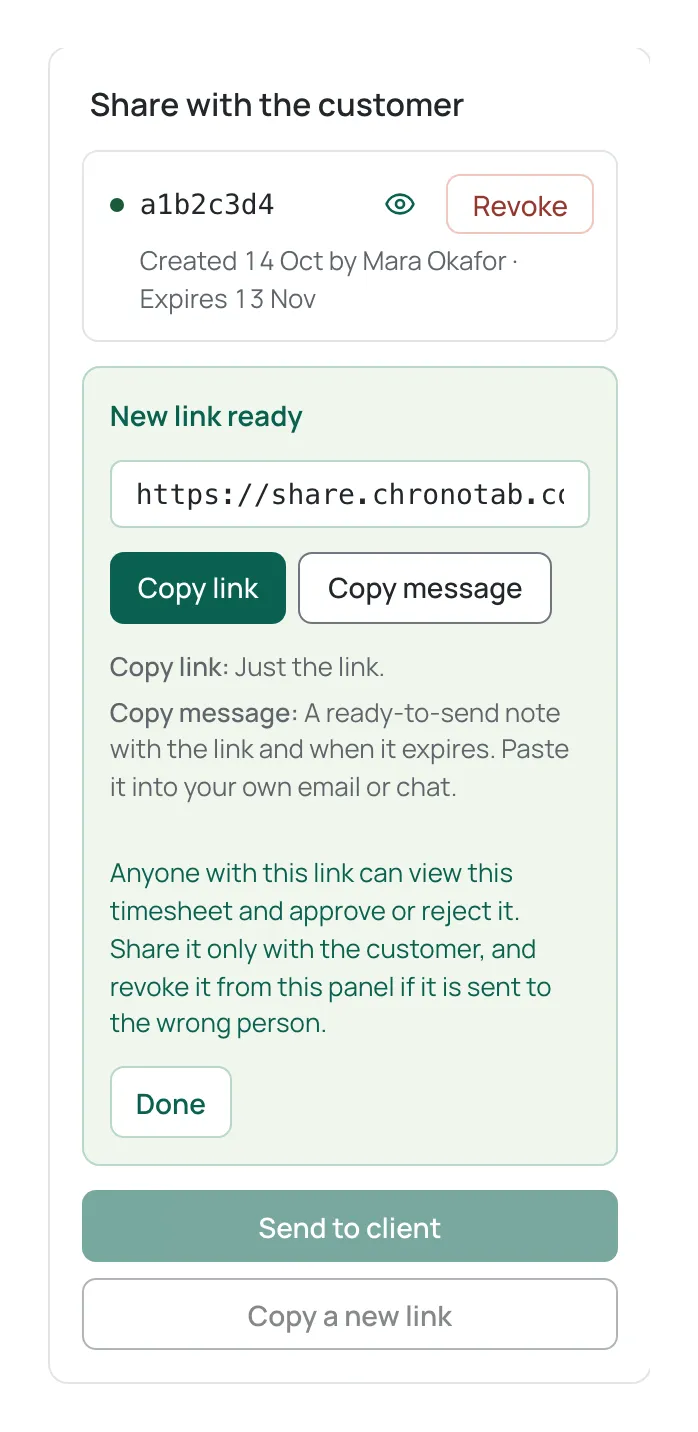
A copied link is shown once, when it is created, and is never retrievable afterwards, so copy it then. Emailing doesn’t use that card: ChronoTab sends the link for you. Each link covers exactly one timesheet and cannot be used to reach any other timesheet or any other part of your organisation’s data.
Each link has an expiry date, 30 days after it is created. The panel lists every link with its id, whether it is live or revoked, who created it and when, and its expiry date, for example Created 14 Oct by Mara Okafor · Expires 13 Nov. A revoked link also shows who revoked it and when.
Under the panel, Emails sent lists one line per send with the number of recipients, the date, and a status for each email: Queued, Sent, Failed, Not delivered or Not sent. It shows counts and statuses, never the addresses. If an address can’t receive mail from ChronoTab it shows Not delivered; check the address and send again.
Share a draft for internal review
Section titled “Share a draft for internal review”A draft can’t be sent to the client. In a draft’s panel, Internal review link — not for the client creates a link you can share with your own team to check the numbers. There is no email action, and no Copy message note, since that note is written for the client.
Anyone who opens a draft’s link sees a Draft — internal review banner saying the numbers can still change, and no approve or reject buttons. Submit the timesheet, then use Send to client, when it is ready for the client.
Preview the document
Section titled “Preview the document”Each live link has a view icon (View document) beside it. Selecting it opens the timesheet document in a new browser tab, so you can check what your client will read. If nothing opens, allow pop-ups for ChronoTab and try again.
Revoke a link
Section titled “Revoke a link”Choose Revoke on a link that is still live. A confirmation opens beside the button, Revoke this share link?, naming the link; choose Revoke link to confirm. Anyone holding that link loses access immediately, and revocation cannot be undone. Revoke a link if it was sent to the wrong person or you no longer want the timesheet actioned through it.
What your client sees
Section titled “What your client sees”The client opens the link in a browser. They see the timesheet document read-only, with an Approve this timesheet card below it:
- Approve asks for Your name (required) and an optional Note, then Approve timesheet.
- Reject timesheet is a link under the Approve button. It swaps in a Reject this timesheet card that asks for a Reason for rejection (required), with Reject timesheet and Cancel.
On the Free plan the document carries ChronoTab’s branding, and its ChronoTab links open the website in a new tab. See Branding on the Free plan.
They can only act while the timesheet is submitted. A draft’s internal review link shows the Draft — internal review banner instead of the forms, and an approved, rejected or void timesheet shows its current status. More detail is on the client-facing page: Approve a timesheet.
A link that has expired tells the client This link has expired and asks them to request a new one. A link that has been revoked looks like it never existed — the client gets no confirmation that a timesheet was ever there.
A link also stops working if your organisation is suspended or locked for deletion. While an organisation is suspended, its links return not found until it is re-enabled. When a deletion is scheduled, every existing share link is revoked permanently — a cancelled deletion does not bring the old links back, so issue a new one.
How the client’s decision is recorded
Section titled “How the client’s decision is recorded”When a client approves or rejects through the link, the timesheet moves to that state in the normal way and the change appears in its History panel: the state it moved from and to, the approver’s name, the time it happened, and a (share link) marker showing it was done through the link rather than by a member of your organisation. Creating and revoking a link are recorded there too, as Share link created and Share link revoked, with who did it and the link’s id. A rejection’s reason is quoted in the history and shown in the rejection banner on the timesheet.
After a customer approves through a link, the timesheet is approved exactly as if you had recorded it yourself, and can only be voided. See Submit, approve, reject or void a timesheet.
Who can create and revoke links
Section titled “Who can create and revoke links”Managers and admins can submit, email, create and revoke share links for a timesheet. Your client never needs a ChronoTab account, and never sees anything other than the single timesheet the link points at.
Related pages
Section titled “Related pages”Need help? Email support@chronotab.com.