

Your API keys
For members, managers and admins
An API key is a secret that lets a tool act for you in one organisation. The ChronoTab browser extension uses one key that belongs to you, so it can log time on GitHub as you. This page explains how that key is created, why you normally never see it, and how it is replaced or revoked. It is for every role.
The key the extension uses
Section titled “The key the extension uses”A key belongs to one person and one organisation. It cannot be used anywhere else, and every key begins with gtt_live_. When you connect the extension, ChronoTab issues a key for your account in that organisation — there is one per person per organisation.
The usual way to connect is to let ChronoTab create and hand over the key for you:
- Open the extension popup from your browser’s toolbar and select Sign in.
- Sign in to ChronoTab, and wait for the dashboard to report Extension connected ✓ - you can close this tab.
You are not asked to copy or paste anything on this path: the dashboard issues the key and the extension stores it on your device. If you belong to more than one organisation, connect the extension to each one. The full walkthrough is in Install the browser extension.
A key is shown once
Section titled “A key is shown once”A key is displayed in full exactly once, when it is created. After that ChronoTab keeps only a fingerprint of it, so the full key cannot be shown again. If a key is lost before it is saved:
- It cannot be recovered; it has to be replaced by a new key.
- The old key should be revoked so it cannot be used.
Seeing and revoking keys
Section titled “Seeing and revoking keys”You can see and revoke your own keys on the Profile page, in the API keys section. It lists the keys you made in the organisation you are working in, for the extension, scripts and AI assistants. To look at another organisation, switch organisation in the sidebar.
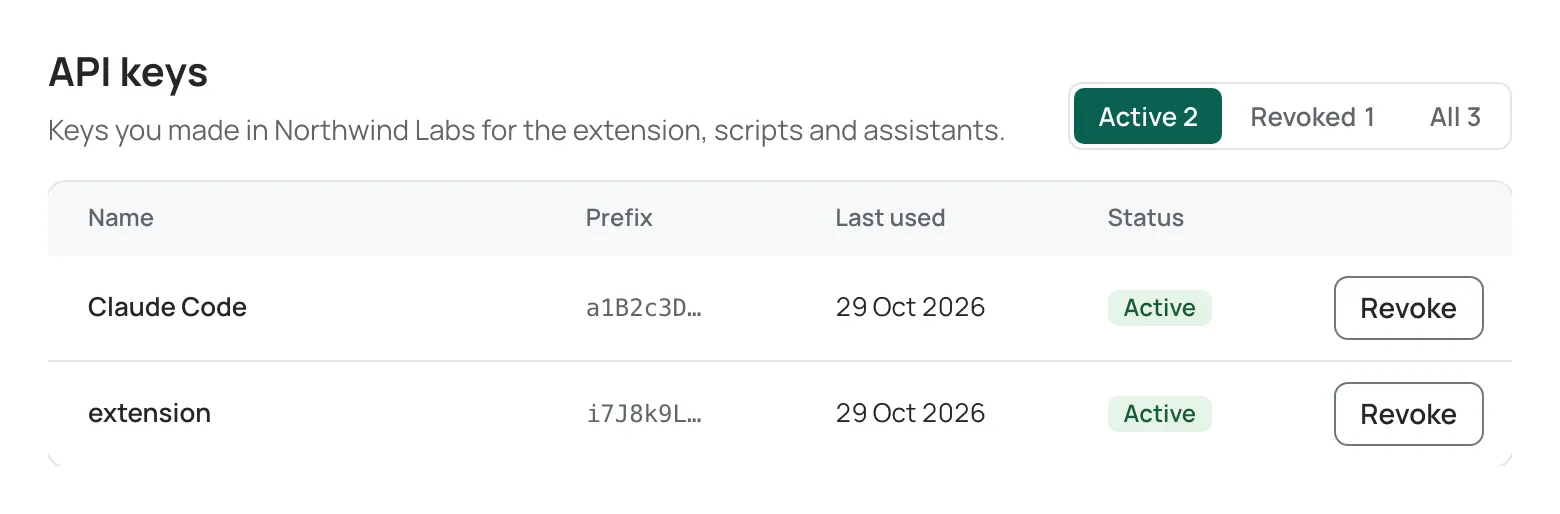
The filter above the table shows Active, Revoked or All, each with a count. Active is the default. For each key the table shows its Name, its Prefix (the safe beginning of the key), when it was Last used (or Never) and its Status.
To revoke a key:
- Choose Revoke on its row.
- Check that the confirmation under the row names the right key, then choose Revoke key.
Revoking takes effect immediately: the tool using that key starts getting errors straight away, and it cannot be undone. There is no re-issue on this page. If you need working access again, create a new key (an AI assistant key from the AI assistant section, or reconnect the extension). An org admin can also see and revoke any key in the organisation from that person’s API keys panel on the Members page, where Reissue creates a new key and shows it once.
If the key your extension uses has been revoked or replaced, reconnect the extension with Sign in in its popup (or Sign in to connect in its settings). If sign-in still does not connect it, contact your organisation’s admin, or NFN Labs support if your admin cannot help.
Leaving a browser
Section titled “Leaving a browser”Signing out of the ChronoTab dashboard does not disconnect the extension. The extension keeps its stored keys on that browser until you remove them yourself:
- Open the extension’s settings and select Sign out to forget every connected organisation on that browser.
- Or ask an org admin to Revoke the key, which stops it being usable everywhere.
This is different from signing out of the dashboard, which only ends your web session. See Sign out.
Need help? Email support@chronotab.com.