

My week
For members, managers and admins
My week is the page you land on after signing in and the one place to see the time you have logged. This page explains the layout, the totals and how to move between weeks. It is for every role, and it always shows your own time.
The summary strip
Section titled “The summary strip”At the top of the week sits a flat strip of three totals that sum up the week at a glance:
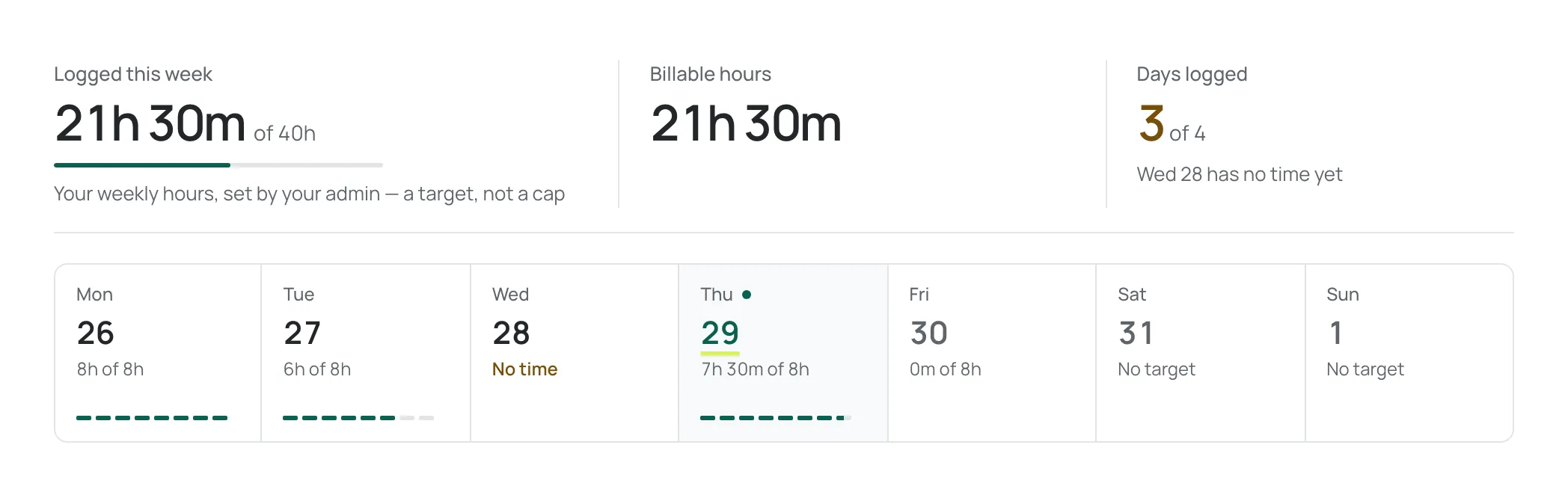
- Logged this week — the time you have logged in the week, shown against your weekly target, for example 34h of 40h, with a thin progress line underneath. The caption reads Your weekly hours, set by your admin — a target, not a cap, so going over is allowed.
- Billable hours — how much of the logged time is marked billable.
- Days logged — how many weekdays have any time against them, out of the weekdays that have arrived, for example 3 of 4. When a day is missing, it names the first one, for example Wed 7 has no time yet.
The day cells
Section titled “The day cells”Below the summary is a row of seven day cells, Mon to Sun. Each cell shows the date, the total logged that day, and how that total compares with the day’s target:
- A day with time shows its total against the target, such as 6h of 8h.
- A weekday that has arrived with nothing logged is treated as a gap and carries an amber No time caption.
- Weekend days normally have No target; they still accept time if you log it.
- A day still to come cannot be logged yet.
- Today is marked with a small dot beside the weekday and an underlined date.
The whole cell of any day that has arrived is a button: select it to open the Log time sheet with that day already set as the work date.
Each cell also shows a small green meter, one dash per hour of the day’s target, that fills in as the day’s time approaches its target.
On a phone, all seven days fit on screen at once in narrow columns. Each column shows the weekday, the date and a compact total such as 6h15, or a dash when there is no time; a gap day shows its dash in amber with an amber dot below it.
Navigating the week
Section titled “Navigating the week”- Use the left and right arrows (Previous week and Next week) to move a week at a time. The range is shown between them, such as 24 – 30 Aug 2026.
- Select This week to jump straight back to the current week from anywhere.
- On a keyboard, press ← or → to move a week. While you are typing in a field, use [ and ] instead. See Keyboard shortcuts.
Older weeks on Free
Section titled “Older weeks on Free”On the Free plan, My week shows the last 60 days. The page says so with a note, Showing the last 60 days. Full history is on paid plans. Days before the window are marked Outside the 60 days, and you cannot add, edit or delete entries dated before it. Older entries are kept and come back on any paid plan. See Plan limits when you log time.
The Time entries list
Section titled “The Time entries list”At the bottom of the page, Time entries lists everything you logged in the week, grouped by day under grey date bands, with one row per entry. Each row leads with the issue — its number, such as #205, above its title — followed by the Repository, Activity and Duration; each day’s band shows that day’s total.
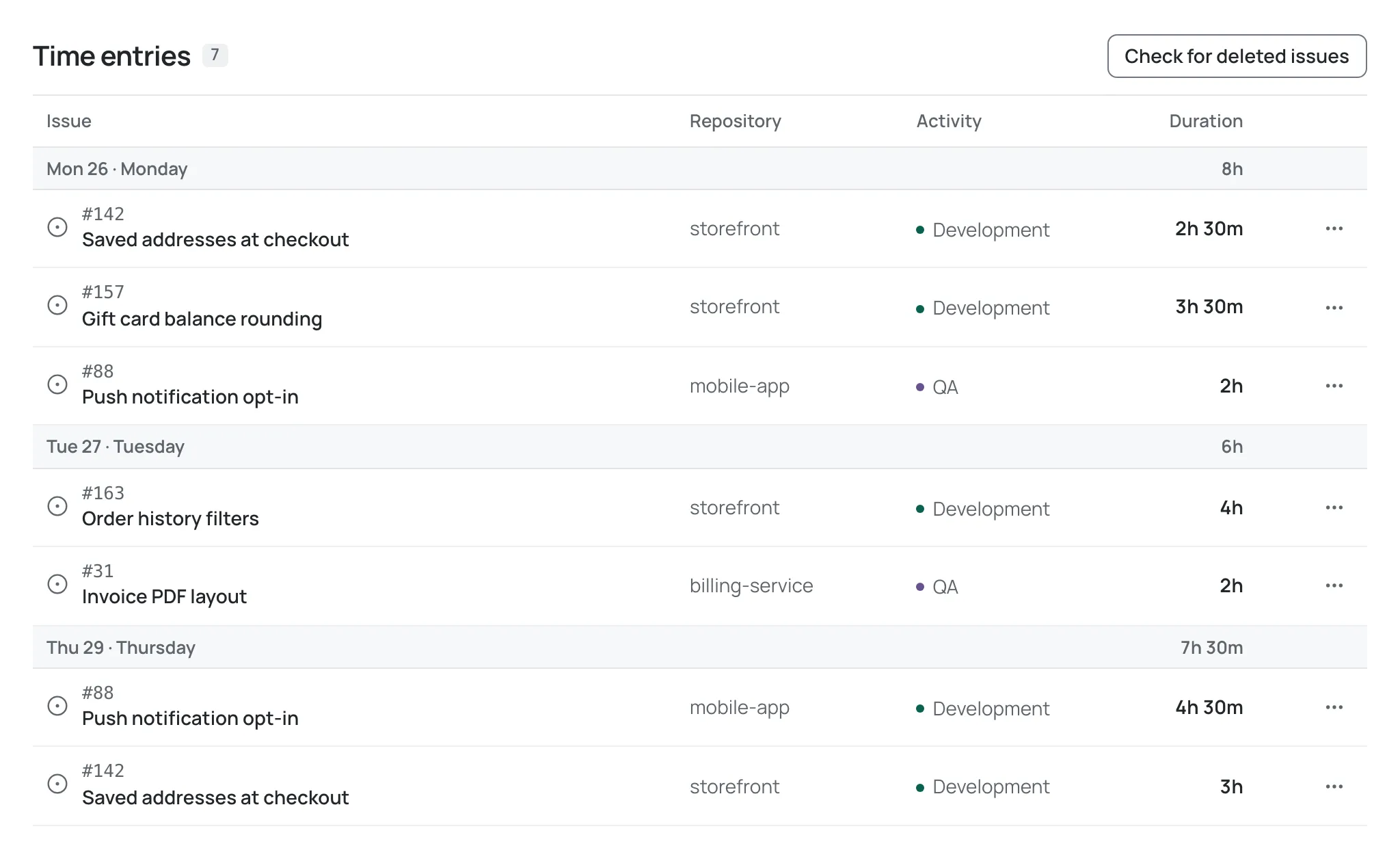
From a row’s ··· actions menu you can Edit or Delete the entry; a delete asks you to confirm in a small popover beside the button. See Edit or delete an entry.
An entry on a submitted, approved or rejected timesheet is locked and shows a small lock icon beside its duration. Its menu offers View instead: it opens the entry read-only, with the reason it is locked and a link to the timesheet that holds it (or the timesheet’s reference, if you cannot open timesheets). See What happens to entries after approval.
If your admin has archived or deleted a repository, or an issue has been removed on GitHub, the row is flagged and you can use Check for deleted issues to refresh that information. The entry itself is not changed.
If the week or its entries fail to load, an error appears with a Try again button that loads them again.
Next steps
Section titled “Next steps”- Log time from the dashboard — every field and shortcut.
- Edit or delete an entry — correct something you logged.
- What happens to entries after approval — why entries lock once they are on a submitted timesheet.
Need help? Email support@chronotab.com.