

Switch between teams
For members, managers and admins
If your account belongs to more than one organisation, ChronoTab calls them teams and lets you move between them. This page explains where the switcher is and what changes when you use it. It is for every role, and it only applies if you belong to more than one team.
Choosing a team at sign-in
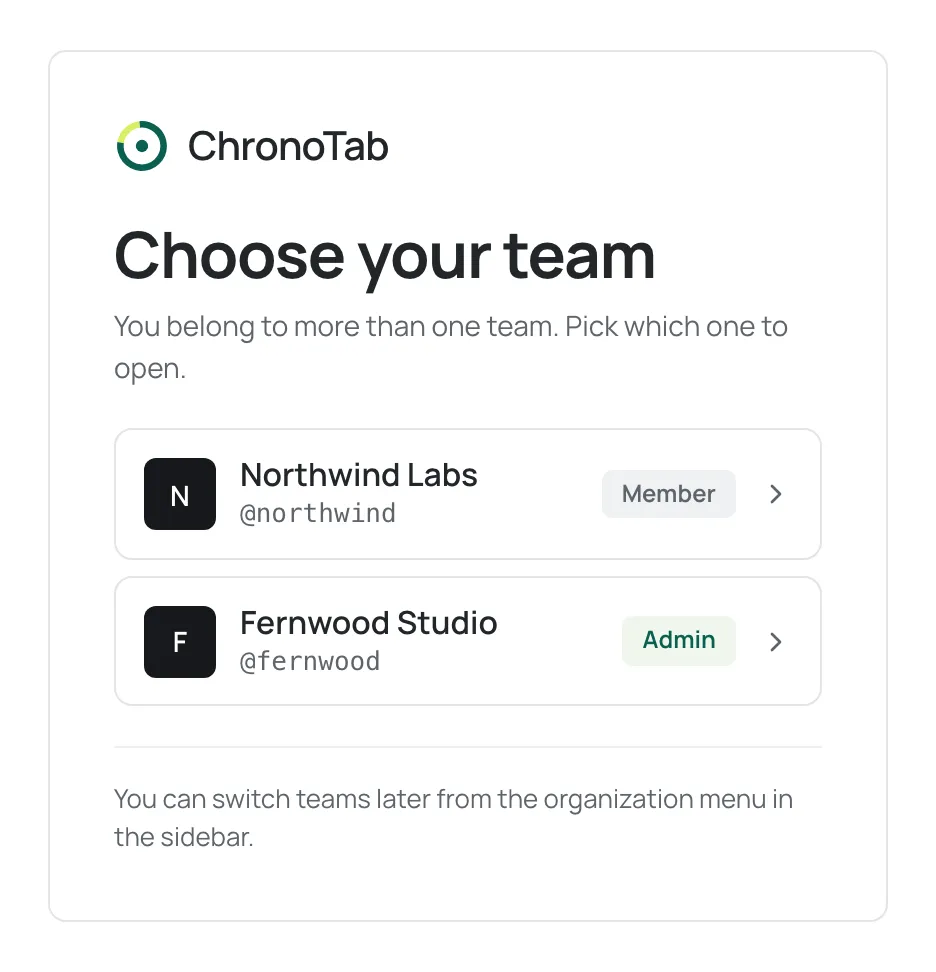
Section titled “Choosing a team at sign-in”The first time you sign in after being added to a second organisation, ChronoTab shows a Choose your team screen before the dashboard, with the line You belong to more than one team. Pick which one to open. Each row shows the team’s name, its @slug and your role there. Pick one to continue; the line under the list reminds you that You can switch teams later from the organization menu in the sidebar.
Switching later
Section titled “Switching later”Once you are in the dashboard, the switcher is the organisation name at the top of the sidebar. When you belong to more than one team, it reads Switch team under the name.
- Select the organisation name at the top of the sidebar. A Teams menu opens, listing each of your organisations, with a tick beside the one you are in.
- Select the organisation you want to work in. You can also use the arrow keys and Enter, or Esc to close the menu.
ChronoTab reloads itself under that organisation. The name at the top of the sidebar changes, the navigation and your role badge are recalculated for your role in that organisation, and every page — My week, Reports, Timesheets, and so on — now shows that organisation’s data.
If you have ChronoTab open in several tabs
Section titled “If you have ChronoTab open in several tabs”Your team choice applies to every dashboard tab in the same browser. When you switch team in one tab, your other open tabs move to that team too.
If another tab was in the middle of saving something for the old team when you switched, that change is not saved, so time never lands on the wrong team. The tab tells you You switched teams in another tab, so this wasn’t saved. Check the team and try again. It then shows the team you switched to; check you are in the right team and make the change again.
If your team becomes unavailable
Section titled “If your team becomes unavailable”If the team you are using becomes unavailable to you, for example because an admin disabled you there or removed you, and you belong to at least one other team, ChronoTab shows the Choose your team screen instead of signing you out. Pick one of your other teams to carry on. The same screen appears if you are added to a second team while you are signed in.
How you end up in more than one team
Section titled “How you end up in more than one team”Your account can hold membership in several organisations. You are added to each one by an admin of that organisation, or automatically if that organisation syncs members from GitHub. See How you get access and Members and roles.
Next steps
Section titled “Next steps”- My week — the page each team opens on.
- Roles and permissions — your role can differ from one team to the next.
Need help? Email support@chronotab.com.