

Submit, approve, reject or void a timesheet
For managers and admins
Once a timesheet is generated you move it through its lifecycle: submit it to the customer, then record their approval or rejection, or void it. This page lists each action, the fields it needs, and what it locks. It is for managers and admins.
Open a timesheet from the Timesheets list with View, or straight after generating it. The detail page’s header starts with a Timesheets breadcrumb (select it to go back to the list), the timesheet’s reference and its status. The buttons available in the header depend on the timesheet’s current state.
Which actions are available
Section titled “Which actions are available”| State | Actions |
|---|---|
| Draft | Submit, Regenerate, Discard |
| Submitted | Approve, Reject, Void |
| Rejected | Submit, Void |
| Approved | Void |
| Void | None |
Every state also has an Export menu with Download CSV, Download PDF and Open printable version (see Download or print a timesheet). Regenerate is shown on other states too, but only works on a draft.
Selecting an action button opens a small confirmation beside it, titled with the action and the timesheet’s reference (for example Void ACME-2026-10?). It explains what the action does, holds the fields listed below, and has Cancel and a confirm button named after the action. The action runs only when you select that confirm button; if a required field is empty, ChronoTab marks it and keeps the confirmation open. Esc or Cancel closes it without changing anything.
Submit
Section titled “Submit”Submitting sends the timesheet to the customer. The Submit this timesheet? box shows the timesheet’s Client, which you can’t change, and no one types who it is submitted to. Once submitted, the top of the timesheet reads Submitted to followed by the client’s name and the date.
By default the box also emails the client a review link. Check the addresses under Send the review link to, then choose Submit and email, or switch Email a review link off and choose Submit to submit without sending anything. See Share a timesheet with your client for recipients, limits and Retry send.
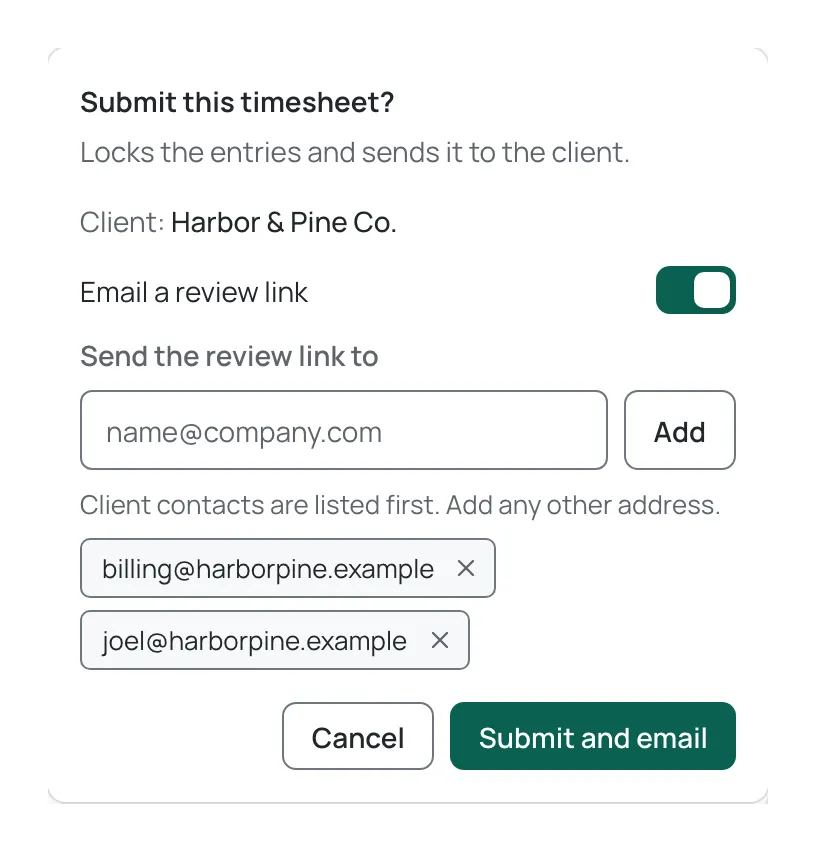
What submission does:
- It locks every entry on the timesheet. From then on, no one — not the entry’s author, not an admin — can edit or delete them. An attempt is refused with That entry is locked to a submitted timesheet and can’t be edited.
- It freezes the document. ChronoTab keeps the exact lines that were submitted, so a later change to an issue title or a description does not alter what the customer sees.
Before locking, ChronoTab checks the lines and warns if any references an issue that no longer exists on GitHub, listing those issues. This is a warning, not a block: choose Submit anyway to continue, or Cancel to go back.
If the draft is no longer up to date — an entry changed since it was generated — ChronoTab refuses to submit stale figures and asks you to refresh it. Regenerate the draft, then submit again.
Approve
Section titled “Approve”Approving records the customer’s acceptance. It needs:
- Approver name — who approved the timesheet. Required.
- Approval note — an optional note, for example a reference to the customer’s email.
ChronoTab records the approver’s name and the time of approval. An approved timesheet is final: it can no longer be submitted, rejected or edited, and the only action left is Void.
Reject
Section titled “Reject”Rejecting sends the timesheet back so it can be fixed and resubmitted. It needs:
- Rejection note — the reason for rejection. Required.
A rejected timesheet shows a banner, This timesheet was rejected, that names who rejected it and when (Rejected by a name · a date and time) and quotes the reason, then asks you to address the rejection and submit again. The note is also quoted in its History. Fix what the note describes — usually by correcting an entry and then regenerating the draft — and submit again.
Voiding cancels a timesheet and releases the entries it had locked, so they can be edited and put on a new timesheet. It needs:
- Void reason — why the timesheet is voided. Required.
Void is available from Submitted, Rejected and Approved. Use it to undo a timesheet that already reached a customer. The void and its reason are kept in the timesheet’s history.
Discard a draft
Section titled “Discard a draft”Discard deletes a draft outright. It is available only while the timesheet is a draft — a draft was never sent to anyone, so there is nothing to void. Discarding cannot be undone, and it frees the timesheet’s reference for a new draft. When you discard, a confirmation opens beside the button; choose Discard draft to confirm.
Corrections after approval
Section titled “Corrections after approval”An approved timesheet is never edited in place. This is deliberate: it keeps the document the customer approved unchanged. To correct one, Void it, fix the underlying time entries, and generate a replacement. See How timesheets work.
Download or print a timesheet
Section titled “Download or print a timesheet”Open the Export menu in the detail page’s header to take a copy of the timesheet in any state:
- Download PDF downloads the timesheet document as a PDF, named after its reference. The first download of a timesheet can take a few seconds; a loading indicator shows beside the menu until it arrives.
- Open printable version opens the same document in a new browser tab, where you can print it or save it as a PDF yourself. If nothing opens, allow pop-ups for ChronoTab and try again.
- Download CSV downloads the timesheet’s lines as a spreadsheet file.
The PDF is the same document your client sees through a share link. Hours are shown in decimal with the same time in hours and minutes underneath, for example 2.50 h above 2h 30m, and every page has a footer with the reference, Prepared by your organisation and the date, and Page n of N. A draft carries a DRAFT watermark. On the Free plan the PDF carries ChronoTab’s branding instead of yours, like every Free timesheet; see Branding on the Free plan.
If the PDF cannot be made, the page says The PDF couldn’t be made right now. The printable version still works. Use Open printable version and print from your browser, or try again later.
Your client can download the same PDF from the share link; see Approve a timesheet.
History
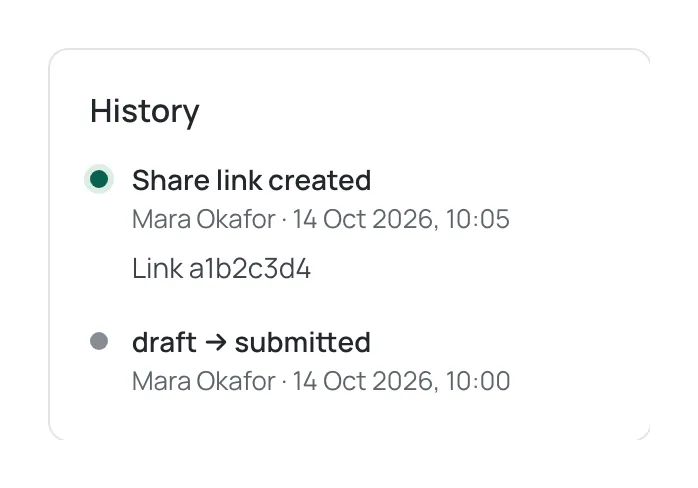
Section titled “History”Every timesheet has a History panel that records its full lifecycle, newest first: when it was created, each time it was regenerated (refreshed), and every status change, shown as from → to — submitted, approved, rejected (with the rejection note quoted), and voided (with the void reason). Share links appear there too, as Share link created and Share link revoked with the link’s id. Each row names who did it and when, and actions taken through a customer share link are marked (share link).
Who can do this
Section titled “Who can do this”Submitting, approving, rejecting, voiding and discarding are all available to managers and admins. A customer can also approve or reject a submitted timesheet through a share link; when they do, the timesheet’s History records the action and marks it (share link). See Share a timesheet with your client.
Need help? Email support@chronotab.com.