

When a repository is paused
For admins
A paused repository is one that your organisation’s plan no longer has room for, or one an admin paused by hand. It stays in your organisation, with everything it has recorded, but nobody can log new time on it until it is resumed. This page explains when that happens, what you can do during the 14-day window and how to resume a paused repository. It is for org admins.
Pausing only happens when your organisation is over its plan’s repository limit. Paid plans apply from a date we will announce at least 30 days in advance, and until then no limit is applied, so no repository is paused.
When a repository is paused
Section titled “When a repository is paused”A repository is paused when both of these are true:
- Your plan’s repository limit is lower than the number of repositories your organisation is using. This happens after a downgrade takes effect, or when a paid plan ends.
- The 14-day window that starts when the organisation went over the limit has passed, and you have not chosen which repositories stay active.
A downgrade takes effect at the end of your billing period, within about two hours of it, so the limit does not change until then. Nothing is paused straight away.
Seats do not pause repositories. Being over the seat limit starts the same 14-day window, but what happens at its end is that members are disabled by plan, not that repositories are paused. See Seats over the limit.
What keeps working
Section titled “What keeps working”A paused repository keeps everything it has recorded:
- its history and every entry on it;
- its reports and timesheets, including timesheets you have already submitted;
- its place in Manage repositories, marked Paused, so you can see it and manage it.
What stops is new activity on it:
- nobody can add a new entry on a paused repository;
- nobody can start a timer on it. A timer that is already running can still be stopped;
- nobody can edit or delete an existing entry on it. Its entries show as read-only with a Paused tag until it is resumed;
- it is not offered in Log time, and the picker says how many paused repositories it is not showing.
Archived and deactivated repositories do not count towards the limit, so you may find you are not over it at all.
The 14-day window
Section titled “The 14-day window”When your organisation is over its repository limit, you have 14 days to choose which repositories stay active. Until the window ends, everything keeps working as before.
During the window:
- The Billing page and the banner across ChronoTab say that choices are due, with the date the window ends.
- Manage repositories shows a grace panel at the top, under a meter that reads, for example, 2 over the limit · choose by 2 Nov. The panel counts the repositories you are keeping and the number that will be paused on the date, and it says which ones will be paused.
- The panel shows each repository’s outcome: Stays active, Pauses and the date, Pinned, or Kept for recent use.
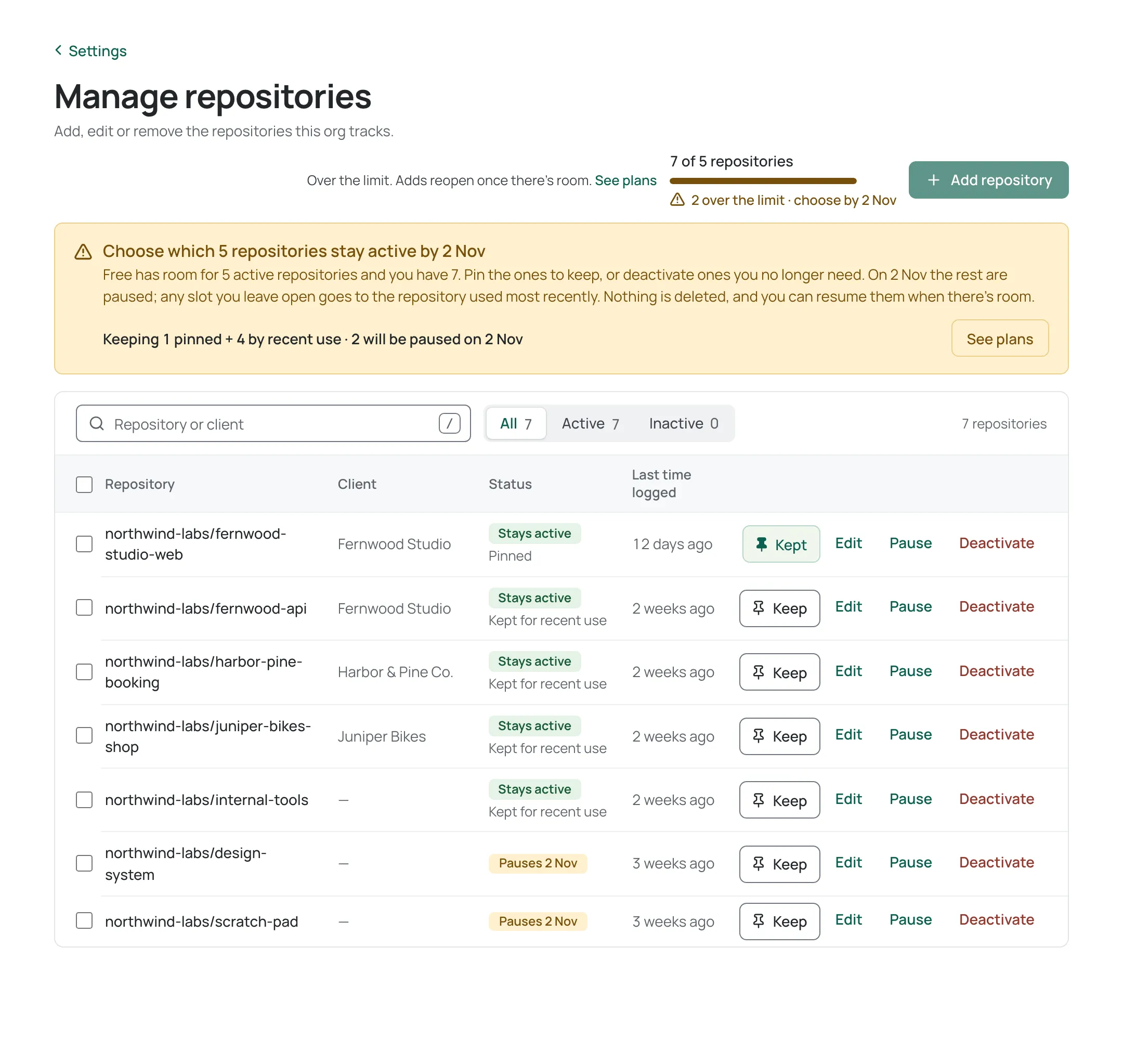
From there you can:
- Keep a repository. A kept repository stays active when the window ends, until you unpin it. Keep is limited to the number of repositories your plan allows, and the panel says so when every slot is pinned.
- Deactivate a repository you no longer need, which frees its place. See Repositories.
- See plans to move to a plan with more room instead.
When the window ends, the repositories you did not keep are paused. Any places still free go to the repositories used most recently. Nothing is deleted.
Resume a paused repository
Section titled “Resume a paused repository”A paused repository shows a Resume button in Manage repositories when your plan has room for it. Choose Resume and the repository becomes active straight away.
If the plan is full, the button is Swap… instead.
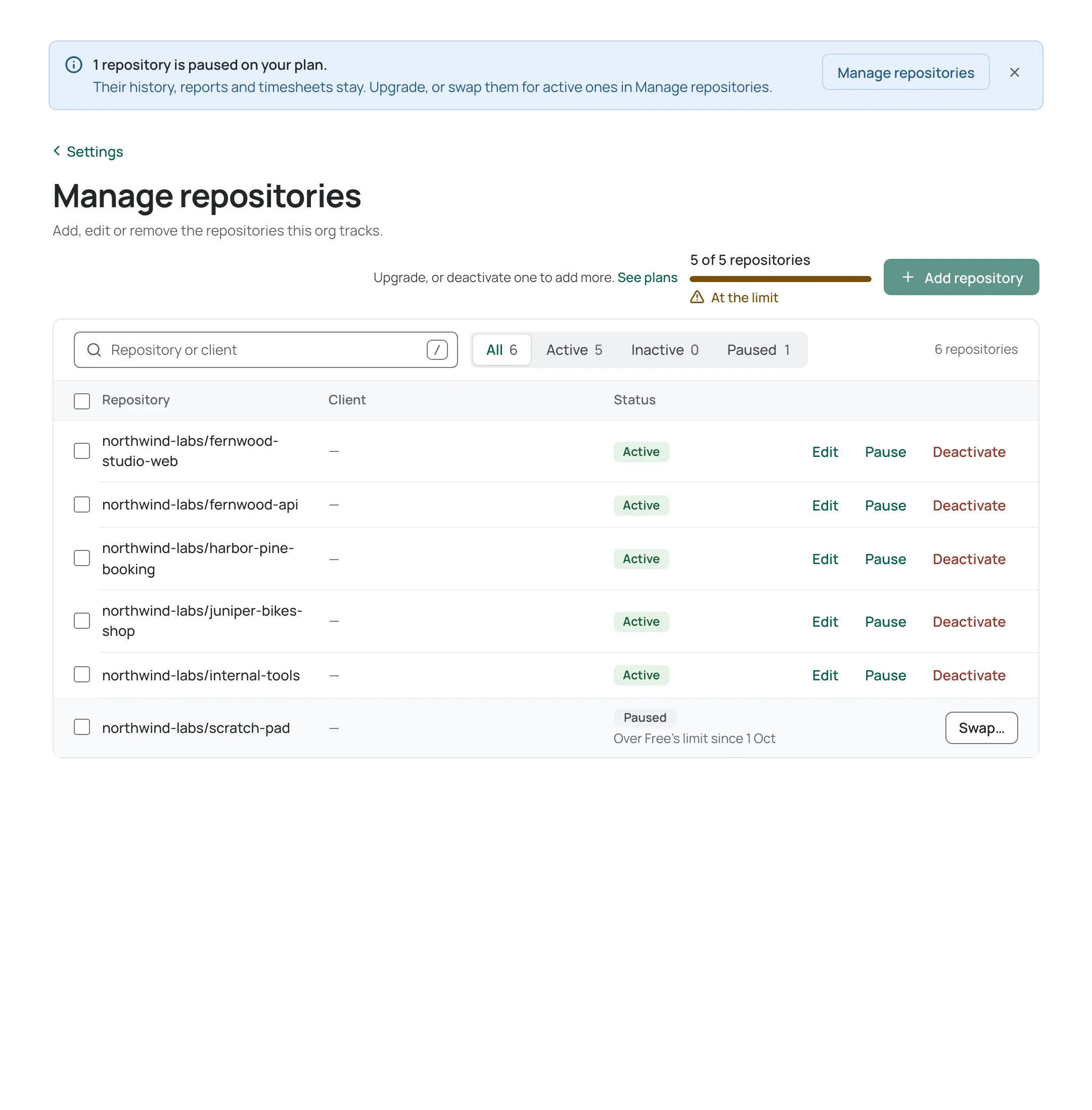
It opens a choice of an active repository to pause in its place, with the text Pause instead. Choose the repository to pause, then Swap. The repository you chose resumes and the one you picked is paused, in a single step, so the count never goes over the limit. The paused repository keeps its history, reports and timesheets.
Repositories your plan paused come back automatically only when your plan’s repository limit rises: when you upgrade, or when a grant or a limit increase gives you more repositories. They come back straight away, up to the new limit, most recently used first. A repository an admin paused is not resumed this way; see Pausing a repository by hand.
A place freed any other way is yours to fill. Deactivating, pausing or archiving a repository, or removing it from GitHub, frees a place but never resumes a paused repository on its own; choose Resume on the one you want back, or add a new repository.
Pausing a repository by hand
Section titled “Pausing a repository by hand”While your plan’s limits apply, an admin can pause an active repository to free its place on the plan:
- On Manage repositories, choose Pause on the repository’s row, between Edit and Deactivate.
- A confirmation opens beside the button, Pause followed by the repository’s name. It explains that nobody can log time on the repository until you resume it, that a timer running on it stops, and that its history, reports and timesheets stay. Choose Pause.
The row then reads Paused, with Paused by an admin on the date. Focus moves to its Resume button, so you can undo it straight away.
A repository you pause yourself:
- frees its place on the plan. ChronoTab does not fill that place with a repository the plan paused; resume one yourself, or add a new one;
- is not resumed when you upgrade. Only you resume it, with Resume or Swap…;
- loses its Keep pin, if it had one.
If your organisation is in its 14-day window, a pause that brings it within the limit ends the window straight away.
Swap… also pauses a repository by hand: it pauses one active repository to resume a paused one in one step. Members see a repository you paused the same way as one the plan paused.
Seats are different
Section titled “Seats are different”Seats work the same way but apply to people. When the 14 days end, members beyond the seat limit are disabled by plan, with their entries, reports and timesheets kept, and they return automatically when there is room. See Seats over the limit.
Need help? Email support@chronotab.com.