

Organisation API keys
For admins
An API key lets a tool log time or read data on behalf of one person, in one organisation. Every key belongs to one person, and org admins see and manage the keys of everyone in the organisation from the Members page: open a person’s API keys panel there. Each person manages their own keys on their Profile page; see Your API keys. The Settings page has no list of keys.
What a key is
Section titled “What a key is”- Every key begins with
gtt_live_. - A key belongs to one person and one organisation. It cannot be used anywhere else.
- ChronoTab stores only a hash of the key, so the full key is shown exactly once, when it is created. After that it cannot be retrieved again — only revoke it and make a new one.
Find keys that need a look
Section titled “Find keys that need a look”On Members, a person whose keys need attention shows a warning badge on their card, next to the API keys button:
- Multiple IPs means an active key has been used from more than one IP address — worth checking if a key may have been shared.
- Unused 90+ days means an active key has not been used for 90 days, or has never been used and was created more than 90 days ago.
If both apply, the badge says both. Above the cards, the API keys filter offers All, Has API keys and Flagged keys. It works together with the role filter.
Create a key
Section titled “Create a key”Keys are created in three places, and each one belongs to a person:
- A member’s first key is created when you add them; it is shown once, so copy it before you choose Done. See Members and roles.
- Your own key for the browser extension is created when you connect the extension. See Install the browser extension.
- Your own key for an AI assistant is created from the AI assistant section on your Profile page.
To replace a member’s key, use Reissue (see below). There is no other way to create a key for someone else.
Keys do not expire by default. An expiry date can be set when a key is created through the API, after which the key stops working.
Member keys
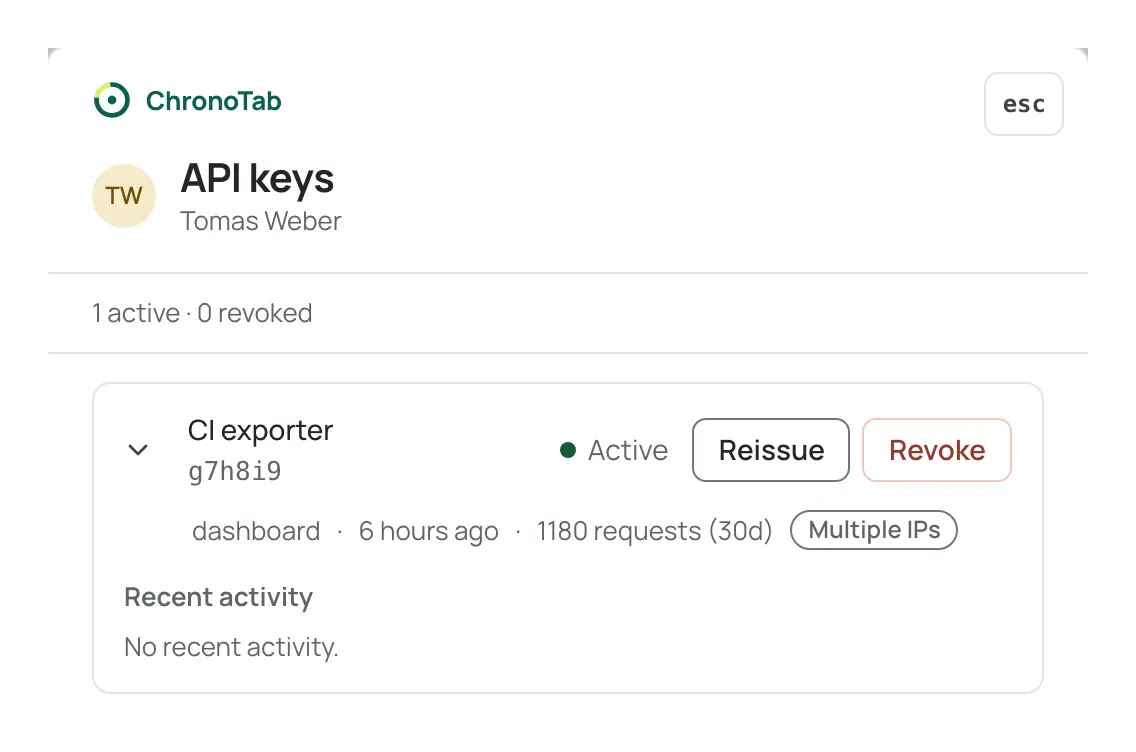
Section titled “Member keys”Choose a person’s API keys button on the Members page to open their panel. It lists that person’s keys: active ones first, then revoked ones with the date they were revoked. For each key the panel shows:
- Name, the label given when the key was created, and its prefix, the short, safe beginning of the key, for identifying it.
- Status: Active or Revoked. A revoked key has no buttons.
- Where the key was created, when it was last used, and its requests (30d), the number of requests it made in the last 30 days.
- A Multiple IPs badge when the key has been used from more than one IP address.
- Reissue and Revoke buttons on each active key.
Each active key has an arrow that expands its Recent activity: the endpoint, status, IP address and time of its latest requests.
Your own keys are on your Profile page, where you can see them and revoke them. Reissue is on Members only.
Reissue a key
Section titled “Reissue a key”On the person’s panel, choose Reissue beside the key. A new key for the same owner is created and shown once, so copy it before you close the panel. Reissuing does not revoke the old key, so revoke the old one yourself once the new one is in use.
Revoke a key
Section titled “Revoke a key”- On the person’s panel, choose Revoke beside the key.
- A confirmation opens under the key. Check that it names the right key (by its prefix), then choose Revoke key.
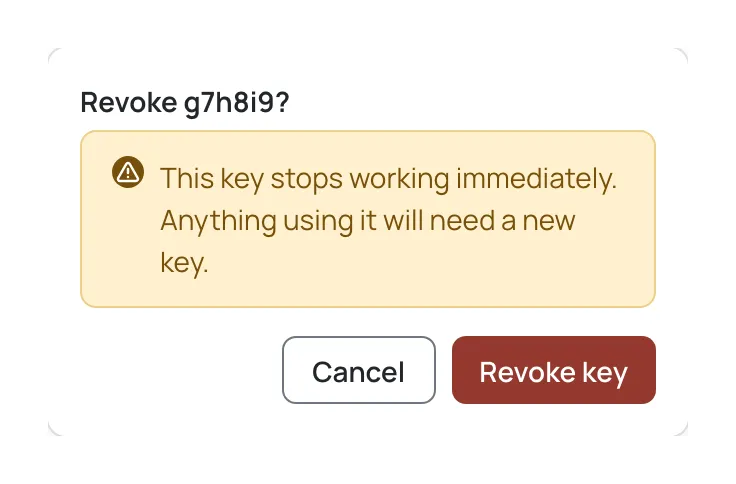
Revoking takes effect immediately: any client using the key starts getting 401 errors. The key then shows as Revoked on the panel, and the change is recorded in the Audit log.
Rotate a key safely
Section titled “Rotate a key safely”To replace a key without breaking a service, keep both keys valid at once:
- Choose Reissue on the key’s row in the person’s panel to create the new key and copy it.
- Update each tool or service to use the new key.
- Once nothing uses the old key, choose Revoke beside it in the same panel.
If a key is leaked or exposed, revoke it straight away instead — a brief outage is better than leaving the key usable.
Next steps
Section titled “Next steps”- See how a member’s key is used in Log time from GitHub.
- Manage your own key in Your API keys.
- Review key changes in the Audit log.
Need help? Email support@chronotab.com.