

Repositories
For admins
ChronoTab records time against issues in GitHub repositories. Repositories are managed on the Manage repositories page, which you reach from the GitHub section of Settings. This page is for org admins.
Which repositories are tracked
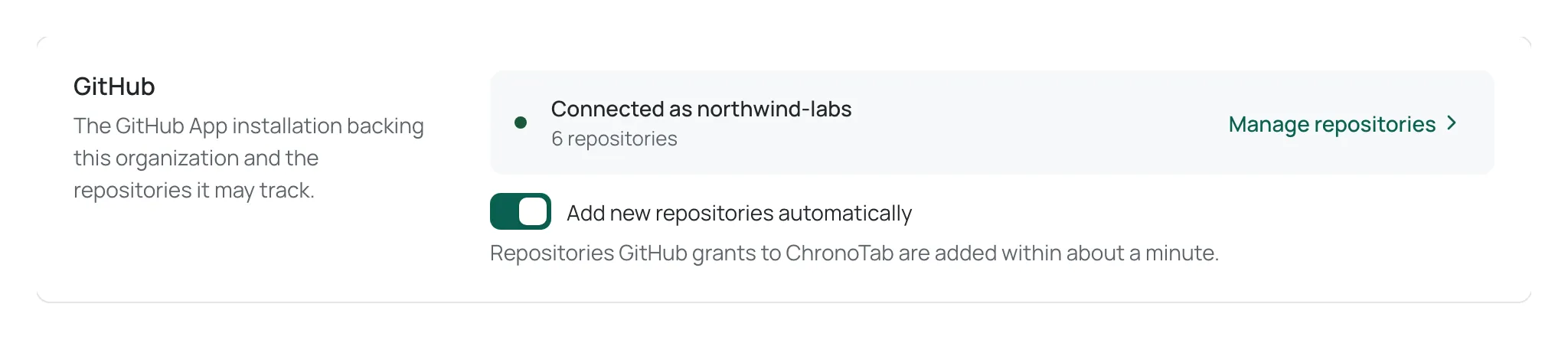
Section titled “Which repositories are tracked”ChronoTab can only track repositories that the GitHub App backing your organisation can see. From those, your organisation keeps an allowlist of the repositories it actually tracks. While Add new repositories automatically is on, the allowlist is filled automatically from the installation, so a newly available repository appears within about a minute without you adding it. Turn it off to add repositories only by hand; new ones GitHub grants to ChronoTab then stay off the list until you add them.
On Settings, the GitHub section shows:
- Connected as followed by the GitHub account login when the installation is in place, or Not connected.
- How many repositories the organisation tracks.
- A Manage repositories link that opens the allowlist on its own page.
- The Add new repositories automatically switch.
Manage repositories
Section titled “Manage repositories”Manage repositories is a full page, so an organisation with hundreds of repositories can scan and change them comfortably. Use ‹ Settings at the top to go back.
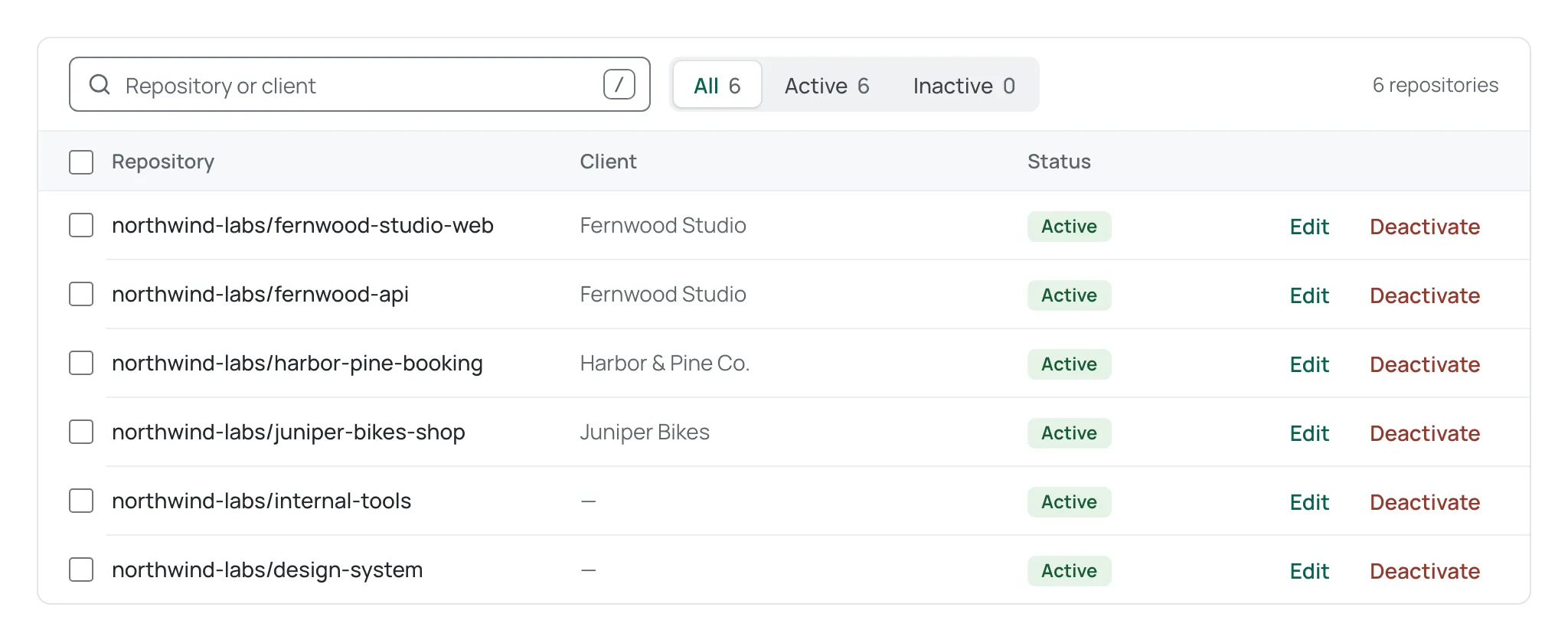
Each row shows the Repository, its Client and its Status:
- Client — the client from the Clients page that the repository is tagged to, or a dash when it has none. A repository belongs to at most one client.
- Active — tracked and available in the Log time picker.
- Inactive — removed from the allowlist; not available for logging.
- Paused — still tracked, but no new time can be logged on it. A repository your plan has no room for shows your plan’s name and the date it was paused, for example Over Free’s limit since 1 Oct; one an admin paused shows Paused by an admin on the date. See When a repository is paused.
A repository that GitHub has archived also shows an Archived tag beside its status.
Find a repository
Section titled “Find a repository”Type in Search repositories to filter by repository name or by client name; the match is highlighted. Use the All / Active / Inactive control to narrow by status (a Paused option appears while any repository is paused); its counts follow your search. The result count, for example “12 of 340 repositories”, updates as you type, and screen readers hear it once you stop typing. Press / to jump to the search box, and Esc to clear it.
The search and status are kept in the page’s address (?q= and ?status=), so you can bookmark or share a filtered view and a refresh keeps it.
Change several repositories at once
Section titled “Change several repositories at once”Tick the box on a row to select it (hold Shift to select a range), or tick the box in the header to select every repository currently shown. On a phone, choose Select first. While anything is selected, a bar replaces the search with these actions:
- Assign to client… — pick an active client. The dialog says how many repositories will move from which client, how many already belong to it, and how many are skipped.
- Remove from client — takes the selected repositories out of their clients.
- Activate and Deactivate — turn tracking on or off. Deactivating asks you to confirm.
Each action is applied in a single step: either every repository that can change does, or none does. A repository that belongs to an archived client cannot be changed here, because archived clients are read-only; it is skipped, stays selected, and the confirmation says how many were skipped. If another admin tags one of the repositories while your change is running, nothing is changed and you are asked to try again.
Add a repository
Section titled “Add a repository”- Open Manage repositories and choose Add repository.
- Under Repository, choose a repository. The list contains only repositories the installation can see; you can type to search it, but not type in a repository of your own.
- Optionally choose a Client from the list. It offers your active clients and No client.
- Choose Add repository. The card stays open so you can add several in a row; choose Cancel when you are done.
A repository you add or reactivate by hand shows up in the Log time picker within seconds.
When your plan’s repository limit is full, the Add repository card says so and offers See plans. A repository that automatic adding could not add shows the tag Not added, plan limit until there is room. While automatic adding is on and the plan is nearly full, the page says how many more repositories fit on your plan, and that any beyond that show as Not added, plan limit.
When automatic adding is on and the plan is full, Manage repositories shows a banner under its header titled New GitHub repositories are waiting for room. It counts the repositories created or shared on GitHub that have not been added yet, for example Repositories are added from GitHub automatically while there’s room. 3 repositories created or shared on GitHub are not added yet; they’ll be added when there’s room. They are added automatically when there is room, as long as Add new repositories automatically stays on. After you upgrade, the next hourly sync adds them, up to the new limit. If you turn automatic adding off, they stay off the list until you add them by hand.
To change a repository’s client later, choose Edit on its row, pick a client (or No client), then Save (or Cancel). Inactive repositories, and repositories of an archived client, have no Edit.
If a repository you expect is missing, ChronoTab has not been given access to it on GitHub. Whoever manages your GitHub organisation grants the ChronoTab app access to more repositories on GitHub; once it is granted, the repository appears in the list to add. ChronoTab never changes your GitHub access itself.
If the organisation is Not connected, no repositories are available. Connecting the GitHub App is part of onboarding your organisation — see How you get access.
Stop tracking a repository
Section titled “Stop tracking a repository”- On Manage repositories, find the repository and choose Deactivate (or select several and use the bulk Deactivate).
- A confirmation opens beside the button, Deactivate followed by the repository’s name. Check it, then choose Deactivate.
Deactivating removes the repository from the active allowlist: it no longer appears in the Log time picker and its issues stop syncing. Historical entries and timesheets remain queryable. Choose Reactivate on an inactive row to track it again.
While your plan’s limits apply, an active row also has Pause, between Edit and Deactivate. Pausing keeps the repository tracked but stops new time on it, and frees its place on your plan until you choose Resume. See Pausing a repository by hand.
What happens when a repository changes
Section titled “What happens when a repository changes”- Renamed. The displayed name follows the new name on the next sync, and existing entries and timesheets stay linked to the repository.
- Transferred to a new owner. ChronoTab treats this as the repository leaving your organisation and deactivates it.
- Archived on GitHub. It stays tracked and is shown with an Archived tag.
- Access removed, or the repository deleted. It is deactivated on the next sync.
- Issues deleted. Time already recorded against a deleted issue is kept; it does not disappear.
ChronoTab syncs on a schedule, so a change made on GitHub may take a short while to appear.
When the GitHub App is suspended or removed
Section titled “When the GitHub App is suspended or removed”- Suspended on GitHub. New issues and repositories stop syncing until a GitHub owner unsuspends the ChronoTab app in your GitHub organization’s settings. Admins see a banner explaining this, and sync resumes on its own once it is unsuspended.
- Uninstalled. Repositories stop syncing. An admin of your ChronoTab organisation reconnects it from Get started by installing the ChronoTab GitHub App on the same GitHub account again (installing it needs a GitHub owner of that account); the repositories then sync again. Anyone else who tries is told to ask an admin. See Troubleshooting for the messages you may see.
- ChronoTab re-checks repository access on a schedule that follows how much your organisation is used: hourly while it is in use, daily once nobody has used it for a week, and weekly after 30 days. The first time someone uses it again, it re-checks straight away. A repository whose access was removed is deactivated on the next check.
Next steps
Section titled “Next steps”- Tag tracked repositories to the clients they belong to on the Clients page.
- See which repositories a member can log against in Log time from GitHub.
- Review allowlist changes in the Audit log.
Need help? Email support@chronotab.com.