

Generate a timesheet
For managers and admins
Generating a timesheet builds a draft document for one client and one period, made up of the billable time your organisation logged across every repository tagged to that client. This page explains the options on the Generate timesheet panel, how rounding works, and how to refresh a draft after fixing entries. It is for managers and admins.
Generate a draft
Section titled “Generate a draft”- Open Timesheets in the Analyse group of the sidebar (or choose Create timesheet on Reports).
- Select Generate timesheet in the page header. The panel opens below the header; it is closed until you ask for it, and the same button closes it again.
- Choose a Client. The list shows the clients an admin has tagged at least one repository to; type to search it.
- Set the Period start and Period end dates. Both are inclusive. You can type a date (for example
1 Oct) or pick one from the calendar. - If you need different rounding for this one timesheet, tick Override rounding and choose the Increment and Direction (see below).
- Choose Generate timesheet at the bottom of the panel.
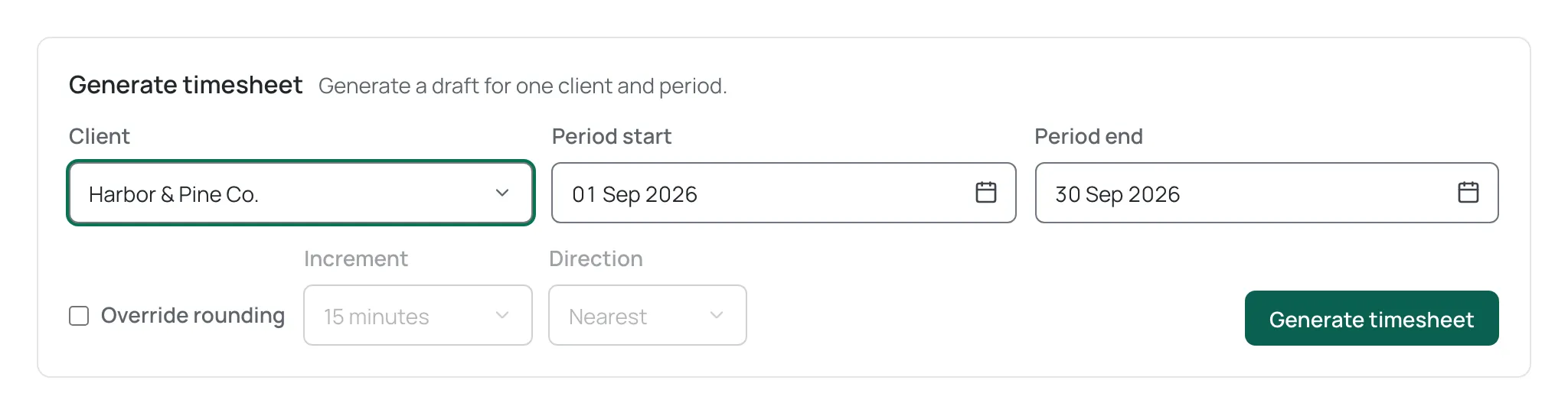
If no client has a tagged repository yet, the panel says No client has a tagged repository yet — tag a repository to a client first. Tagging is an admin task — see Clients.
ChronoTab opens the new draft’s detail page. It is a draft: nothing has been sent to anyone and nothing is locked.
On the Free plan a timesheet’s period cannot start before the last 60 days. A start date further back is refused with a message that names the first day you can use, and the document carries ChronoTab’s branding. See Branding on the Free plan.
What goes into the timesheet
Section titled “What goes into the timesheet”A generated timesheet covers every repository tagged to the chosen client, and includes the billable time that members logged against those repositories in the period. Non-billable entries — internal work, estimation, unbilled rework — are left out of the document, even though they are still recorded in Reports.
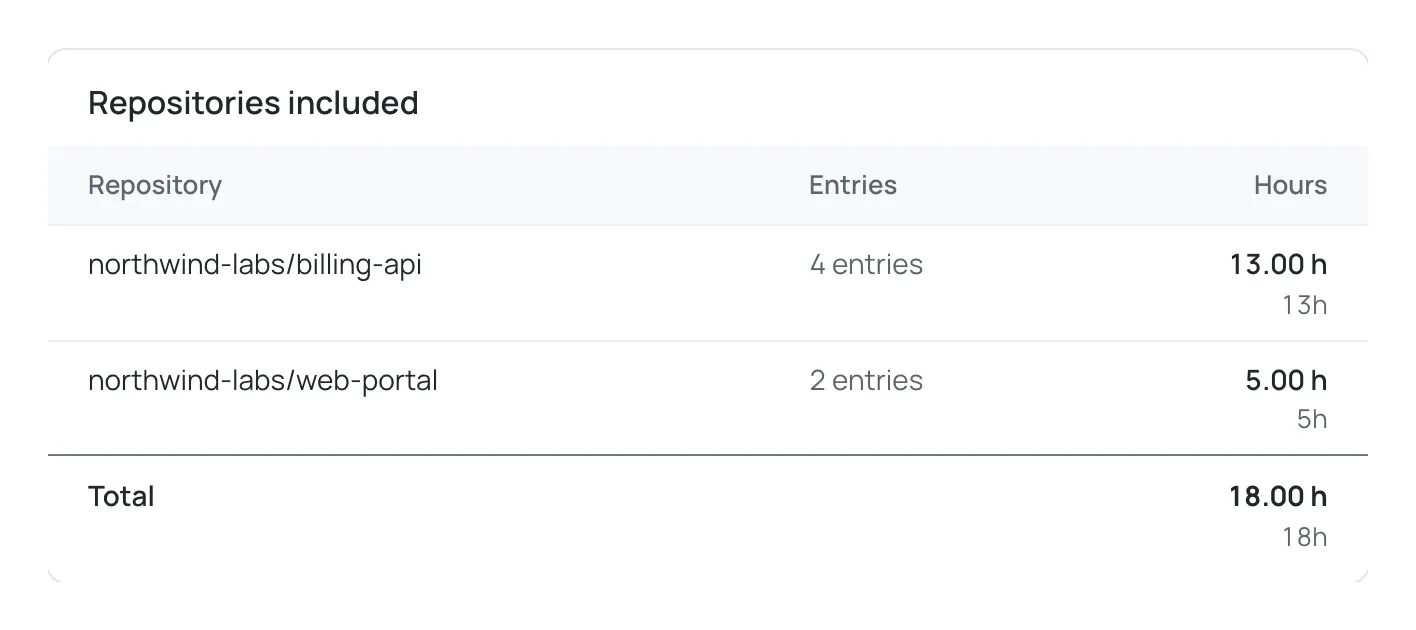
Each member’s lines for the period are grouped on the timesheet, and the summary shows the client, the period and the total. The detail page also lists every repository the draft covers, each with its own subtotal and a footer total — see below.
A repository with no client tagged to it has no timesheet capability: it is not offered in the generation flow, and its time can only be reviewed in Reports. Tag it to a client first.
Repositories included
Section titled “Repositories included”The detail page shows a Repositories included panel: one row per repository the draft covers, with that repository’s subtotal, and a total across all of them. In Time entries by person below, each line names the repository its issue came from, so two repositories’ issue #12 are never confused with each other.
Rounding
Section titled “Rounding”Rounding is applied when the timesheet is generated, to each line, and is then frozen into that timesheet. The rounded total is the sum of the rounded lines — not a rounding of the raw total. Reports never round; rounding applies only to timesheets.
By default, a timesheet uses the organisation’s configured rounding, which an admin sets in Settings as Timesheet rounding — see Organisation settings. If you tick Override rounding, you can set:
- Increment —
1 minute,6 minutes,15 minutesor30 minutes. - Direction — Nearest or Up.
The detail page’s summary shows the rounding the timesheet uses in its Rounding row, for example 15 min · nearest, marked Custom when it is an override. An override applies to this timesheet only. It does not follow later changes to the organisation setting; the detail page notes that a custom rounding will not update if Settings change. To pick up new settings, Discard the draft and generate a new one.
Fix entries and regenerate
Section titled “Fix entries and regenerate”A draft is free to change. If you spot an entry that is missing, wrong, or not yet billable:
- Correct the time entry — for example from the Reports drill-down panel, or from My week if it is your own.
- Return to the draft and choose Regenerate (available on a draft only).
Regenerate rebuilds the draft from the current entries and rounding. You can regenerate as often as you need before submitting.
If an entry changes after the draft was generated and you try to submit, ChronoTab refuses to send stale figures and shows That timesheet is out of date — refresh it and try again. Regenerate the draft and submit again.
Check for gaps before you submit
Section titled “Check for gaps before you submit”Before sending a timesheet, an admin can check for missing time. On Reports, set the same period (and the client filter); a warning above the summary counts the people and person-days with nothing logged, for example Possible missing time: 2 people, 5 person-days with nothing logged. You can still export it. To see who and which days, open the Team page for the same period. The warning is a nudge, not a block — you can still generate and send. See Reports.
Discard a draft
Section titled “Discard a draft”A draft you no longer want can be deleted with Discard in the detail page’s header. A confirmation opens beside the button, naming the reference, client and period; choose Discard draft to confirm. This removes the draft and frees its reference for a new one; it cannot be undone. Discard is available only while the timesheet is a draft.
Next steps
Section titled “Next steps”Need help? Email support@chronotab.com.