

Plan limits when you log time
For members, managers and admins
Your organisation’s plan sets how many repositories it can use, how many people it can seat and how much history it shows. Most of the time you will not notice it. This page explains what you see when a plan limit affects your own time tracking: a repository that is paused, an older entry that is read-only, the 60-day window on the Free plan, and a seat disabled by the team’s plan. It is for every role.
Only org admins can change the plan or resume a repository.
Paused repositories
Section titled “Paused repositories”A repository is paused when your team’s plan has no room for it. Its history, reports and timesheets stay, but no new time can be logged on it until an admin resumes it. See When a repository is paused for how this happens.
What you will see:
- Log time does not offer a paused repository. A line under the repository field says how many paused repositories are not shown, for example 1 paused repository isn’t shown.
- A new entry on a paused repository is refused, and you are told This repository is paused on your team’s plan. Ask an admin.
- Entries already logged on a paused repository are read-only. Each one shows a Paused tag, and the sheet says This repository is paused on your team’s plan, so its entries can’t be changed until it’s resumed. with Ask an admin. as its action.
- You can still stop a timer that is running on a paused repository. Stopping is never refused.
- A banner across ChronoTab, for everyone in the team, says how many repositories are paused, that time can’t be logged on them for now, and that their history stays. It asks you to ask an admin to resume them.
If you need a paused repository for work you are doing now, ask an admin. They can resume it when the plan has room, or upgrade the plan.
Entries older than 60 days on Free
Section titled “Entries older than 60 days on Free”On the Free plan, ChronoTab shows the last 60 days of entries. Entries older than that are kept, but they are read-only:
- You cannot add an entry dated before the window, and you cannot edit or delete one.
- The sheet for an older entry says Entries older than 60 days are read-only on Free. This one is kept, and you can edit it again on any paid plan. Members see Ask an admin about upgrading. where admins see See plans.
- Older entries come back on any paid plan. Nothing is deleted when your team is on Free.
Timesheets and reports on Free
Section titled “Timesheets and reports on Free”The 60-day window also applies to the places you read history:
- My week shows a note Showing the last 60 days. Full history is on paid plans. Days outside the window are marked Outside the 60 days. You can hide the note with Hide this note until your next visit.
- Reports clamps the date range to the window. A preset that reaches back further is cut to the start of the window, and a line says from that date.
- The date pickers on Reports stop at the start of the window. A date before it is refused with a message that starts Free shows the last 60 days.
- A timesheet cannot start before the window. Generating one for an earlier period is refused with This period starts before that date . On Free, timesheets can cover the last 60 days only.
These rules are the same for members, managers and admins.
The browser extension
Section titled “The browser extension”The Chrome and Edge extension follows the same rules as the dashboard.
- A repository your team’s plan has paused is shown as paused, with the time already logged on the issue, instead of hiding the widget. Time can’t be logged on it until an admin resumes it.
- On Free, the date picker stops you choosing a date older than the 60-day window. The reason is shown under the date, instead of failing when you save.
- A paused repository that is refused says This repository is paused on your team’s plan. Ask an admin.
The extension needs the version that ships with this release to show paused repositories. If it still shows a paused repository as ordinary, update the extension and try again. See Install the browser extension.
If your seat is disabled by the team’s plan
Section titled “If your seat is disabled by the team’s plan”When your team has more members than its plan has seats, an admin has 14 days to choose who keeps one. After that, the people beyond the limit are disabled by plan. If that is you, nothing you logged is deleted, and you can still sign in to the dashboard with Continue with Google or Continue with GitHub to look at your own time. See Seats over the limit for how the choice is made.
Every page shows a banner that reads Your seat on your organisation’s name is disabled by the team’s plan., followed by You can view your entries, but can’t log or change time until an admin resumes your seat. Nothing is deleted. It cannot be dismissed.
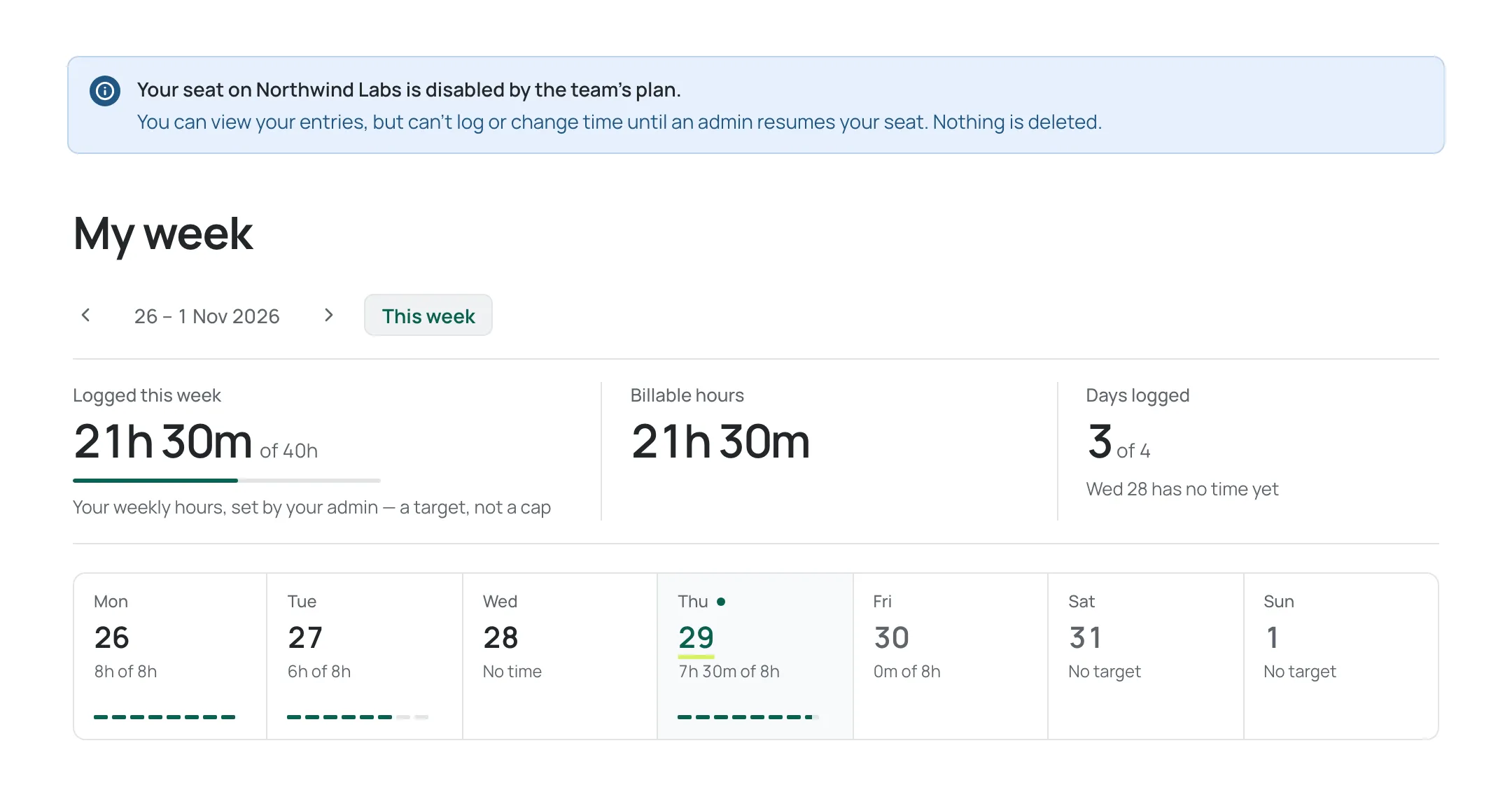
While your seat is disabled you can:
- Open My week to see your own entries and day totals for any week. Select an entry to see it in full. It opens read-only, titled View entry, and says Your seat is disabled by the team’s plan, so this entry can’t be changed until an admin resumes it.
- Open Profile to see your name and your defaults for the organisation, shown as values.
- Use Download my data on Profile to download every entry you have logged on the organisation.
You cannot log time, edit or delete an entry, or change your profile, and the buttons for those are not shown. The sidebar shows only My week and Profile, other pages take you back to My week, and your role reads View only. Your API keys do not work while your seat is disabled, and the browser extension says your seat is disabled by the team’s plan and that time can’t be logged until your seat is back.
If your seat is disabled while you have a form open, what you typed stays on screen but is not saved, and you are told, for example Your seat on your organisation’s name was just disabled by the team’s plan, so this entry wasn’t logged.
When an admin resumes your seat, or the team upgrades, the next page you load has everything back. If your seat was disabled by plan in more than one organisation and you have no other, the sign-in page tells you your seat is disabled instead of letting you in; ask an admin of one of them to resume it.
Who to ask
Section titled “Who to ask”- For a paused repository, or for a plan change, ask an org admin.
- For an entry that is older than the window, ask an admin about upgrading. Nothing you can do on Free changes the window.
- If your seat is disabled by the team’s plan, ask an org admin to resume it. Nothing is deleted and your entries, reports and timesheets stay. See If your seat is disabled by the team’s plan.
See also Troubleshooting for the exact message for each case.
Need help? Email support@chronotab.com.