

Team completeness
For admins
The Team page shows, for every active person in your organisation, which weekdays they logged time for and which they missed. It is for org admins. Use it before you generate a timesheet or send a report to a client, so you know the hours behind it are complete.
Members and managers do not see the Team page. A member sees only their own week on the My week page.
What the page shows
Section titled “What the page shows”The page always shows one month at a time.
- Use the arrows beside the month name (Previous month and Next month) to move a month at a time.
- Choose This month to jump back to the current month.
- The legend shows four colours: Met, Under, Over and Empty.
- Three totals sit above the table: Logged, Empty weekdays and People below target.
While the figures are still loading, or if they fail to load, the totals show a dash (–) rather than a number, so nobody is shown as on target by mistake.
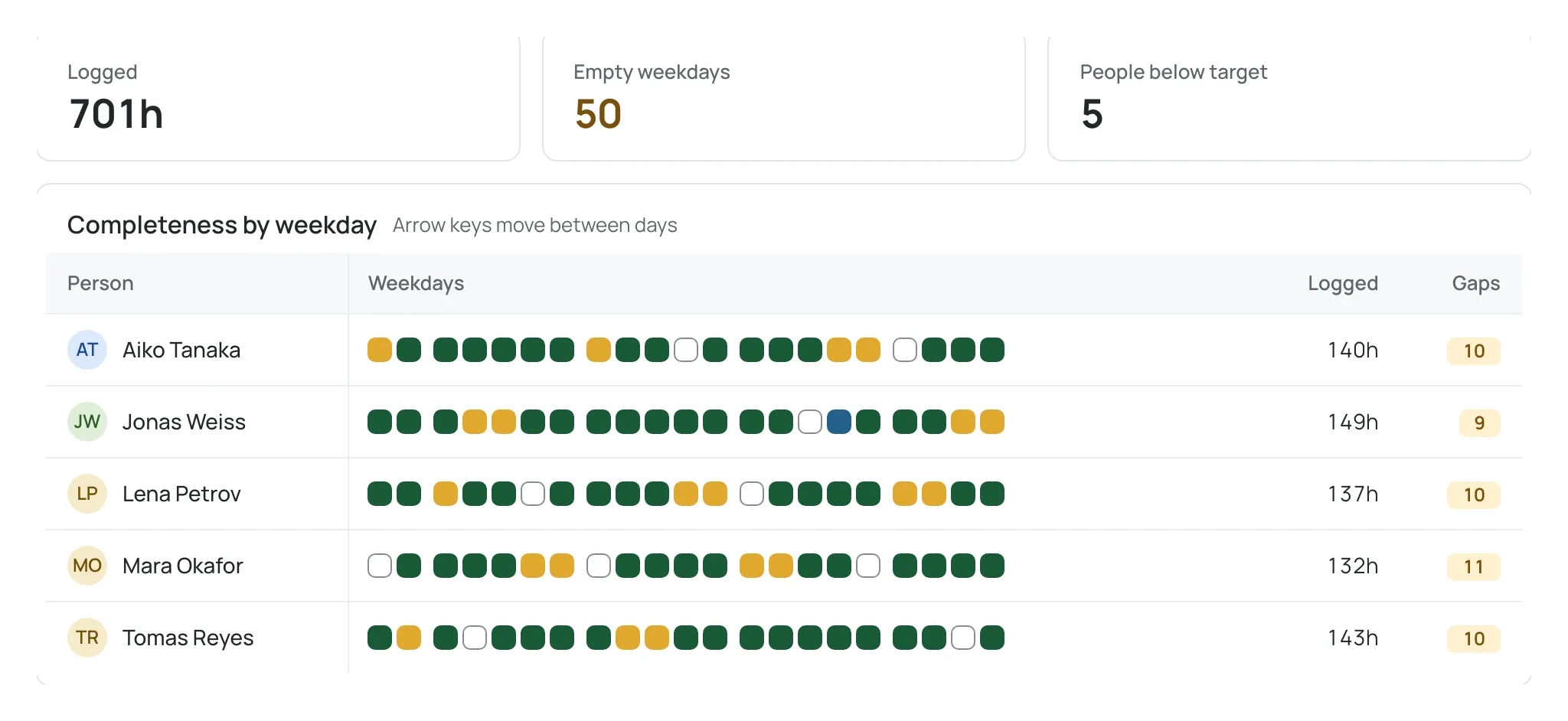
Below the totals, the Completeness by weekday table has one row per person:
| Column | What it shows |
|---|---|
| Person | The person’s name. |
| Weekdays | One small square for each weekday in the month, coloured by that day’s status. |
| Logged | The person’s total logged time for the month. |
| Gaps | The number of weekdays the person logged nothing for, or — when there are none. |
Weekends are not shown, because there is no target for them. Each row is one person, however many days the month contains. On a keyboard, Tab into the table and use the arrow keys to move between days; each square announces the person, the day and its status.
How ChronoTab decides a day is complete
Section titled “How ChronoTab decides a day is complete”Each person has a Weekly hours figure. ChronoTab spreads those hours across Monday to Friday, so every weekday expects the same number of hours:
- A person set to 40 weekly hours is expected to log 8 hours on each weekday.
- A person set to 20 weekly hours is expected to log 4 hours on each weekday.
ChronoTab then compares the time logged that day with the expected time and gives the day one status:
- Met — the logged time is exactly the expected time.
- Under — some time was logged, but less than expected.
- Over — more time was logged than expected.
- Empty — no time was logged at all.
Weekends and days before a person joined never have a target, so a new joiner is not shown as behind for days before they started. Only active entries count; entries that were replaced or deleted do not.
Find who has gaps
Section titled “Find who has gaps”- Move to the month you want to check.
- Read Empty weekdays and People below target for a quick count.
- Scan the Weekdays column for Empty squares and the Gaps column for a non-zero number.
- To fix a gap, a manager or admin can edit that person’s entry — see Edit other members’ entries — or the person can fill it in themselves from My week.
Use it before you generate a timesheet
Section titled “Use it before you generate a timesheet”A timesheet is a document you send to a client, so its hours should be complete. Before you generate a timesheet, check the Team page for the same period and close any gaps.
The Reports page also checks completeness for the range you filter to. When it finds empty weekdays it shows admins a one-line warning that counts them, for example Possible missing time: 2 people, 5 person-days with nothing logged. You can still export it. It does not name anyone; the names and dates are here, on the Team page. You can still export — the warning is a prompt, not a block. See Reports.
Next steps
Section titled “Next steps”- Adjust someone’s Weekly hours or role in Members and roles.
- Understand how durations and work dates are recorded in Duration and date rules.
Need help? Email support@chronotab.com.