

Log your first time entry
For members, managers and admins
This page takes a new member from a fresh sign-in to one saved time entry, in the shortest way possible. Managers and admins log time the same way for their own work.
By the end you will have an entry against a real GitHub issue, and you will see the week’s totals change.
Log one entry
Section titled “Log one entry”- Sign in and land on My week. (If this is your first visit, see Sign in for the first time.)
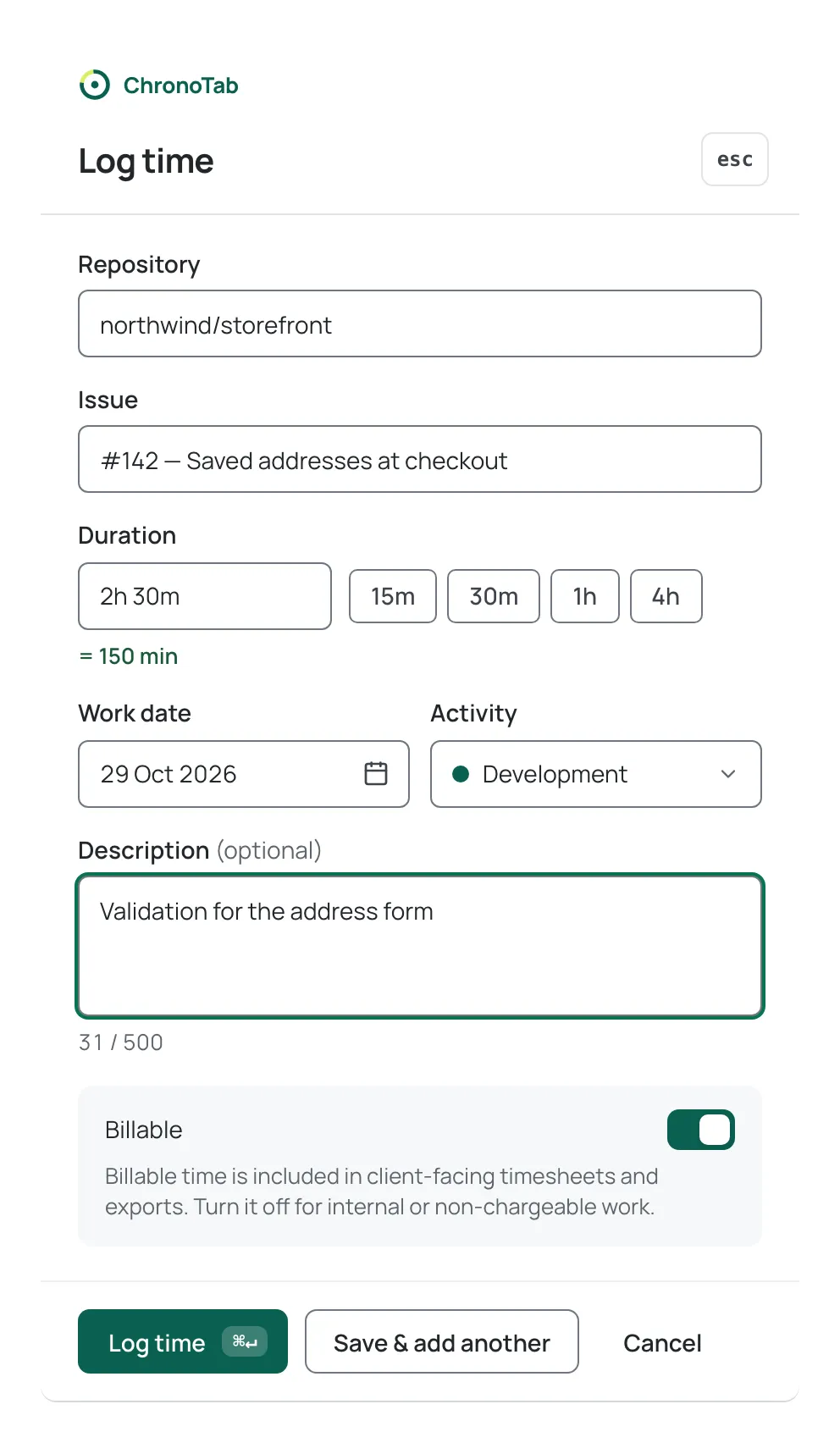
- Select Log time at the top of the page, or press Alt+T (⌥+T on a Mac). The Log time sheet opens.
- Under Repository, start typing the repository name and select it from the suggestions. You cannot type a repository by hand; you must pick one from the list.
- Under Issue, type the issue number or part of its title, then select the issue from the suggestions. ChronoTab searches the repository you chose.
- Under Duration, type how long you spent, for example
2h 30m, or pick one of the quick chips (15m, 30m, 1h, 4h). As soon as it parses, ChronoTab shows the total underneath, such as = 150 min. - Check the Work date. It defaults to today; you can type another date (such as
yesterdayor8 Oct) or pick one from the calendar. You cannot log time for a future date. - Choose an Activity (for example Development), and leave Billable on unless the work is internal or not chargeable.
- Optionally add a Description.
- Select Log time to save, or press ⌘↵ (Ctrl+↵ on Windows and Linux).
The sheet closes and your entry appears under Time entries on My week, with the day’s total and the week’s totals updated.
Where to go next
Section titled “Where to go next”- Log time from the dashboard covers every field, the duration formats and the shortcuts in full.
- Duration and date rules explains exactly what ChronoTab accepts.
- Install the browser extension if you would rather log time from the GitHub issue itself.
Need help? Email support@chronotab.com.