

Reminders
For admins
Reminders send people the same facts My week and Team already show, so the person who can fix a gap hears about it without opening the app. They go by email, and also as a Slack direct message if you connect Slack. Reminders are on every plan, Free included. This page is for org admins; members choose how often they get reminders in their profile.
The two reminders
Section titled “The two reminders”| Reminder | Who gets it | What it lists |
|---|---|---|
| Missing time | Every member | The working days in the reminder’s window with nothing logged, and a link to My week. If some other days have time logged but are under the member’s daily target, the reminder says how many, but it doesn’t remind about them. Members aren’t reminded while the org’s GitHub connection is suspended or disconnected. |
| Timesheets waiting | Managers and admins | A weekly digest of drafts whose period ended 3 or more days ago, and timesheets a client sent back. Each admin gets every waiting timesheet, and each manager gets the ones they created. A timesheet whose creator is no longer a manager or admin still reaches every admin. Timesheets that are sent, or that a client accepted, aren’t listed. |
The digest lists each timesheet’s client, number, period and status, with a link to it. It never includes a share link, a client contact, the client’s note or anyone’s name. It shows at most 10 timesheets, then “and n more in Timesheets.”
Some things are true of both reminders:
- Nothing to report, nothing sent. A member with no missing days gets nothing that week, and a manager with no waiting timesheets gets no digest. There’s no “all caught up” email. ChronoTab checks again just before it sends, so someone who fills in their week before the send time gets nothing.
- Nobody is told who got a reminder. A reminder goes only to the person it’s about. Admins and managers don’t see who was reminded, and the wording never suggests that anyone else knows.
- Weekends don’t count. Only Monday to Friday can be missing, and days before a member joined the organisation are never counted. Public holidays aren’t supported yet, so a holiday on a weekday counts as a working day. Every reminder says “If you were off on any of these days, there’s nothing to do.”
Open the Reminders card
Section titled “Open the Reminders card”Choose Settings in the Administer group of the sidebar. The Reminders card sits directly after Timesheet rounding. Its description reads “Emails, and Slack DMs if Slack is connected, about missing time and timesheets waiting to be sent.”
Reminders start off
Section titled “Reminders start off”Reminders are off for every organisation until an admin turns them on, including organisations that existed before reminders were added. While they’re off, the status under the Send reminders switch reads “Off for your organisation. Nobody gets reminders.”, and a panel titled When you turn reminders on explains what will be sent.
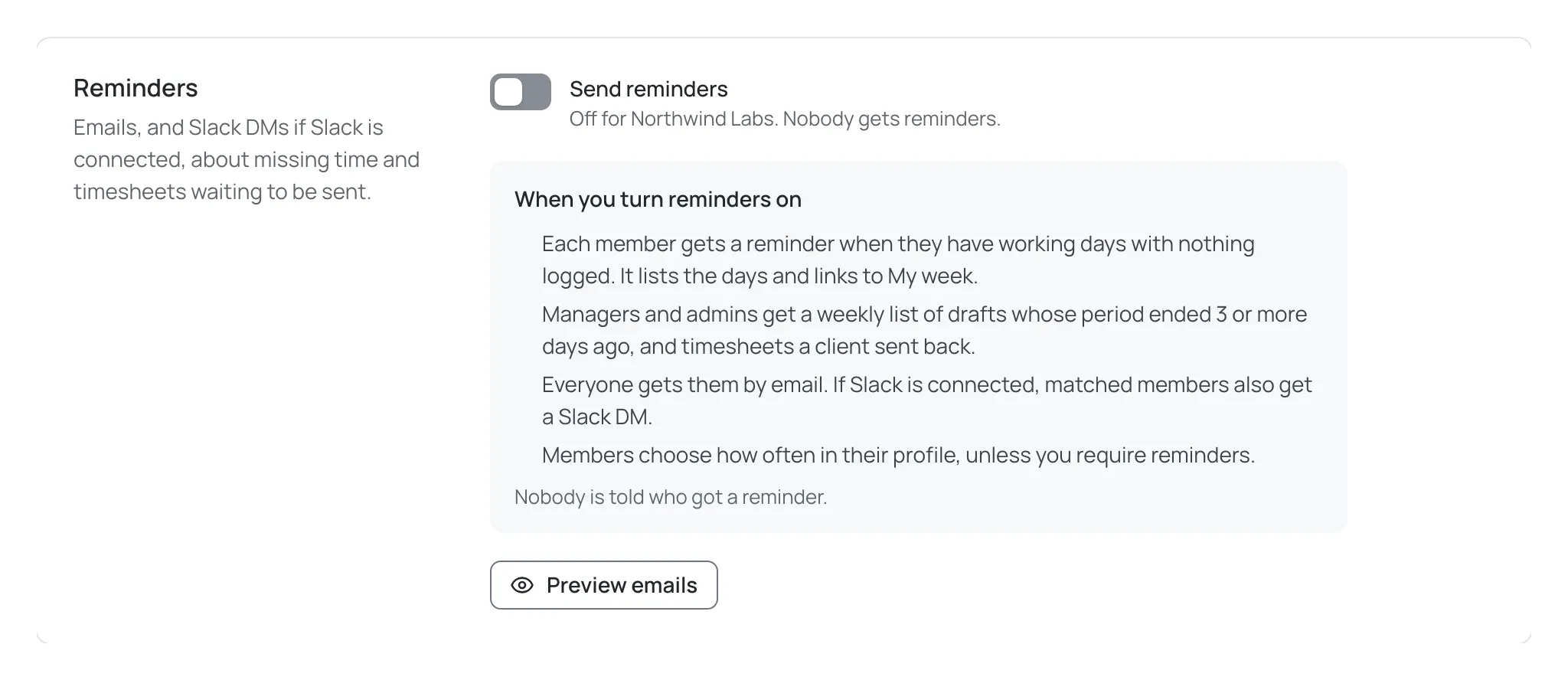
You can still choose Preview emails while reminders are off, so you can see what members would get before you turn them on.
Set the schedule
Section titled “Set the schedule”Turn on Send reminders. The card shows two groups of settings.
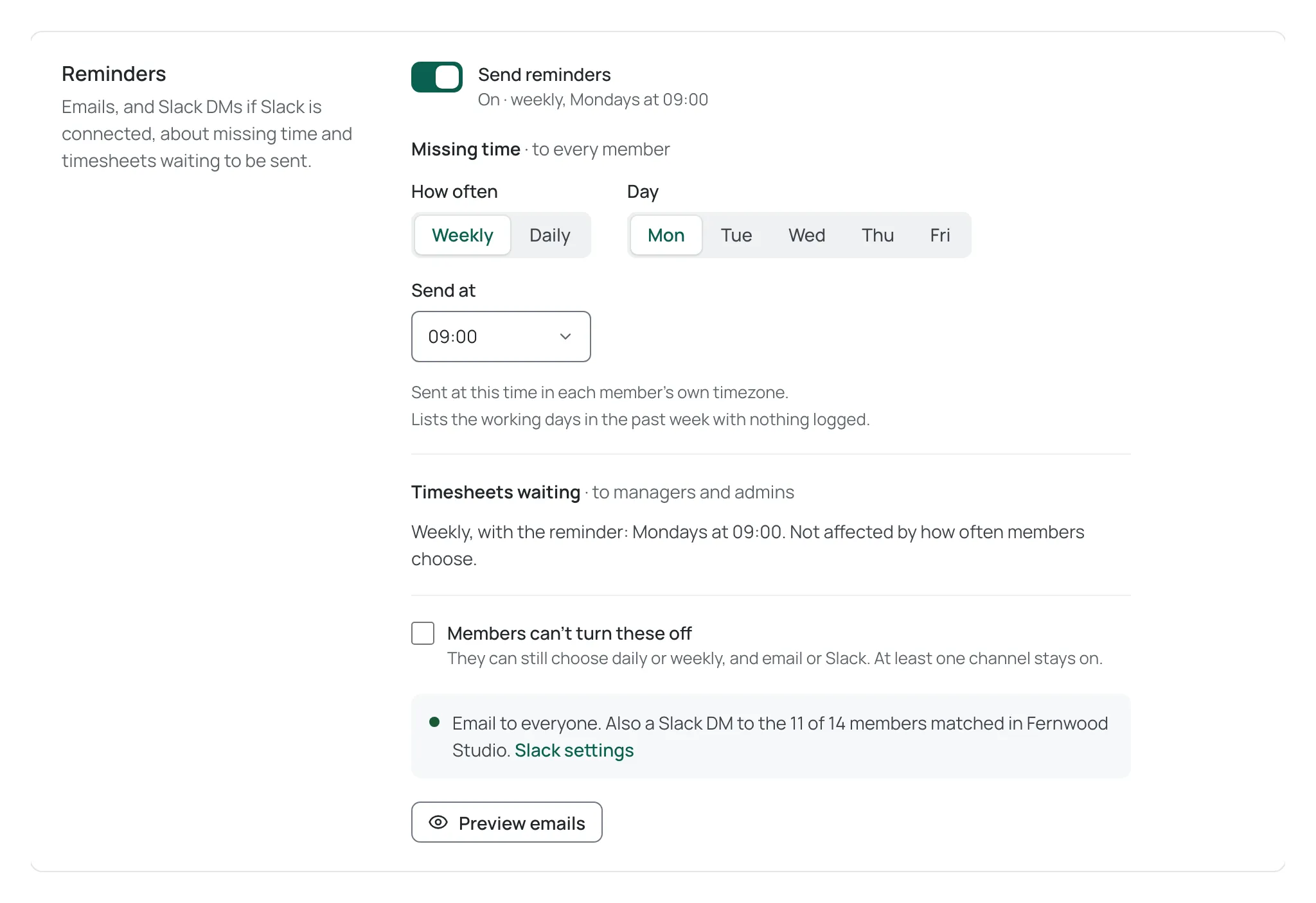
Missing time · to every member
- How often — Weekly or Daily.
- Weekly lists the working days in the past seven days with nothing logged. When it’s sent on a Monday, those seven days are the previous calendar week, and its subject says “last week”, for example “3 days last week have no time logged”. Sent on any other day, the seven days reach into the current week, so it says “in the past week” instead, for example “3 days in the past week have no time logged”.
- Daily is sent each working day, Monday to Friday, about the previous working day. On a Monday it’s about the Friday before.
- Day — Mon to Fri, the day a weekly reminder is sent. It’s shown only for Weekly. A member gets at most one weekly reminder each week (Monday to Sunday), so if you change the day mid-week, anyone who already got this week’s reminder gets the next one the following week.
- Send at — a time on the quarter-hour, from 00:00 to 23:45. The default is 09:00.
The reminder is sent at this time in each member’s own timezone, the one set on their profile, or the organisation’s default timezone if they haven’t set one. A member in Kolkata and a member in London who are both on a Monday 09:00 schedule each get theirs at 09:00 on their own Monday.
Timesheets waiting · to managers and admins
The digest is always weekly, on the same day and at the same time as the weekly reminder, whatever members choose for themselves. Unlike the missing-time reminder, it goes out at that time in the organisation’s default timezone, once for everyone. If you choose Daily for missing time, the day control moves here as Digest day, and the line reads “Always weekly: Mondays at 09:00.”
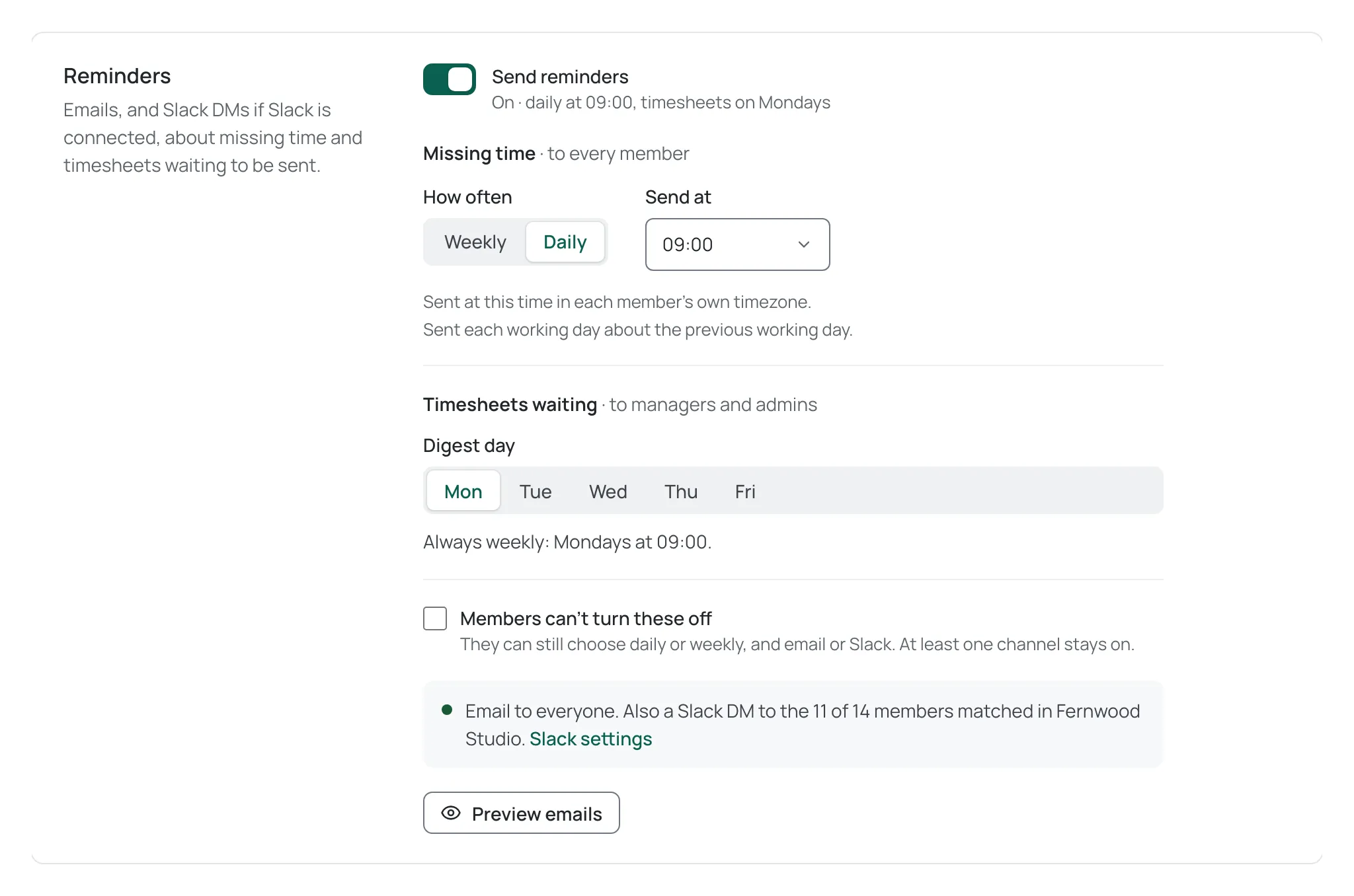
The status under the switch sums up the schedule as you set it, for example On · weekly, Mondays at 09:00 or On · daily at 09:00, timesheets on Mondays.
Choose Save changes at the top of the page to save. A Settings saved confirmation appears. Nothing is sent straight away: the first reminders go at the next scheduled time after you save. If the save fails, the card shows “Reminder settings weren’t saved. Something went wrong — try again.” and your changes are still on the page.
Members can’t turn these off
Section titled “Members can’t turn these off”By default each member chooses in their profile how often they get the missing-time reminder: your schedule, daily, weekly or off. Tick Members can’t turn these off to require reminders.
When reminders are required:
- Members can’t choose Off. They can still choose daily or weekly, and email or Slack.
- At least one channel stays on. A member can turn email off only while they get Slack DMs instead.
- A member who chose Off before you required reminders is reminded on your schedule.
- The email footer changes to say that your organisation requires these reminders.
Members always use your send time and day. They choose how often, not when.
Preview emails
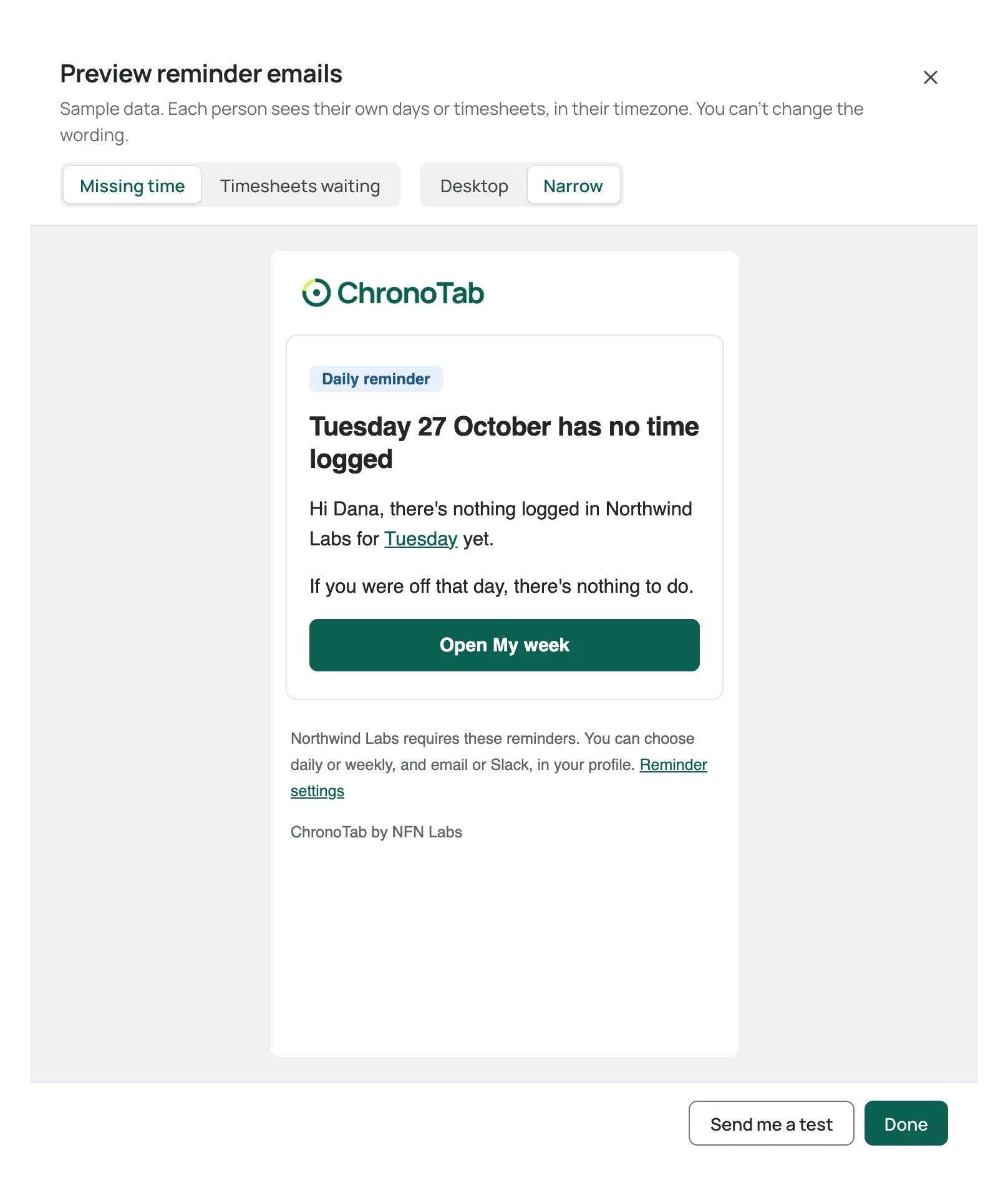
Section titled “Preview emails”Choose Preview emails to open Preview reminder emails. It shows the email as members will see it, with sample data. Each person sees their own days or timesheets, in their timezone. You can’t change the wording.
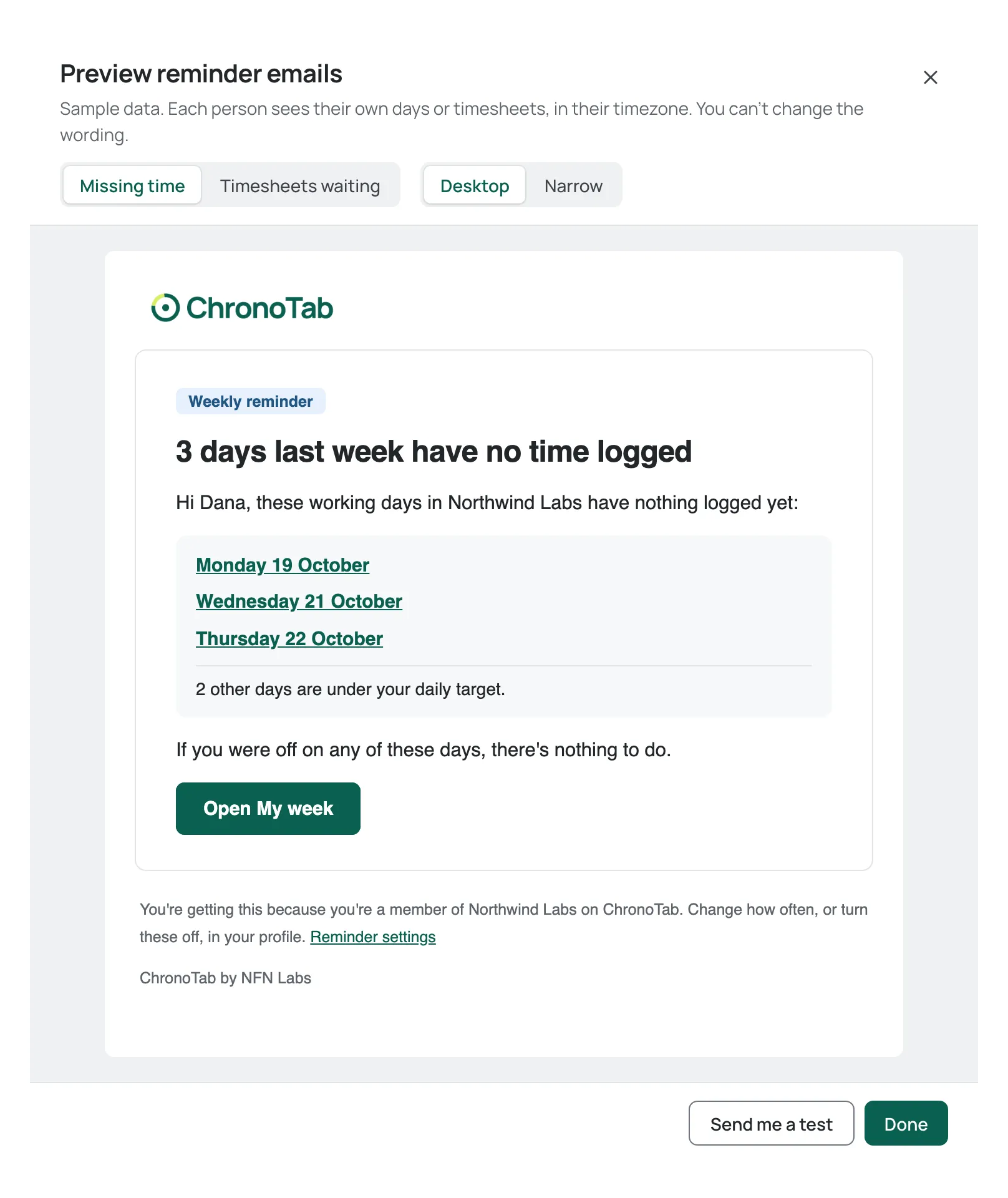
- Missing time or Timesheets waiting chooses the email.
- Desktop or Narrow shows it at desktop or phone width.
The preview follows the settings on the card, even before you save them: choose Daily and it shows the daily email; tick Members can’t turn these off and it shows the required footer. Links in the preview don’t open anything. Choose Done to close it.
Send me a test
Section titled “Send me a test”In the preview, choose Send me a test to email the email you’re looking at to your own address. Its subject starts with [Test] and it has a notice at the top: “Test email. It uses sample data and was sent only to you.” A test is always an email, never a Slack DM, and you can send one whether reminders are on or off.
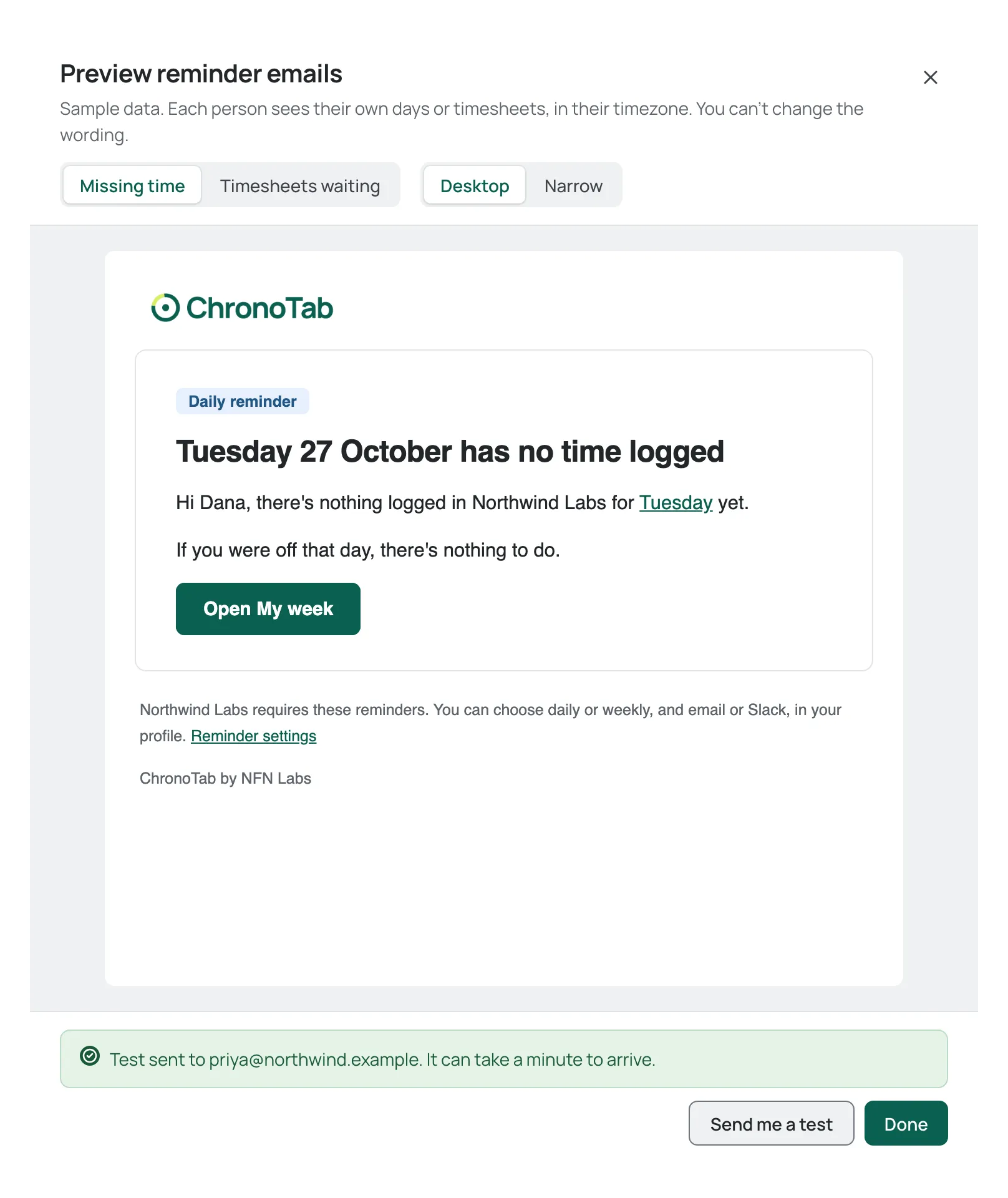
When it’s sent, the preview reads “Test sent to your email. It can take a minute to arrive.” You can send 5 tests an hour. After that the preview tells you when you can send the next one.
The Reminders card has a line that says where reminders go:
- Email to everyone. Also a Slack DM to the n of m members matched in workspace. Slack is connected.
- Email only. Connect Slack to send DMs as well. Slack isn’t connected.
- Email only. Slack was disconnected from workspace’s side. Someone removed the app in Slack.
Choose Slack settings to go to the Slack card. See Slack.
Turn reminders off
Section titled “Turn reminders off”Turn off Send reminders and choose Save changes. Nobody gets reminders from then on, whatever they chose in their profile. Members’ choices are kept, and apply again if you turn reminders back on.
Next steps
Section titled “Next steps”- Slack — send reminders as Slack DMs as well as email.
- Your profile — what members see and choose.
- Team completeness — the same missing days, for the whole team.
Need help? Email support@chronotab.com.