

Slack
For admins
Connecting Slack sends reminders as Slack direct messages as well as email. A DM has the same content as the email: the missing days, or the timesheets waiting, with one button back to ChronoTab. This page is for org admins.
Slack only changes where reminders go. Who gets a reminder, and when, still comes from the Reminders card and each member’s profile. If reminders are off, connecting Slack sends nothing.
Open the Slack card
Section titled “Open the Slack card”Choose Settings in the Administer group of the sidebar. The Slack card sits directly after GitHub. Its description reads “Send reminders as Slack DMs as well as email.”
What ChronoTab asks Slack for
Section titled “What ChronoTab asks Slack for”Before you connect, the card lists what ChronoTab asks Slack for:
- Find people by email. We match members to their Slack account by email address. People we can’t match keep getting email.
- Send direct messages. Reminders arrive as DMs from the ChronoTab app. We never post in channels.
- Nothing else. We never read messages, channels or files.
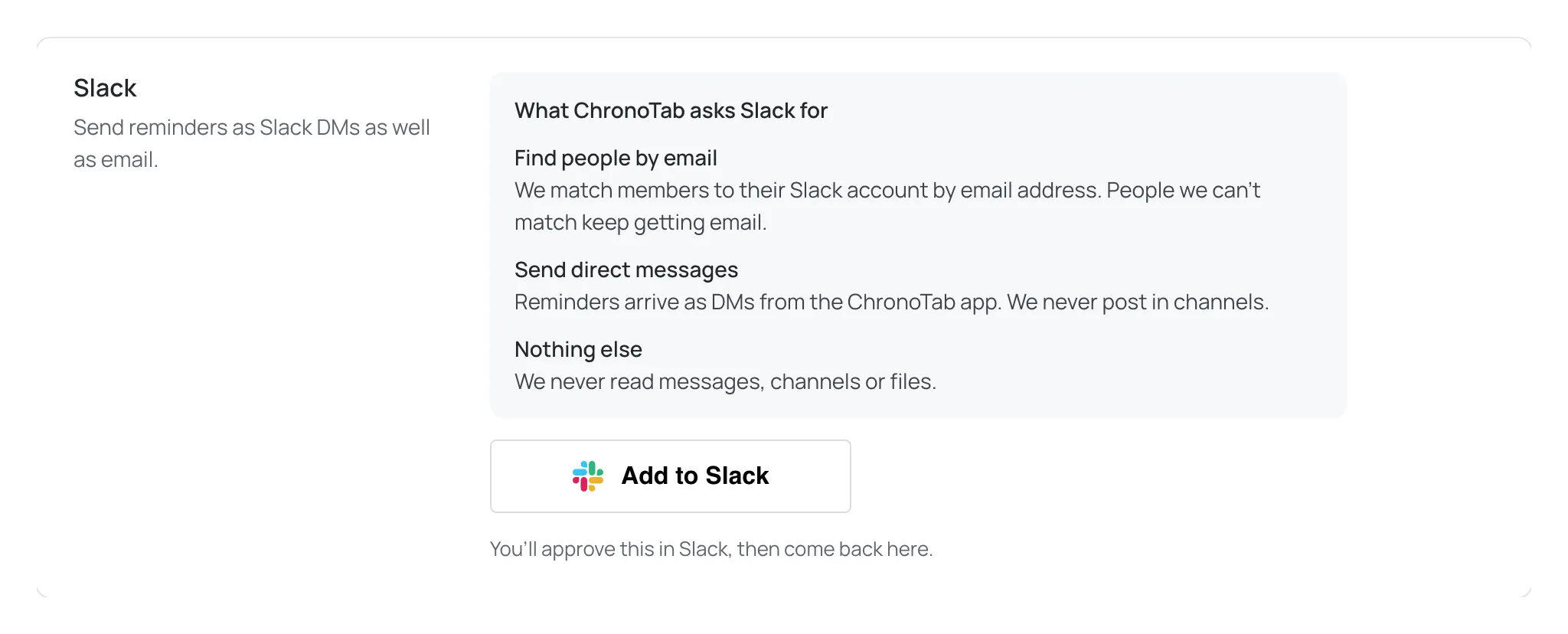
On the Slack approval screen, these show as four permissions:
| Permission | Why ChronoTab needs it |
|---|---|
users:read.email |
To look up each member’s Slack account by their ChronoTab email address. |
users:read |
Needed by Slack alongside users:read.email to look people up. |
im:write |
To open a direct message with a matched member. |
chat:write |
To send the reminder in that direct message. |
ChronoTab asks for nothing that reads or posts in channels, reads message history or reads files. It only sends DMs, and only reminders.
Connect Slack
Section titled “Connect Slack”If you’re an admin, you can start here. The button opens ChronoTab, asks you to sign in if you aren’t already, and takes you straight to Slack to approve it for your organisation:
If you belong to more than one organisation, Slack is connected to the one you’re working in. If Slack is already connected, ChronoTab takes you to the Slack card and says which workspace it’s connected to. If you aren’t an admin, ChronoTab says that only an admin can connect Slack.
Or connect it from Settings:
- Choose Settings, then on the Slack card choose Add to Slack. You’ll approve this in Slack, then come back here.
- In Slack, choose the workspace and approve the permissions.
- You come back to Settings, at the Slack card. ChronoTab matches members in the background, so at first the banner reads “Connected to workspace. We’re matching members by email. Reminders go to matched members as Slack DMs too.” and the status under Connected to workspace reads Matching members by email….
The count appears once matching finishes, and the card updates on its own: the status changes to Matched n of m members by email. If matching has already finished when you get back, the banner gives the count instead: “n of m members matched by email. Reminders now go to them as Slack DMs too.”
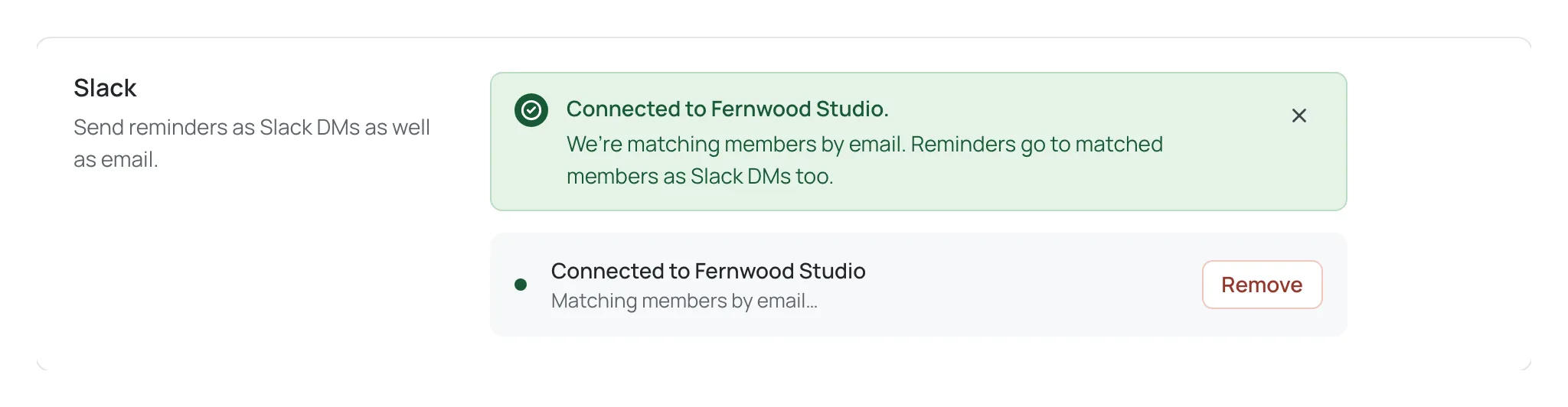
If you cancel in Slack, the banner reads “Slack wasn’t connected because the request was cancelled in Slack. Nothing changed.” If something else goes wrong, it reads “Slack didn’t connect. Something went wrong — try again.” with a Try again button.
One organisation per Slack workspace
Section titled “One organisation per Slack workspace”A Slack workspace can be connected to only one ChronoTab organisation at a time. If the workspace is already connected to another ChronoTab organisation, ChronoTab refuses the connection and your organisation stays not connected. To move a workspace, remove Slack from the other organisation first.
Each organisation connects to one workspace. Connecting again replaces the old connection and matches members again from scratch.
How members are matched
Section titled “How members are matched”ChronoTab looks up each active member in the workspace by the email address on their ChronoTab account. A member whose email belongs to a Slack account in the workspace is matched, and gets reminders as DMs as well as email. ChronoTab keeps only the link to the Slack account, not a copy of the email.
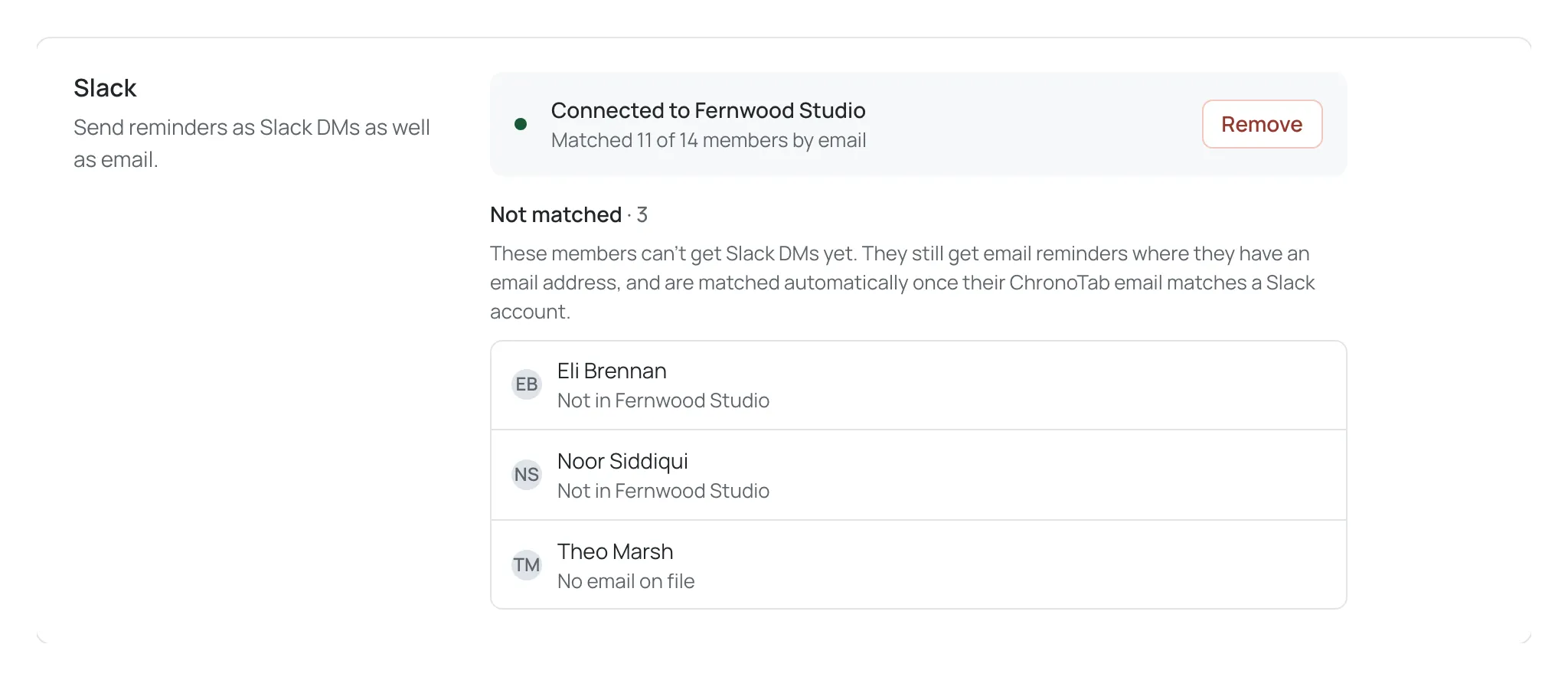
Once matching finishes, the card shows Connected to workspace and Matched n of m members by email.
Members who aren’t matched
Section titled “Members who aren’t matched”Members who aren’t matched are listed under Not matched · k, with the explanation “These members can’t get Slack DMs yet. They still get email reminders where they have an email address, and are matched automatically once their ChronoTab email matches a Slack account.” Each person is shown by their ChronoTab name, never their email, with a line that says why:
- Not in workspace. ChronoTab looked up their email and found no Slack account with it in the workspace.
- No email on file. Their ChronoTab account has no email address, so ChronoTab couldn’t look them up. They don’t get email reminders either until they have one.
The list appears once matching finishes.
ChronoTab tries again every day, so a member who adds the same email to their Slack account, or joins the workspace, is matched without you doing anything.
In their own profile, an unmatched member sees the Slack DM switch turned off and unavailable, with “We couldn’t find you in workspace by your email, their email. Use the same email in Slack to get DMs.” When they’re matched later, the switch turns on by default. See Your profile.
Members choose their channels
Section titled “Members choose their channels”Each member can turn Email and Slack DM on or off in their profile. If your organisation requires reminders, at least one channel stays on, so a member can turn email off only while they get Slack DMs. Members in an organisation that hasn’t connected Slack don’t see a Slack option at all.
If Slack is disconnected from Slack’s side
Section titled “If Slack is disconnected from Slack’s side”If someone removes the ChronoTab app in Slack, or Slack revokes its access, the card shows a warning: “Slack was disconnected from workspace’s side. Reminders are going by email only until you reconnect.” The status reads workspace · disconnected and Disconnected in Slack on date. The Not matched list is hidden until you reconnect.
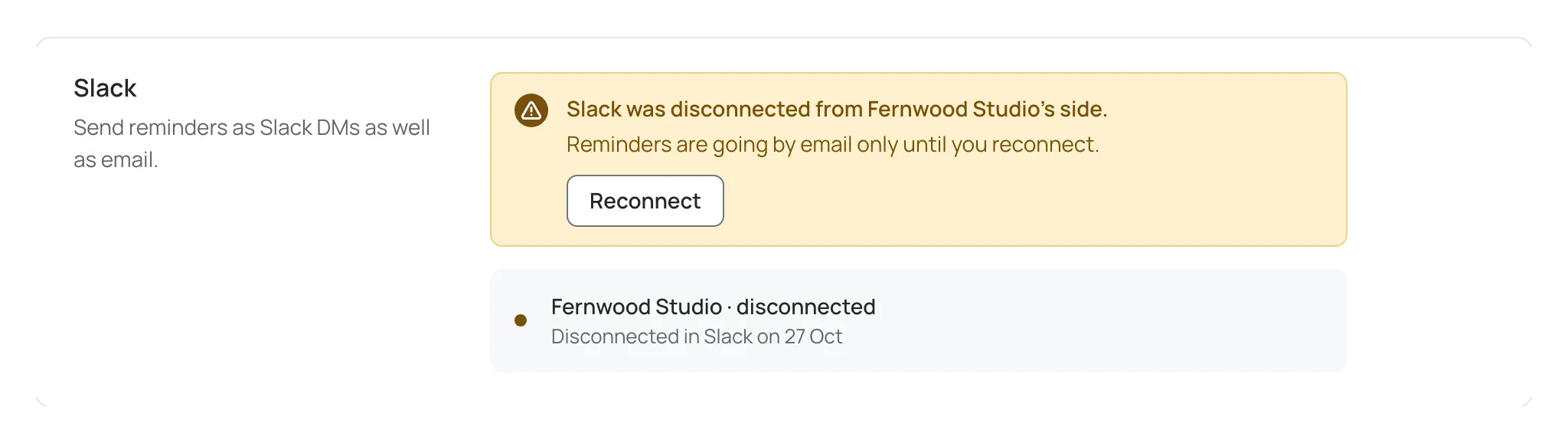
Reminders keep going by email, so nobody misses one. Choose Reconnect to approve ChronoTab in Slack again.
Remove Slack
Section titled “Remove Slack”- On the Slack card, choose Remove.
- The card asks “Remove Slack from your organisation?” and explains “The n matched members get reminders by email only. You can connect again any time.”
- Choose Remove Slack, or Cancel to keep it.
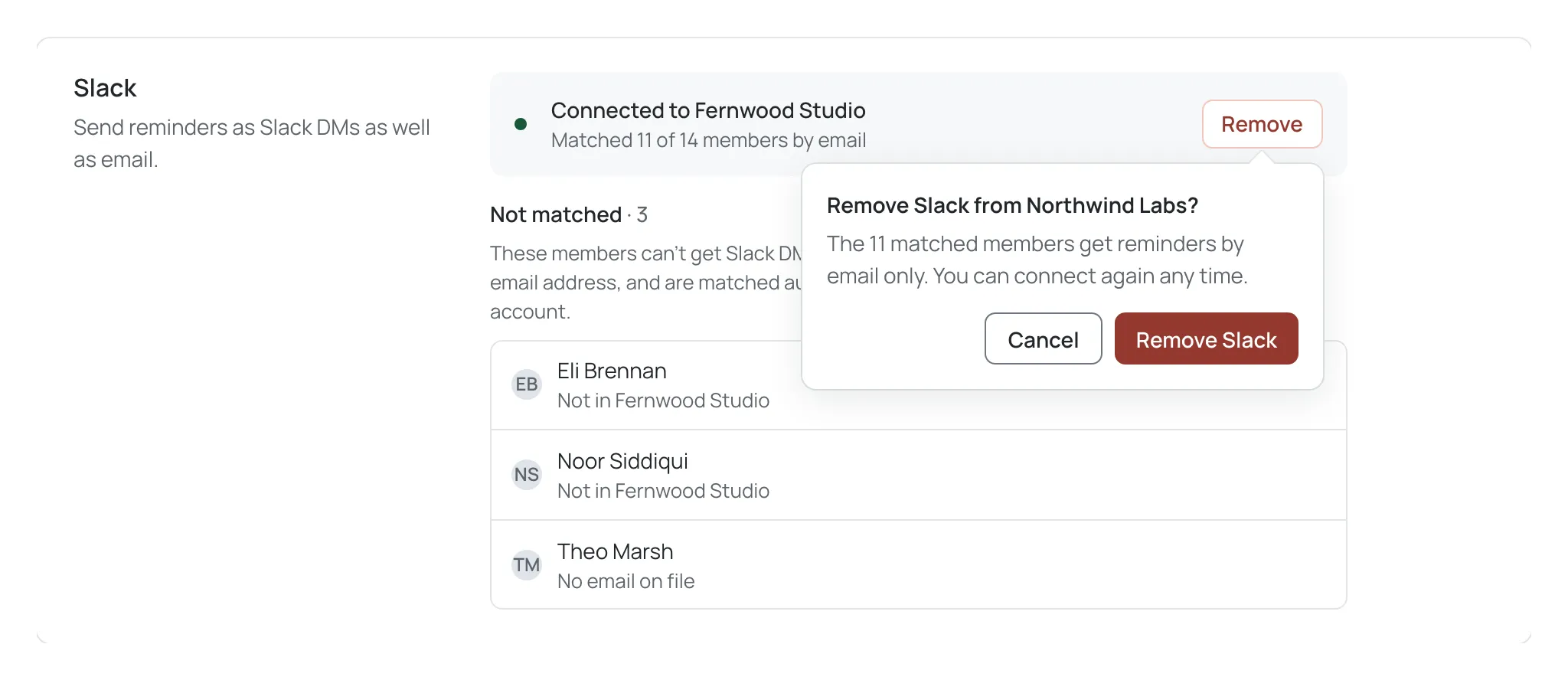
Removing Slack uninstalls the ChronoTab app from the workspace and forgets every match. The card goes back to Add to Slack, and reminders go by email only.
Next steps
Section titled “Next steps”- Reminders — turn reminders on and set the schedule.
- Your profile — what members see and choose.
Need help? Email support@chronotab.com.