

Approve a timesheet
For clients
You have been sent a link to a timesheet. This page is for the client receiving that link: it explains what the link shows and how to approve or reject it. You do not need a ChronoTab account, and the link opens only the one timesheet it was created for — nothing else about the organisation that sent it.
What the page shows
Section titled “What the page shows”The page is a single timesheet, laid out as a document you can read and print:
- At the top, the name of the organisation that sent it, Timesheet for followed by the client name they use for you, and a status label.
- A title naming the period: the month name (for example October 2026) when the timesheet covers a whole calendar month, otherwise both ends, such as 15 Sep – 14 Oct 2026. The exact dates appear beneath it.
- Two summary cards: Total hours and Issues (how many different issues the work covers).
- Hours by person, each person’s total for the period.
- Time entries, every piece of work billed in the timesheet, by date: the date, the work (the issue’s title and its repository and number, plus any description), the person, the activity and the hours, with a total at the bottom.
- A footer with the timesheet’s Reference and who prepared it, and on what date.
Hours are shown in decimal, with the same time in hours and minutes underneath — for example 2.50 h above 2h 30m.
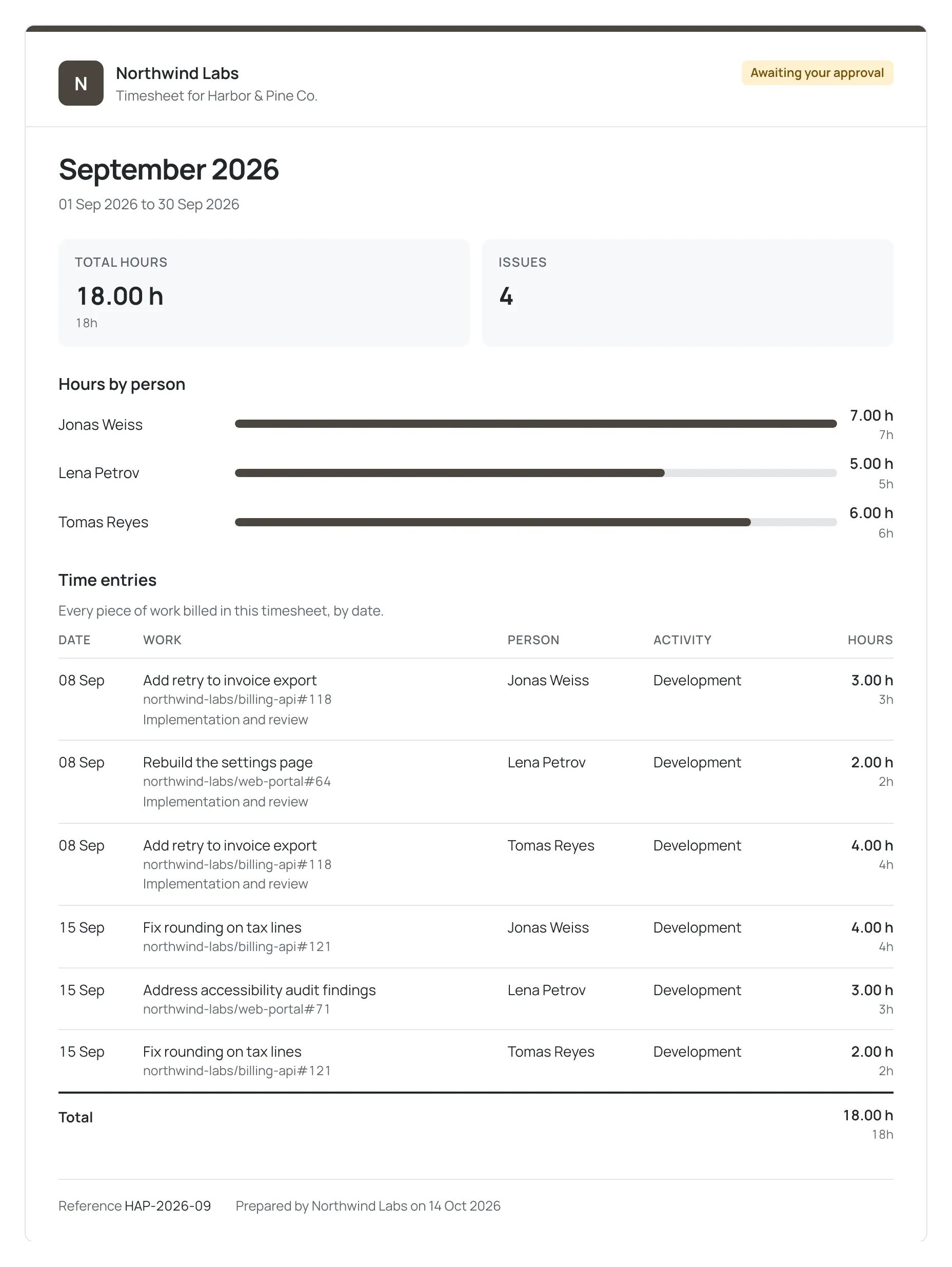
A timesheet still waiting for your decision shows the status Awaiting your approval. If it is already approved, rejected or void, the page tells you so — for example This timesheet is approved. No action is needed. — and there is nothing to action.
If the page shows a Draft — internal review banner and no way to approve or reject, the organisation shared an early version with its own team. The numbers can still change. Wait for the organisation to send you the final timesheet.
Download a PDF
Section titled “Download a PDF”Select Download PDF, just under the timesheet, to save a copy of it as a PDF. The link is not printed if you print the page. If the PDF cannot be made, a page says This PDF isn’t available right now; go back and print the page from your browser instead.
Approve the timesheet
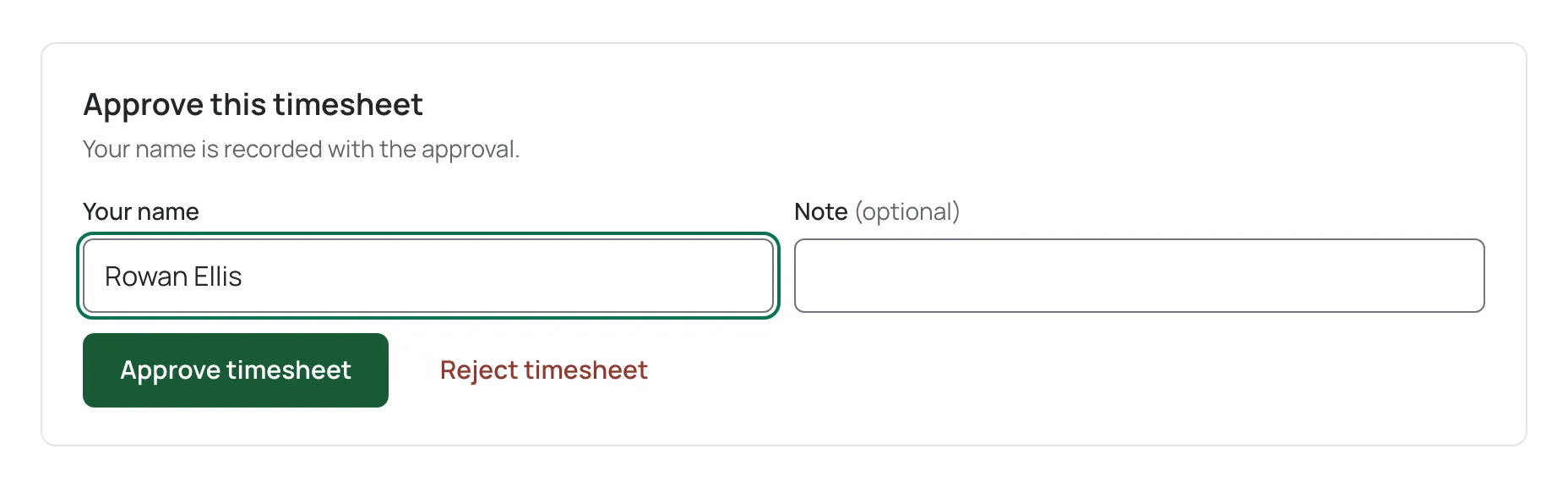
Section titled “Approve the timesheet”- Find the Approve this timesheet card below the document.
- Fill in Your name (required) and, if you wish, a Note.
- Select Approve timesheet. The page confirms Timesheet approved.
Your name is recorded as the approver, so use the name you want shown on the timesheet.
Above the card, a line tells you when the link works until and to check with the organisation if you were not expecting the timesheet.
Reject the timesheet
Section titled “Reject the timesheet”- Under the Approve timesheet button, select the Reject timesheet link. The Reject this timesheet card replaces the Approve card.
- Fill in Reason for rejection (required).
- Select Reject timesheet. The page confirms Timesheet rejected.
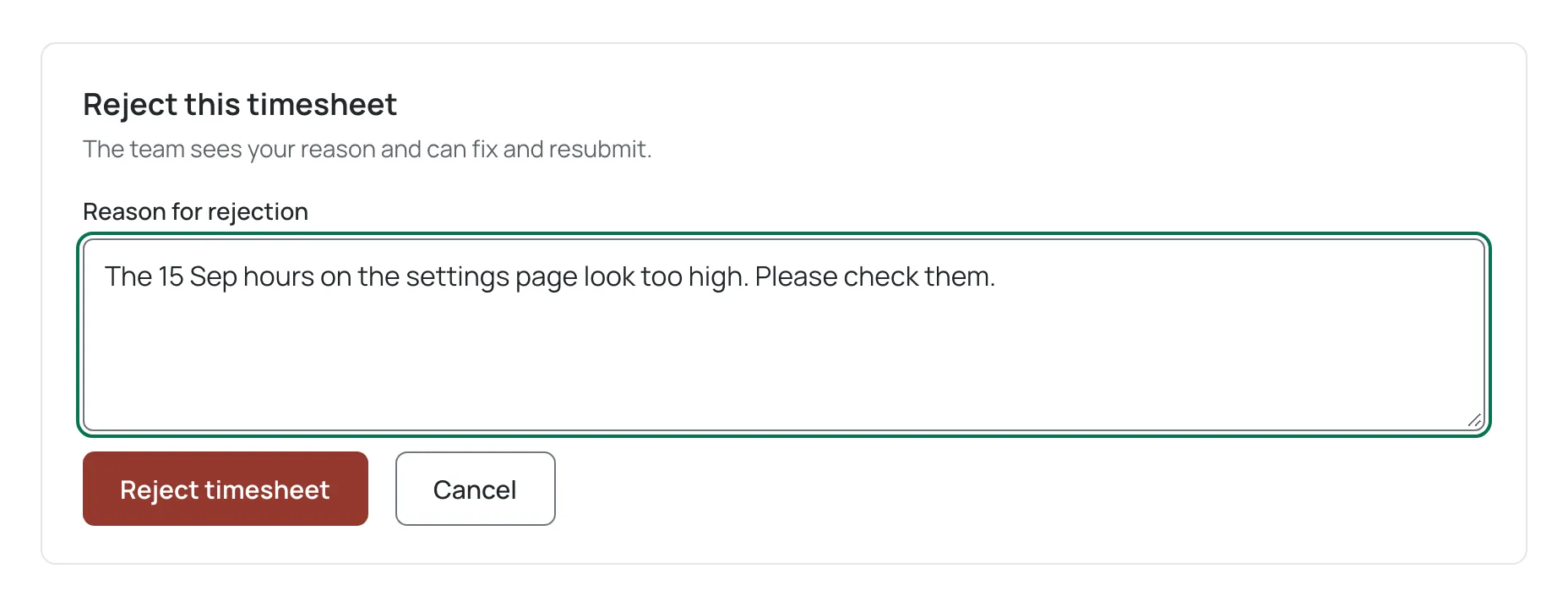
Changed your mind? Select Cancel to go back to the Approve card.
The reason is sent back to the organisation so they can correct the timesheet and send it to you again.
If the link does not open
Section titled “If the link does not open”Share links do not last forever. A link stops working if it has expired — the page then says This link has expired — or if the organisation revoked it. If your link will not open, ask your contact at the organisation to send you a new one. Each link covers exactly one timesheet, so a new link is needed for a different one.
Need help? Email support@chronotab.com.