

Edit another member's entries
For managers and admins
A member can edit and delete only their own time entries. Managers and admins can also edit or delete any member’s entry in the organisation — for example, to fix a duration a colleague mistyped. This page explains where those controls appear, what happens to the original entry, and where the change is recorded. It is for managers and admins.
Who can change whose entries
Section titled “Who can change whose entries”| Role | Own entries | Another member’s entries |
|---|---|---|
| Member | Can edit and delete | No controls, and the server refuses the request |
| Manager | Can edit and delete | Can edit and delete |
| Admin | Can edit and delete | Can edit and delete |
A member never sees an edit or delete control on someone else’s entry. If a request is made anyway — for example, by hand — ChronoTab refuses it and shows You don’t have permission to do that.
Where you can edit another member’s entry
Section titled “Where you can edit another member’s entry”An entry’s edit and delete controls appear wherever entries are listed, and only when ChronoTab would allow the change.
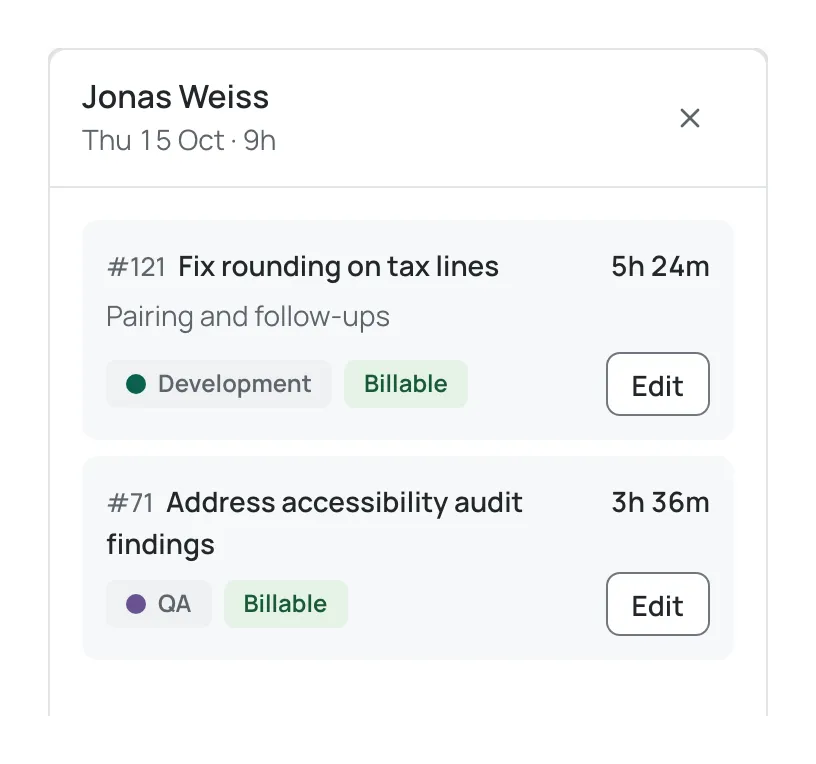
- Reports — select a person’s day cell in the Hours by day grid (or move to it with the arrow keys and press Enter) to open the side panel of entries behind it. Each listed entry has an Edit button when you are allowed to change it.
- The browser extension — on a GitHub issue, the drawer lists every entry logged against that issue, each with Edit entry and Delete entry controls when you are allowed to change it. See Log time from GitHub.
Your own My week page shows only your own entries.
Edit an entry
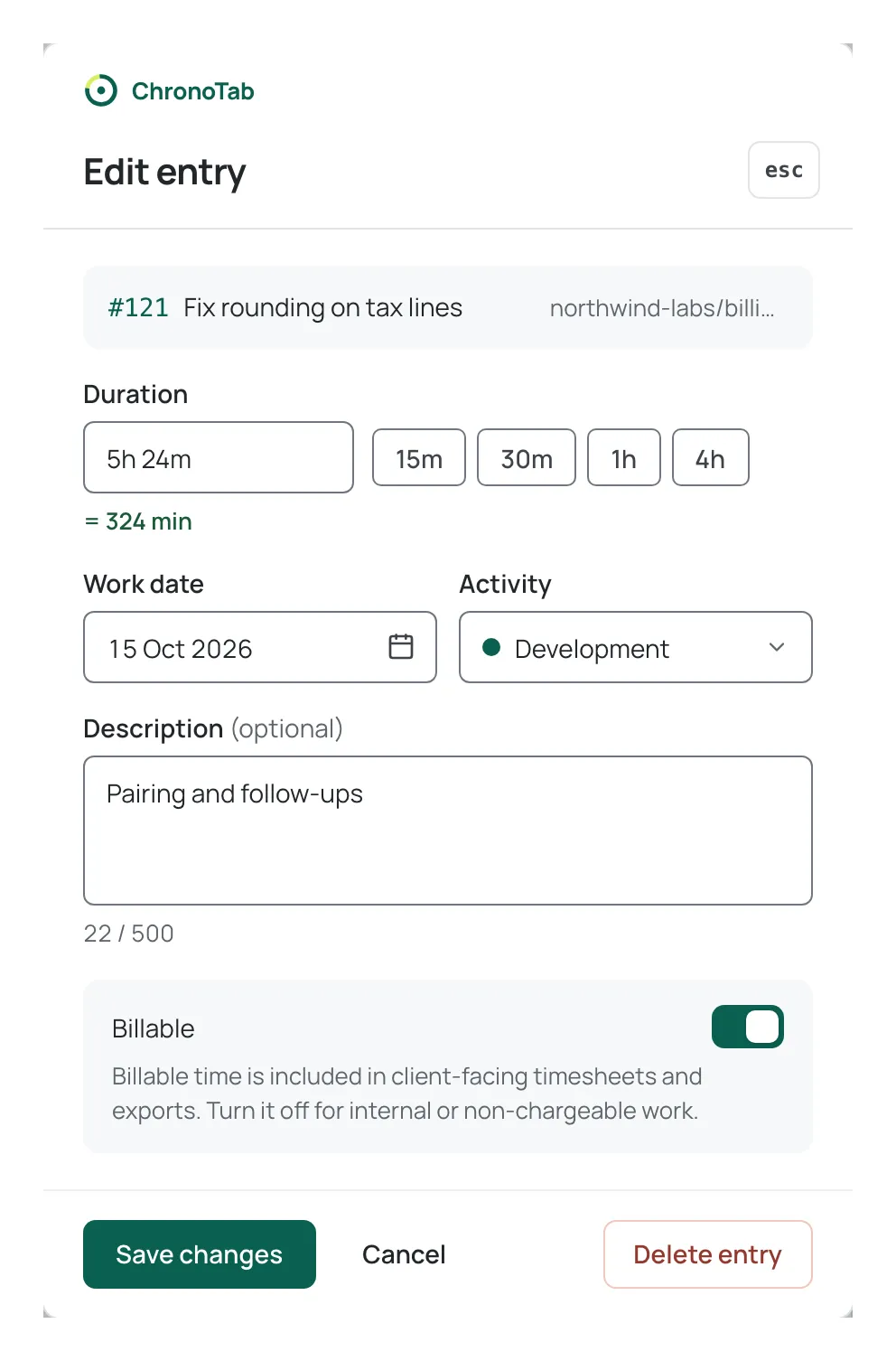
Section titled “Edit an entry”- Select the entry’s Edit button. The Edit entry sheet opens, showing the entry’s issue and repository, which cannot be changed.
- Change the duration, work date, activity, description or the Billable switch.
- Select Save changes.
The original entry is kept in the entry’s history and the corrected version replaces it. The entry is marked edited so anyone reading the list can see it was changed. Editing does not change who the entry belongs to, and the corrected version is what counts towards reports and timesheets.
Delete an entry
Section titled “Delete an entry”- Open the entry’s Edit entry sheet and select Delete entry (in the extension, use the entry’s Delete entry control).
- Confirm the deletion when ChronoTab asks. The confirmation opens right beside the button you used, not as a separate window.
A deleted entry is removed from totals and reports. As with an edit, the record is kept in history rather than erased.
What is recorded
Section titled “What is recorded”Every time a manager or admin edits or deletes another member’s entry, ChronoTab writes an audit record: who made the change, whose entry it was, and which fields changed (or that the entry was deleted). An admin can read these in the Audit log — see Audit log. Members and managers cannot view the Audit log.
When an entry cannot be changed
Section titled “When an entry cannot be changed”An entry that has been submitted inside a timesheet is locked, and neither you nor its author can edit or delete it. A submitted timesheet is never changed in place — that is by design, so the document the customer approved never changes. The correction is to Void the timesheet, fix the entry, and generate a replacement. See What happens to entries after approval and Submit, approve, reject or void a timesheet.
Related pages
Section titled “Related pages”Need help? Email support@chronotab.com.