

Seats over the limit
For admins
A seat is an active member of your organisation, in any role. Each plan has a seat limit: Free allows 5, and the paid plans allow more (see Plans and billing). This page explains what happens when your team has more active members than its plan has seats. It is for org admins.
In short: you get 14 days to choose who keeps a seat. After that, members beyond the limit are disabled by plan. Nobody is deleted, and everything they logged stays. They come back automatically when there is room again.
When your team is over the seat limit
Section titled “When your team is over the seat limit”This happens when the number of seats in use is higher than the plan’s limit. The most common cause is a downgrade, or a paid plan that ends, while your team is still larger than the new plan allows.
A 14-day window starts, the same one that applies to repositories. The Billing page and the banner across ChronoTab say so, with the date the window ends. During the window everyone can still sign in and everything keeps working as before. Only admins see the banner; other members are not told in advance.
You can end the window early by getting back within the limit: upgrade, or disable members who have left. If your team is within its seats again, the Members page says so, and nobody is disabled.
Choose who keeps a seat
Section titled “Choose who keeps a seat”During the window, open the Members page. A panel at the top says how many members the plan has room for, the date the window ends, and a live count, for example: 1 admin, 2 pinned, 2 kept by recent activity, 3 will be disabled on 2 Nov.
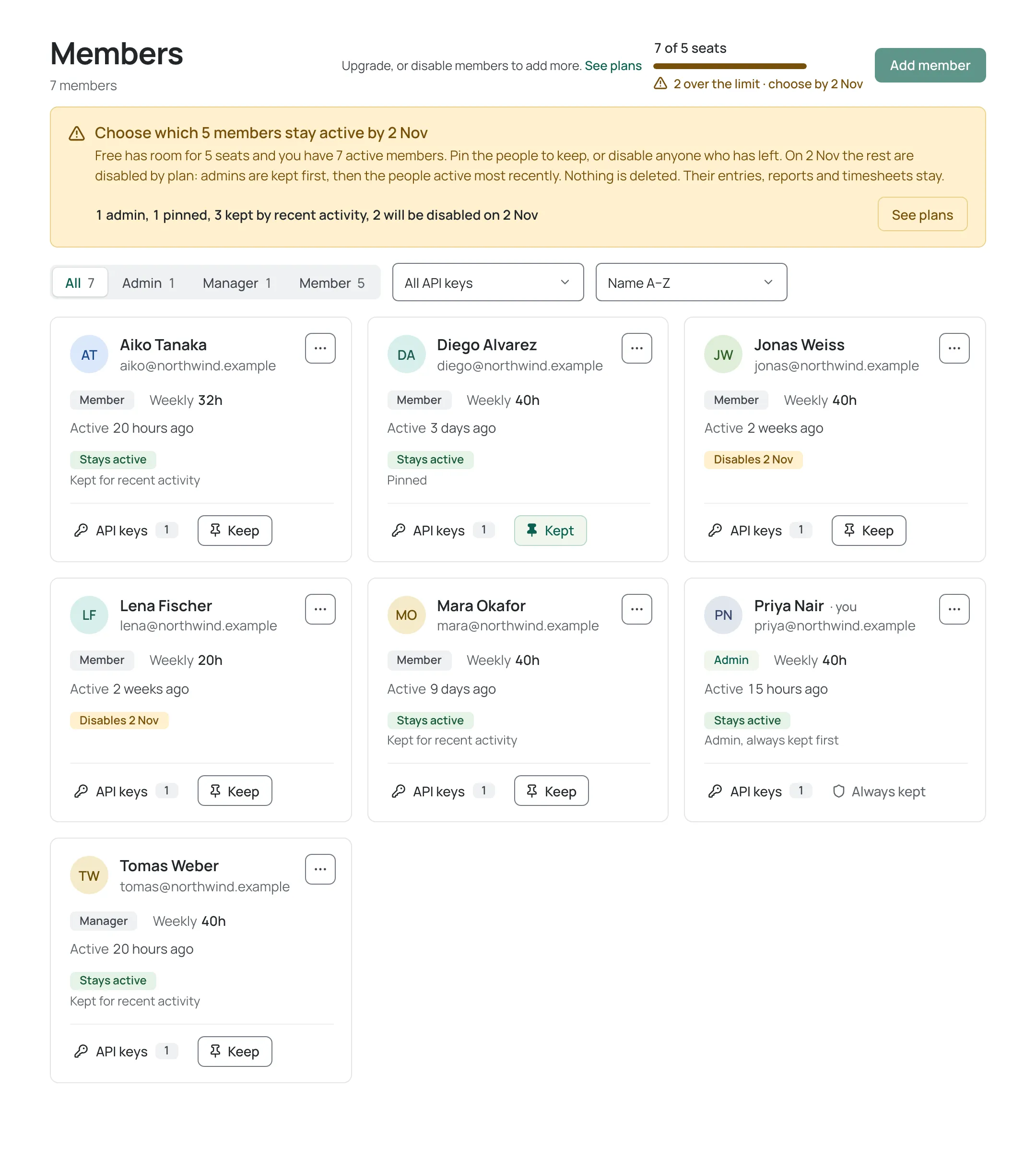
Each active member’s card says what will happen to them:
- Stays active, with the reason: Admin, always kept first, Pinned, or Kept for recent activity.
- Disables and the date, for the people who would be disabled if nothing changes.
To choose for yourself, press Keep on a member’s card. The button changes to Kept, and the card’s outcome updates straight away. Press it again to unpin. Pins save at once, can be changed until the window ends, and have no confirmation step.
- Admins have no Keep button. Their card says Always kept, because admins take seats before pins.
- Pins are limited. You can pin as many members as there are seats left after the admins. When they are all used, Keep is unavailable on the other cards and the panel says so. Unpin someone to keep another.
- If a pin does not save, the panel says the member could not be pinned and nothing changed, with a Try again button.
- If the plan’s seat limit falls below the number of pins you have set (for example, a move to a smaller plan), the pins are cleared and you choose again.
- A member who was disabled by an admin has no seat to keep, so they have no Keep button.
What happens when the window ends
Section titled “What happens when the window ends”If your team is still over the limit when the 14 days are up, ChronoTab disables the members beyond the limit. It keeps the first people in this order:
- Admins. Admins are kept first. If there are more admins than seats, the most recently active admins are kept, and there is always at least one admin.
- Members you pinned with Keep.
- Everyone else, most recently active first. Activity means the last time the member logged time, used an API key, or used the dashboard while signed in to your organisation. Dashboard use is recorded at most once a day, so reading reports counts too. Someone who has not used ChronoTab since this started being recorded can still rank last, so pin the people who matter to you. Managers count as ordinary members here. If two people are equally recent, or have no activity at all, the one who joined most recently is kept.
The people left over are disabled by plan. Nothing is deleted:
- Their entries, reports and timesheets stay exactly as they are, and still count in reports.
- Their role stays.
- A timer that was running is stopped and its time is kept as an entry.
- Their API keys are suspended, not revoked. They stop working while the member is disabled and work again, with no new key, when the member returns. When an admin disables a member by hand, their keys are revoked instead and do not come back.
Admins see this on the banner and on the Members page, before the window ends and again after members are disabled.
If you were also over your repository limit, repositories are paused at the same time. See When a repository is paused.
What a disabled member sees
Section titled “What a disabled member sees”A member disabled by plan can still sign in to the dashboard with Continue with Google or Continue with GitHub, but only to look. Across the top of every page a banner reads Your seat on your organisation’s name is disabled by the team’s plan. with You can view your entries, but can’t log or change time until an admin resumes your seat. Nothing is deleted. They can:
- Open My week and see their own entries and day totals. Each entry opens read-only, titled View entry.
- Open Profile and see their details and defaults as values, and use Download my data to download every entry they logged on your organisation.
They cannot log time, edit or delete an entry, or change their profile, and they see none of the other pages. Their role pill reads View only. Their API keys stay suspended, and the browser extension still refuses them: it shows that their seat is disabled by the team’s plan and that time cannot be logged until the seat is back. When their seat returns, the next page they load has full access again. What they see is described for them in Plan limits when you log time.
If the person belongs to more than one organisation, they can still use the others as normal. If every organisation they belong to has disabled them by plan, and there is more than one, the sign-in page refuses them instead, with a message that their seat is disabled by the team’s plan and an admin can resume it.
A member disabled by an admin still cannot sign in at all.
Disabled by plan is different from Disabled
Section titled “Disabled by plan is different from Disabled”The Members page tells the two apart:
| Disabled by plan | Disabled | |
|---|---|---|
| Who did it | The plan, at the end of the window, or a Swap… | An admin, by hand |
| Card | Disabled by plan badge | Disabled role pill, dimmed |
| API keys | Suspended, work again on return | Revoked |
| Comes back | Automatically, or with Resume or Swap… | Only when an admin chooses Re-enable |
ChronoTab never reverses a disable that an admin made from this release on. An upgrade, a freed seat, the hourly member sync, a new GitHub membership event and the daily check all leave those members disabled. Likewise, someone who has left your GitHub organisation is not given a seat back. A member an admin disabled before this release has no recorded reason, so the hourly member sync can still switch them back on if they are in your GitHub organisation.
While anyone is disabled by plan, the Members page shows a standing notice with the count, with See plans, and admins see a matching banner on other pages that says They can view their own time but can’t log any until there’s a seat. They go away when nobody is disabled by plan. The header counts read, for example, 5 active · 3 disabled by plan · 1 disabled.
Bring people back
Section titled “Bring people back”People disabled by plan return in three ways.
- Automatically. ChronoTab gives seats back, best-ranked first (the order above), when there is room: right away after an upgrade or any change to the plan’s limits, at the next hourly member sync after someone leaves your GitHub organisation, and in a daily check as a safety net. Nobody comes back beyond the plan’s seats.
- Resume. When the plan has room, a disabled-by-plan card shows Resume. It applies straight away; the card becomes active and the counts update.
- Swap… When the plan is full, the card shows Swap… instead. It opens a small panel titled Resume followed by the person’s name, with a list called Disable instead of active members who are not admins, least recently active first. Choose one and press Swap. That member is disabled by plan, like anyone else the plan disabled: their keys are suspended, not revoked, and they return automatically when there is room. The other member returns now.
Disabling someone yourself does not hand their seat to a particular person on the spot. The seat is used at the next automatic check, or you can use Swap… to choose who gets it.
To re-enable someone you disabled by hand, choose Re-enable on their card. It still needs a free seat. See Members and roles.
Adding members
Section titled “Adding members”When the seat limit is reached, the Add member button on the Members page is marked unavailable and does nothing. A line beside it says to upgrade or disable one to add more, with a See plans link.
To add someone, do one of these:
- Upgrade to a plan with more seats. The new limit applies at once, and anyone disabled by plan returns first.
- Disable a member you no longer need on the Members page. A disabled member frees their seat. See Members and roles.
If a request to add someone reaches the server when the plan is full, ChronoTab refuses it with a message that names the plan’s limit, and nobody is added.
Automatic adding of GitHub members
Section titled “Automatic adding of GitHub members”If you chose to add new GitHub members automatically when you set up your organisation, ChronoTab adds people who join your GitHub organisation while a seat is free. The choice is made during setup, on the Get started page; see Choose a plan at sign-up.
When the plan is full, a person who joins GitHub is not added. Instead:
- The Members page shows New GitHub members are waiting for a seat. with how many people are waiting.
- When a member sync leaves people out, ChronoTab writes a line to the Audit log with how many people were held back and when. Older entries may also list their GitHub logins.
- The waiting people are added when a seat frees up. ChronoTab checks for this during its hourly sync, so a seat freed by an upgrade or a removal is used within about an hour.
Nobody waiting for a seat has access to ChronoTab until they are added. Automatic adding never brings back a member who was disabled by plan or by an admin; use Resume or Re-enable for them.
Owners always take a seat, including the owners who set up the organisation.
Seats and repositories are separate
Section titled “Seats and repositories are separate”Each limit is counted on its own, and the banner names the one that is over. A repository limit does not stop people being added, and a seat limit does not pause repositories. If both are over, they share one 14-day window, the banner names both, and when it ends repositories are paused and members are disabled together. The repositories part is explained on When a repository is paused.
Need help? Email support@chronotab.com.