

Edit or delete an entry
For members, managers and admins
This page shows how to change or remove a time entry you logged. It is for every role, and it covers your own entries; managers and admins can also change others’ entries, which is described in Edit other members’ entries.
Edit an entry
Section titled “Edit an entry”- On My week, find the entry under Time entries.
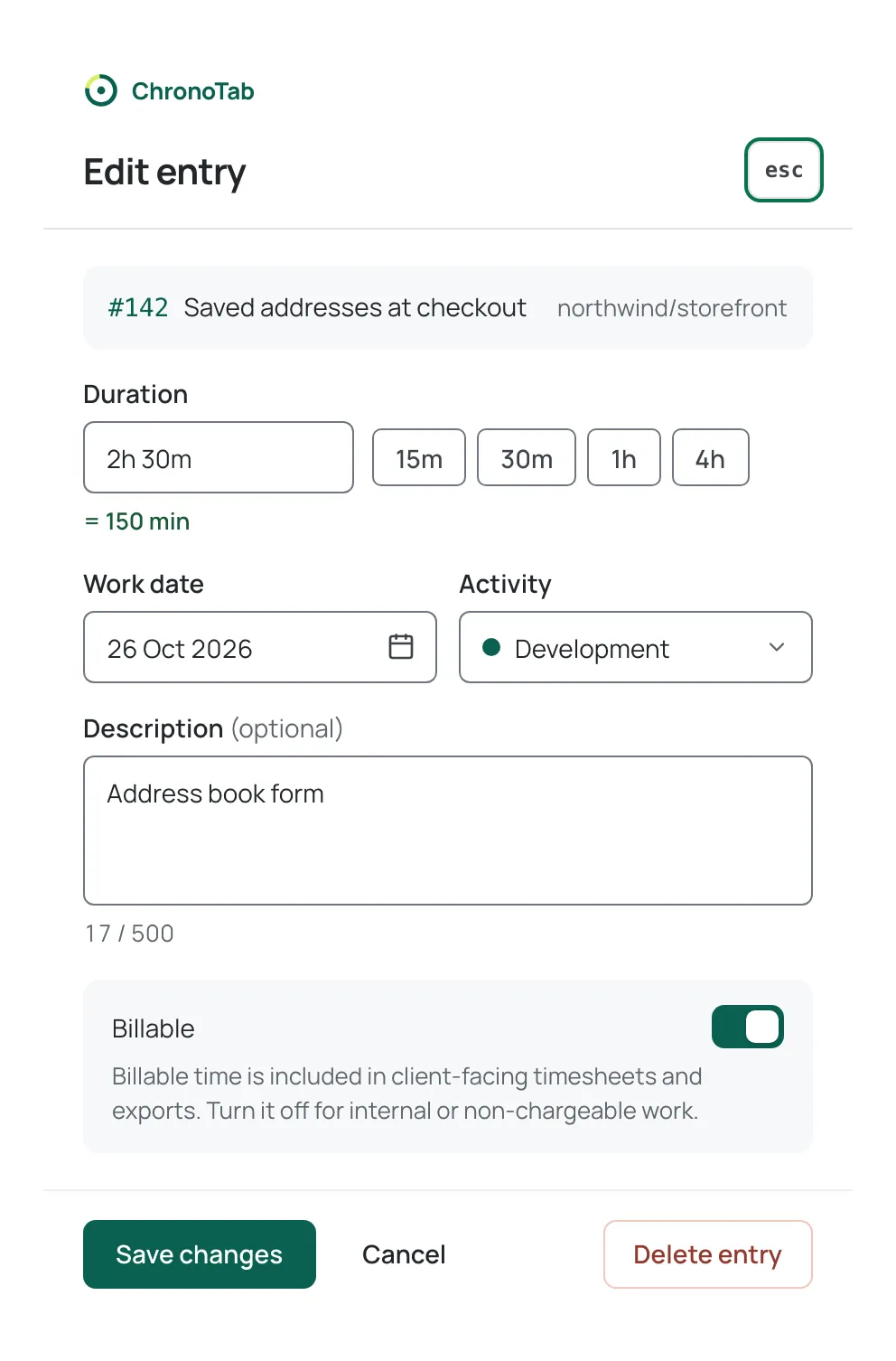
- Open its ··· actions menu (the Actions for entry # button on the row) and choose Edit. The Edit entry sheet opens.
- Change the Duration, Work date, Activity, Description or Billable as needed.
- Select Save changes, or Cancel to close the sheet without saving.
The repository and issue the entry belongs to are shown at the top of the sheet but cannot be changed — an entry always stays attached to the work it was logged against. The corrected values replace the old ones everywhere the entry appears, and the totals in My week update.
Delete an entry
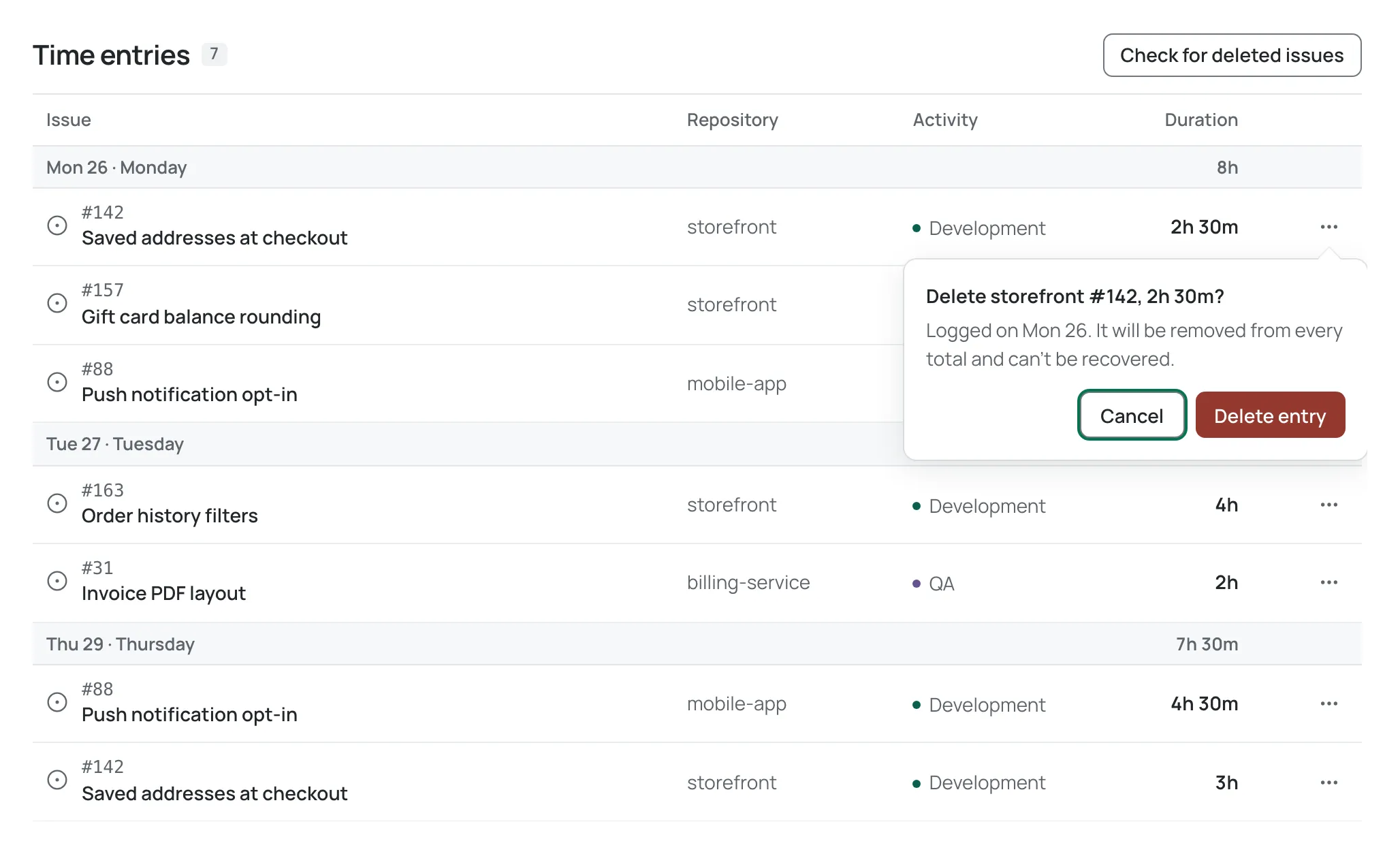
Section titled “Delete an entry”- On My week, open the entry’s ··· actions menu and choose Delete.
- A small confirmation opens next to the menu button. It names the entry, for example Delete web-app #142, 2h 30m?, says which day it was logged on, and warns that it will be removed from every total and can’t be recovered.
- Select Delete entry to confirm, or Cancel (or press Esc) to keep it.
You can also delete from inside the Edit entry sheet by selecting Delete entry at the bottom. The same kind of confirmation opens beside the button, for example Delete this 2h 30m entry?
A deleted entry is removed from every total it was part of, including the week’s summary totals and any report or timesheet built later.
What ChronoTab keeps
Section titled “What ChronoTab keeps”Edits do not overwrite history. When you change an entry, ChronoTab keeps the original and records your corrected version as the current one, so a change can be traced back. Deletes remove the entry from totals; the fact that it existed is kept in the record rather than erased.
Entries you cannot change
Section titled “Entries you cannot change”Some entries are read-only, and the sheet says why:
- An entry on a repository your team’s plan has paused cannot be changed or deleted until an admin resumes the repository. It shows a Paused tag.
- On the Free plan, an entry older than the last 60 days cannot be changed or deleted. It is kept, and you can edit it again on a paid plan.
- An entry on a submitted, approved or rejected timesheet is locked. It shows a lock icon on My week, its menu offers View instead of Edit and Delete, and it opens read-only with the reason and the timesheet that holds it. See What happens to entries after approval.
See Plan limits when you log time for the exact wording and who to ask.
If the underlying issue is gone
Section titled “If the underlying issue is gone”If an issue was deleted on GitHub, ChronoTab still shows the entry and tells you the issue no longer exists. This does not affect the entry: every field is still editable and saving works as usual.
Next steps
Section titled “Next steps”- What happens to entries after approval — why an entry can stop being editable.
- My week — check the totals after a change.
- Edit other members’ entries — for managers and admins.
Need help? Email support@chronotab.com.