

Members and roles
For admins
The Members page is where you add people to your organisation, give them a role and disable their access when someone leaves. It is for org admins.
Managers and members cannot see the Members page.
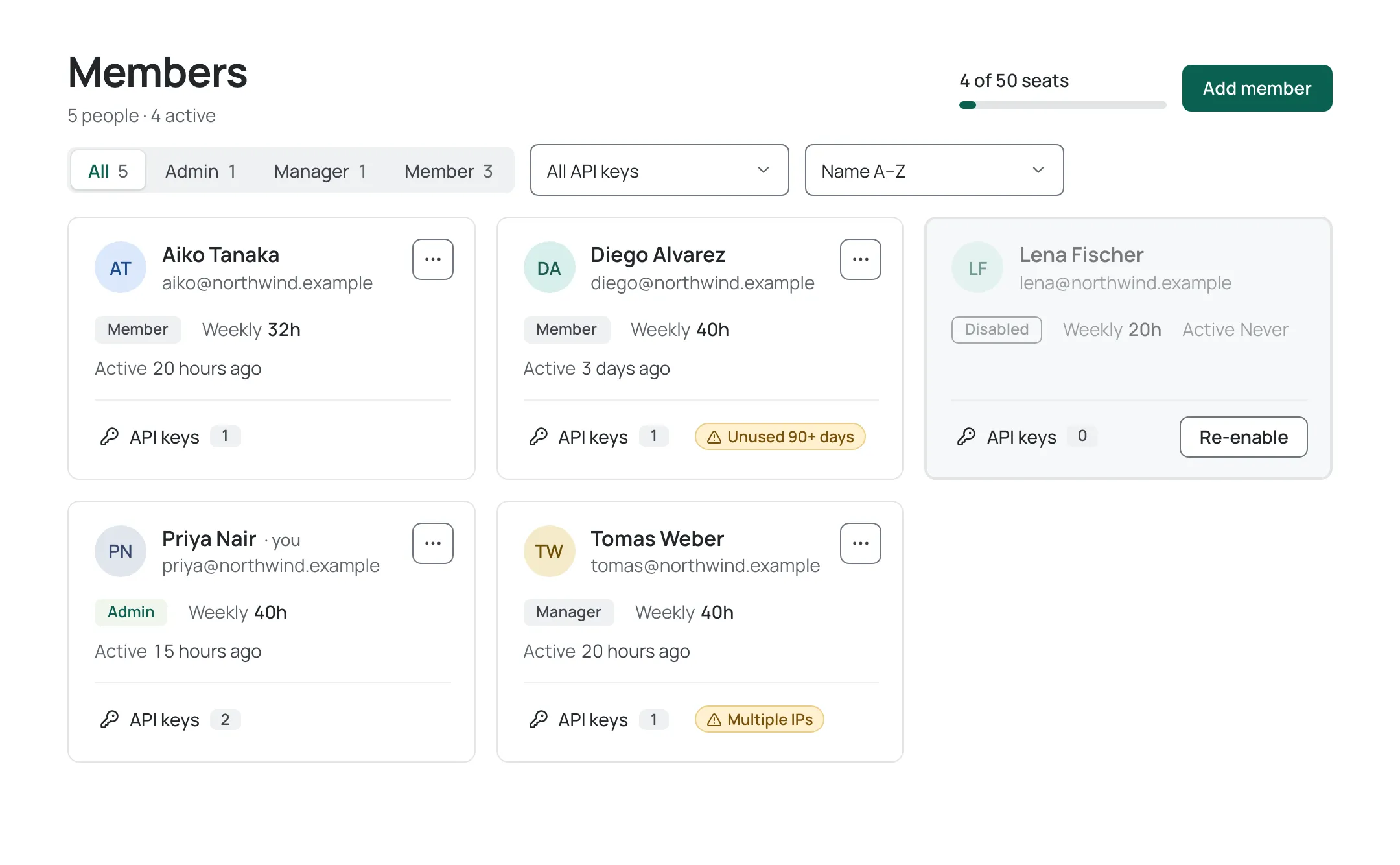
Each person is shown as a card with their name, email, role, weekly hours and when they were last active, and an API keys button. A line under the page title counts them, for example 5 people · 4 active. A meter beside Add member shows the seats in use, for example 4 of 50 seats.
Filter and sort the list
Section titled “Filter and sort the list”Above the cards, the role selector narrows the list to All, Admin, Manager or Member. Each option shows how many people have that role. The line under the page title still counts the whole organisation.
Beside it, the sort menu orders the cards by:
- Name A–Z (the default) or Name Z–A, ignoring capital letters.
- Role: admins first, then managers, then members.
- Status: active people before disabled ones.
- Last active: most recently active first, people who have never been active last.
Equal results are ordered by name. Your choices stay in the page address, so you can bookmark or share a filtered view. If you change someone’s role while a filter is on, their card leaves the list once it no longer matches.
Add a member
Section titled “Add a member”- Open Members in the Administer group of the sidebar.
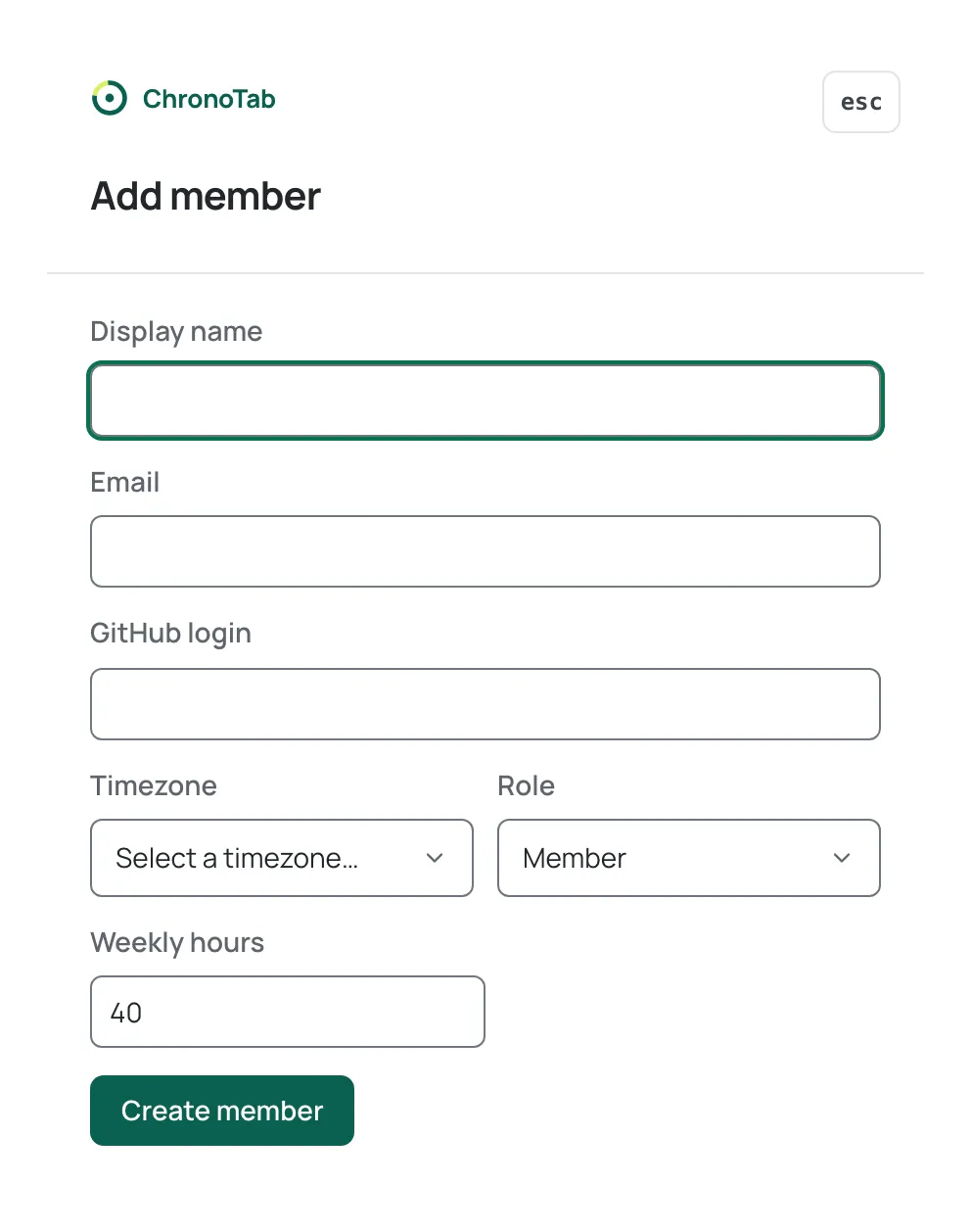
- Choose Add member. A panel opens at the side of the page.
- Fill in Display name, Email and GitHub login.
- Optionally choose a Timezone. If you leave it blank, the organisation’s default timezone applies, which you set on the Organisation settings page.
- Choose a Role: Member, Manager or Admin.
- Set Weekly hours. This is the person’s expected capacity and drives the Team page.
- Choose Create member.
When your organisation is connected to GitHub, ChronoTab checks the GitHub login against GitHub before adding the person: it must be a member of your GitHub organisation or a collaborator on a repository you track. If ChronoTab cannot confirm it, you will see “That person couldn’t be verified as a member of an enabled repo.” and the person is not added.
Adding a member also creates their first API key, which is shown once: copy it with Copy, then choose Done. See Organisation API keys for what to do with it.
Each person you add takes a seat. When your plan’s seats are all in use, Add member is unavailable and the page says why. See Seats over the limit.
The three roles
Section titled “The three roles”| Role | What it adds |
|---|---|
| Member | Logs their own time and sees only their own My week. |
| Manager | Everything a member can do, plus the org-wide Reports page, editing or deleting any member’s entries, and generating, submitting, approving, rejecting, voiding and sharing timesheets. |
| Admin | Everything, plus this Administer area: members, clients, repositories, organisation settings, organisation API keys, the Team page and the audit log. |
For the complete role-by-role matrix, see Roles and permissions. Do not rely on this summary alone.
Change someone’s role
Section titled “Change someone’s role”- On Members, find the person’s card.
- Open the ··· menu on the card (its name is Actions for followed by the person’s name).
- Choose Make admin, Make manager or Make member. The option matching the person’s current role is not shown.
A role change takes effect immediately.
Disable a member
Section titled “Disable a member”Disabling is how you remove someone’s access. ChronoTab does not delete people, because their history is part of your organisation’s records.
- Open the person’s ··· menu and choose Disable member.
- A confirmation opens beside the menu button, showing the person’s email and role. Check it names the right person, then choose Disable member.
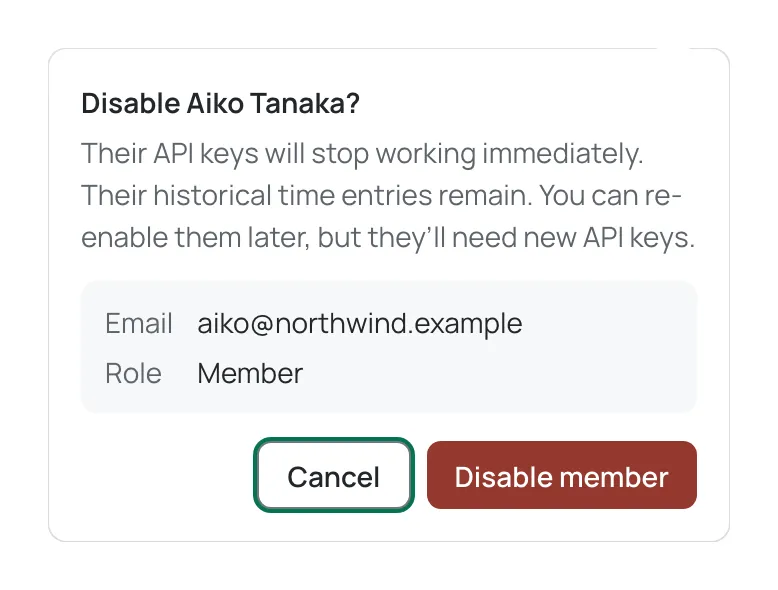
Disabling does three things straight away:
- It invalidates all of the person’s API keys, so any tool using them stops working.
- It signs the person out of ChronoTab.
- It marks their card Disabled.
A member can also be disabled by plan, when your team is over its seat limit. That is separate: ChronoTab does it, not an admin, the card says Disabled by plan, and the person’s keys are suspended rather than revoked. See Seats over the limit.
Disabling does not touch their time logs. Their existing entries are kept and still count in reports and timesheets. To give the person access again, choose Re-enable on their card — this is not destructive and needs no confirmation.
Guards that protect the organisation
Section titled “Guards that protect the organisation”ChronoTab will not let an organisation lock itself out:
- You cannot disable your own account. Your card is marked · you and its menu does not offer Disable member.
- The last active admin cannot be disabled, so there is always at least one admin who can restore access.
- The last active admin cannot be demoted either. To step down, promote someone else to Admin first; ChronoTab refuses the change with “This is the only admin, so their role can’t be changed. Make someone else an admin first.”
Next steps
Section titled “Next steps”- Read Roles and permissions for the full matrix.
- Review, reissue or revoke a member’s keys, and see their recent activity, from the API keys button on their card — see Organisation API keys. A warning badge on a card flags a key used from more than one IP address, or one unused for more than 90 days.
- Review member changes in the Audit log.
Need help? Email support@chronotab.com.