

Plans and billing
For admins
ChronoTab has a Free plan and three paid plans, Starter, Growth and Scale. A plan sets how many repositories and seats your organisation can use, and how much history you can see. Only org admins can change the plan.
Paid plans apply from a date we will announce at least 30 days in advance. Until then every organisation is on Free and no limits are applied, so nothing changes for you. The prices are on the pricing page.
Where to find it
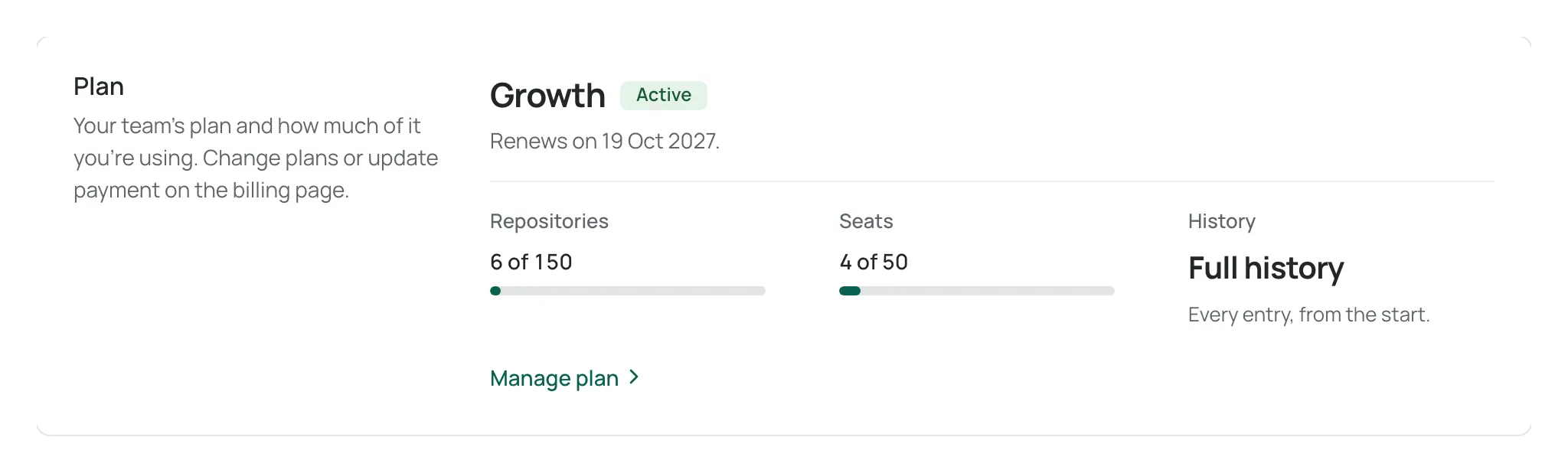
Section titled “Where to find it”Open Settings. The first section, Plan, shows your team’s plan, with its repositories, seats and history against the plan’s limits. Choose Manage plan to open the Billing page, where you can upgrade, switch, cancel and see what each plan includes.
The pages below cover each part of billing. Start with the one that matches your question.
| If you want to… | Read |
|---|---|
| Upgrade, switch to a lower plan, move to Free or cancel | Upgrade, switch or cancel your plan |
| Update your card, find invoices, or understand a failed payment or a refund | Payments, invoices and refunds |
| Understand what happens when repositories are over the limit | When a repository is paused |
| Understand what happens when there are more people than seats | Seats over the limit |
| Know what Free timesheets look like, and why branding is locked | Branding on the Free plan |
| Choose a plan when you set up your organisation | Choose a plan at sign-up |
What each plan includes
Section titled “What each plan includes”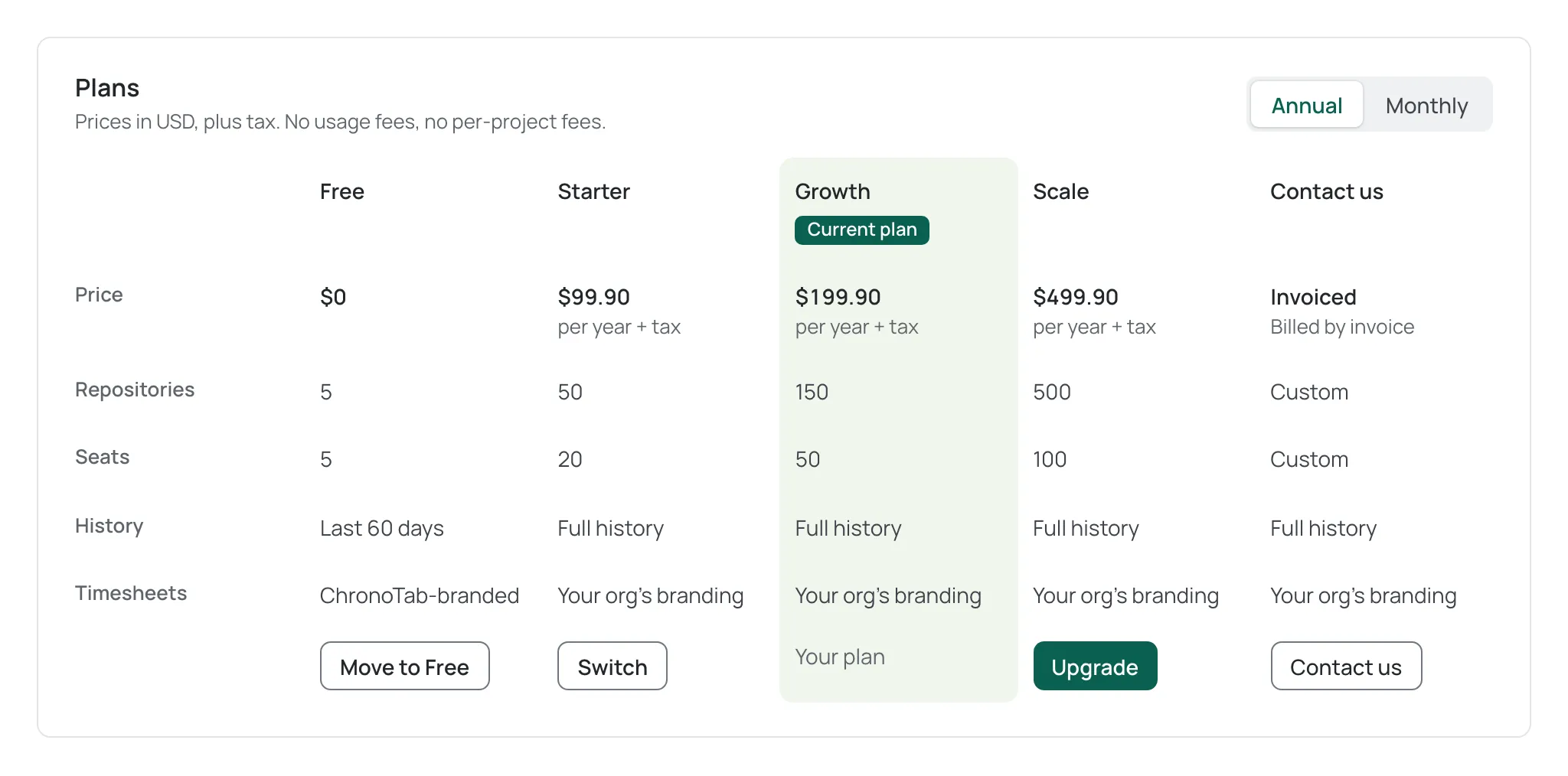
| Plan | Repositories | Seats | History | Timesheets |
|---|---|---|---|---|
| Free | 5 | 5 | The last 60 days | ChronoTab-branded |
| Starter | 50 | 20 | Full | Your organisation’s branding |
| Growth | 150 | 50 | Full | Your organisation’s branding |
| Scale | 500 | 100 | Full | Your organisation’s branding |
| Contact us | Agreed with you | Agreed with you | Full | Your organisation’s branding |
Contact us is for organisations that need more than Scale, or an invoice instead of card payment. Write to support@chronotab.com.
What counts towards a limit
Section titled “What counts towards a limit”- Repositories. A repository counts while it is tracked and not archived. Deactivated, archived and paused repositories do not count.
- Seats. A seat is an active member of your organisation, in any role. A person who has been invited but has not joined yet does not count. Owners always take a seat.
Entries stay on your records whatever the plan. The limits only decide what you can add, what you can see and how many people or repositories you use.
What happens over a limit
Section titled “What happens over a limit”Going over a limit never deletes anything. Either way you get 14 days to choose first.
- Too many repositories. Your team has 14 days to choose which repositories stay active. The rest are paused: their history, reports and timesheets stay, but no new time can be logged on them. See When a repository is paused.
- Too many seats. Your team has 14 days to choose which members keep a seat. After that, the members beyond the limit are disabled by plan: admins are kept first, then members you pinned with Keep, then the people active most recently. Their entries, reports and timesheets stay, and they return automatically when there is room again. New people cannot be added until a seat is free. See Seats over the limit.
What the Free plan shows
Section titled “What the Free plan shows”The Free plan shows the last 60 days of entries. Older entries are hidden, never deleted, and come back on any paid plan. On Free you cannot add, edit or delete an entry older than the 60 days, and you cannot generate a timesheet whose period starts before them. Reports show a notice when they are cut to the window.
Submitted timesheets and their share links are documents, so they stay readable whatever their age. For what members see, see Plan limits when you log time.
Changing, paying and cancelling
Section titled “Changing, paying and cancelling”- Upgrading takes effect straight away, and the new limits apply to everyone in the organisation at once. An upgrade shows what your card will be charged now before you confirm.
- Moving to a lower plan takes effect at the end of your billing period, within about two hours of it. Until then your current plan continues, and you can undo the change.
- Moving to Free or cancelling takes effect at the end of your billing period. Until then your current plan continues, and you can undo the change.
- Cancelling never deletes anything. After the period ends, the organisation moves to Free.
The full steps are on Upgrade, switch or cancel your plan.
Paid by Paddle
Section titled “Paid by Paddle”Paid plans are sold by Paddle.com, our reseller and merchant of record. Paddle takes the payment, works out and collects any tax, issues the invoice or receipt, and handles changes to the payment method. ChronoTab never receives or stores card or bank details. Invoices, card updates and failed payments are covered on Payments, invoices and refunds.
For a refund, see the refund policy. ChronoTab does not offer refunds or credit on paid plans, so a change that would leave you unused paid time (such as annual to monthly) is not made part-way through a period. Switching monthly to annual takes effect now with the unused part of the month deducted; the other switches are in Upgrade, switch or cancel your plan.
Who can see billing
Section titled “Who can see billing”Only org admins can open the Billing page or change the plan. Managers and members do not see billing details. A member who visits the Billing address is sent to My week.
Need help? Email support@chronotab.com.